Nubocoder Agency Manager
The Hub for agencies that work on many WordPress sites: keep your team's access to every client site in one place, give it in minutes, and remove it everywhere the day someone leaves. Works together with the companion Nubocoder Agency Manager Client plugin, installed on each client site.
On this page
- Overview: how it works
- Installation & first setup
- Dashboard
- Sites
- Team: teams & members
- Giving access
- Managing & removing access
- Access overview
- Jobs & retries
- Activity log
- Settings
- Emails
- Who can use the Hub
- Operations
- Security
- Notes & limitations
- Troubleshooting & FAQ
- Glossary
- Developer reference
- Support
Overview: how it works
An agency usually works on many client WordPress sites. Every developer, editor or marketer who joins needs an account on the sites they work on; creating those one at a time is slow and roles end up inconsistent. When someone leaves, every one of their accounts must be removed, and a single forgotten administrator account left behind is a real security risk for the client.
Agency Manager is a pair of plugins that solves this. It keeps the list of your team in one place, the Hub, and applies it to the client sites for you:
- The Hub (this plugin) is installed on one WordPress site of the agency. It holds the team, the list of client sites, the history of every change and the security keys. The agency works only here.
- The Client is installed on each client site. It receives the Hub's requests, checks they really come from that Hub, checks the site owner allows them, and then creates or changes accounts with the normal WordPress functions.
The Hub never logs in to client sites and never knows any password. Each request is signed with a key that belongs to that one site, so a key stolen from one site is useless on any other. See Security for the full design.
| In the Hub (agency) | In the Client (site owner) |
|---|---|
| Add client sites and connect them with a one-time key | Connect the site to the agency after checking who the agency is |
| Organise the team into teams, each with a role on client sites | Choose what the agency is allowed to do through the plugin |
| Give access to people on sites, after reviewing every change | See every change the agency made through the plugin |
| Change roles, suspend, restore or remove accounts, one site or many | Disconnect the agency at any moment |
| Retire someone who leaves: every account is removed everywhere | Turn the connection off from wp-config.php in an emergency |
| Follow every change, retry failures, read a tamper-evident log | Receive an email when the site is connected or disconnected |
This plugin can create administrator accounts on every connected client site, so treat it like a master key, not a convenience tool. Before rolling it out across your agency:
- Install the Hub on a dedicated site, never your agency's main website. See Installation.
- Set
NBAM_ENCRYPTION_KEYand never lose or change it afterward; doing so locks every connected site out until each one is reconnected by hand. - Require two-factor authentication for every Hub user, and keep the small circle of people who can administer the Hub (
nbam_admin) to three or fewer. - Administrators are administrators. If one of your team gets the Administrator role on a client site, that person can do anything any administrator can. This plugin controls what the Hub does remotely, not what a signed-in administrator does once they're in.
- Back up the Hub database regularly, to storage the Hub itself cannot modify: it's the single source of truth for every client's access.
The full threat model, what the plugin protects against, and what it explicitly cannot protect against are in Security. Read it before connecting your first client site.
1.1 Main ideas
- Team member. A person of the agency, stored in the Hub with name, email and username. Members are not WordPress users of the Hub; they are the people who get accounts on client sites.
- Team. A group of members sharing the same role on client sites, for example Developers → Administrator or Content → Editor. Each member belongs to one team at most.
- Managed account. An account on a client site the agency created, or an existing account the owner allowed the agency to take over. Only managed accounts can be changed by the agency.
- Job. Every change on client sites runs in the background as a job, one line per site and member. Leave the page while it runs; follow progress and retry what failed.
- Service account. When the agency removes an account that wrote posts or pages, the content is not deleted: it goes to an agency service account on that site, created automatically with the lowest role (Subscriber).
- Retire. When someone leaves the agency, you retire them in the Hub. Every account they have on every site is removed (or suspended), with sites that don't answer retried for about six days.
1.2 A typical first day
- Install the Hub on a dedicated WordPress site and follow first setup.
- For each client site, add it in the Hub and get a connection key (Sites).
- The site owner installs the Client, pastes the key, checks the agency details, chooses permissions on the same screen and connects. The Hub checks the site by itself 30 seconds later.
- Create your teams and members (Team).
- Give access: choose people and sites, review the plan and apply it (Giving access).
- New team members receive the standard WordPress email to set their password on each site.
Every screenshot on this page comes from a local test setup, not a live installation. The test agency is Bluepeak Agency Hub and the client sites are Harbor Coffee and Greenfield Dental. The screenshots follow one story in order, so the data changes along the way: for example Emma Foster, a Writers team member, has accounts early on and is retired later.
Installation & first setup
2.1 Before you start
| Requirement | Value |
|---|---|
| WordPress | 6.9 or later |
| PHP | 8.1 or later, with the sodium extension (included in PHP by default) |
| HTTPS | Required on a live site. Client sites refuse to connect to a Hub without HTTPS. |
| Where to install | A dedicated WordPress site of the agency, for example hub.youragency.com |
The Hub can create administrator accounts on all your client sites. Do not install it on the agency's public website, on a site with many plugins, or on a site where visitors can register. Keep it small: WordPress, the Hub, a two-factor authentication plugin, an SMTP plugin if your host needs one, a role editor if you want to share the Hub with non-administrators, and little else.
If you restrict access to /wp-admin of the Hub site by IP address, leave these open or connections and background jobs stop working: /wp-json/nubocoder-agency-manager/v1/pair, /wp-json/nubocoder-agency-manager/v1/disconnect and /wp-cron.php. Also let the Hub server's own IP reach /wp-admin/admin-ajax.php, which it calls to start background jobs.
2.2 Minimum to go live
Required: a separate WordPress install on its own HTTPS address, the Hub plugin with NBAM_ENCRYPTION_KEY in wp-config.php, two-factor authentication required for every Hub user, and a notification address someone actually reads.
Strongly recommended: DISALLOW_FILE_EDIT, a server cron job with DISABLE_WP_CRON, few plugins and few administrators. Optional: restricting /wp-admin by IP address.
"Please create a new WordPress site at hub.youragency.com with a free SSL certificate. Then add these lines to its wp-config.php, above 'That's all, stop editing!' (I will send you the first value separately): define( 'NBAM_ENCRYPTION_KEY', '<value>' );, define( 'DISALLOW_FILE_EDIT', true );, define( 'DISABLE_WP_CRON', true );. Add a server cron job that calls https://hub.youragency.com/wp-cron.php every 5 minutes."
2.3 Step 1: install and activate
- In the WordPress admin of the agency site, go to Plugins → Add Plugin.
- Search for Nubocoder Agency Manager, click Install Now, then Activate.
- A new Agency Manager menu appears at the bottom of the admin menu.
On activation the plugin creates its own database tables, gives the four Agency Manager capabilities to the Administrator role (see Who can use the Hub), and schedules two background tasks: a daily account check of every connected site and the weekly report.
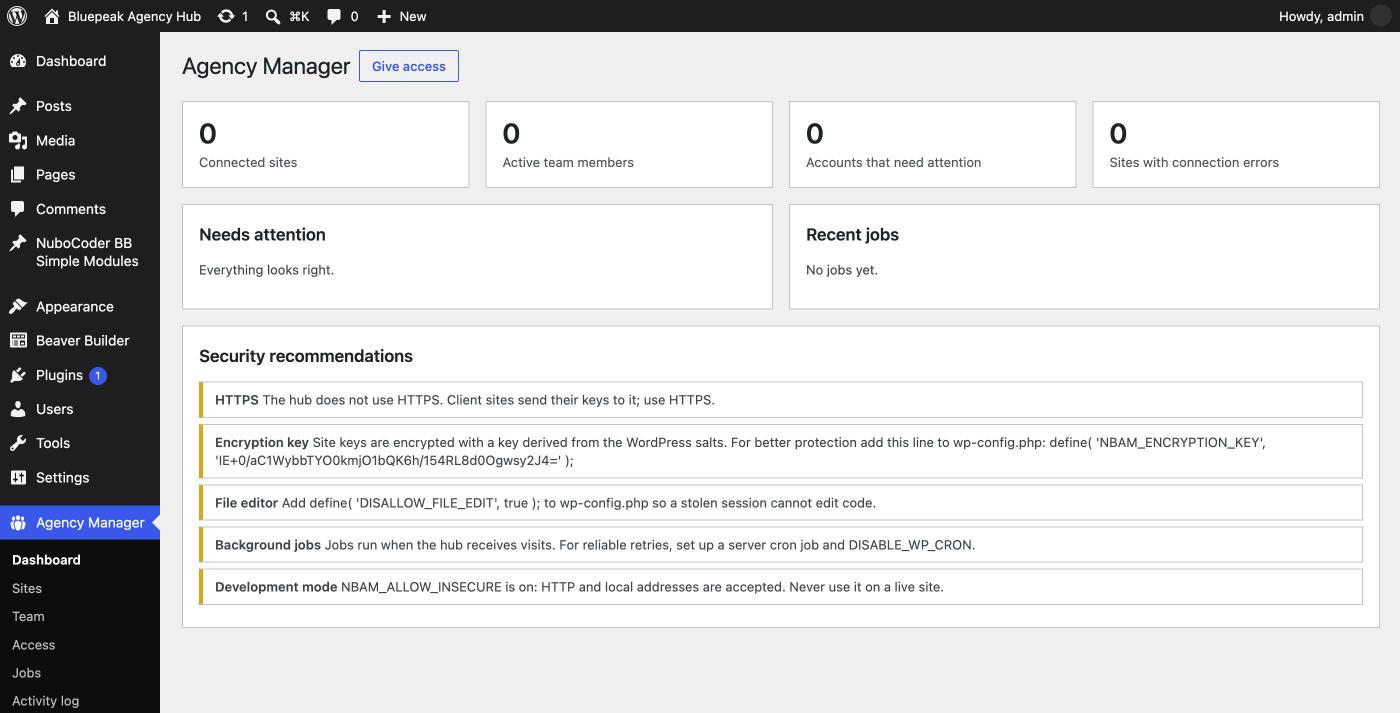
2.4 Step 2: add an encryption key to wp-config.php
The Hub stores one secret key per client site, encrypted in the database. By default the encryption key is derived from the WordPress security keys (salts) of the site. A dedicated key is better: someone who gets a copy of the database still cannot read the site keys.
- Go to Agency Manager → Settings. Under Security check, the Encryption key line shows a ready-to-copy line with a random value, regenerated each time the page loads.
- Paste that line into
wp-config.php, above/* That's all, stop editing!near the end of the file. - Reload Settings. The Encryption key line turns green.
The Hub re-encrypts the keys it already has the first time it sees the new constant, so you can add it after sites are connected.
If it changes, the Hub cannot read the site keys anymore and every connected site shows "The key of this site cannot be decrypted." The Hub cannot even tell the sites to disconnect, so each owner must disconnect on their side and connect again with a new key. Keep a copy of the value in your password manager; the same applies to the WordPress salts if you don't set the constant. The only safe moment to change it is right after using Revoke every site key (see Security).
Keep the key out of database backups. The key protects the site keys if someone gets a copy of the database; that protection is lost if the same backup also contains wp-config.php. A developer can load the value from an environment variable instead, for example define( 'NBAM_ENCRYPTION_KEY', getenv( 'NBAM_ENCRYPTION_KEY' ) );. But make sure the variable is always set, including for cron and command-line runs, or those processes fail with "The key of this site cannot be decrypted" rather than silently falling back to a weaker key.
2.5 Step 3: turn off the file editor
Add define( 'DISALLOW_FILE_EDIT', true ); to wp-config.php. It removes the theme and plugin editor from the admin, so a stolen session cannot be used to edit PHP code on the Hub.
2.6 Step 4: set up two-factor authentication
The Hub works with the free Two Factor plugin from WordPress.org.
- Install and activate Two Factor.
- Go to Users → Profile and turn on at least one method, for every person who uses the Hub.
- In Settings, turn on Block the Agency Manager for users without two-factor authentication, so nobody can use the Hub without it.
2.7 Step 5: run background jobs from a real cron job
All changes on client sites run in the background. By default WordPress runs background work only when somebody visits the site, so on a quiet Hub a change, a retry or the daily check can be delayed.
- Add
define( 'DISABLE_WP_CRON', true );towp-config.php. - Ask your host to call
https://hub.youragency.com/wp-cron.phpevery 5 minutes (every minute is even better, if allowed) from a server cron job.
While you have a Hub screen open, the Hub also starts pending work itself, so jobs you start from a screen usually finish within seconds even without a cron job.
2.8 Step 6: set the service account and notifications
Go to Settings and check the service account (username, email and display name for the account that receives content from removed team accounts; use an address on a domain the agency controls, not used by any account on client sites) and Notifications → Send to (the address that receives critical-action emails and the weekly report). Details in Settings.
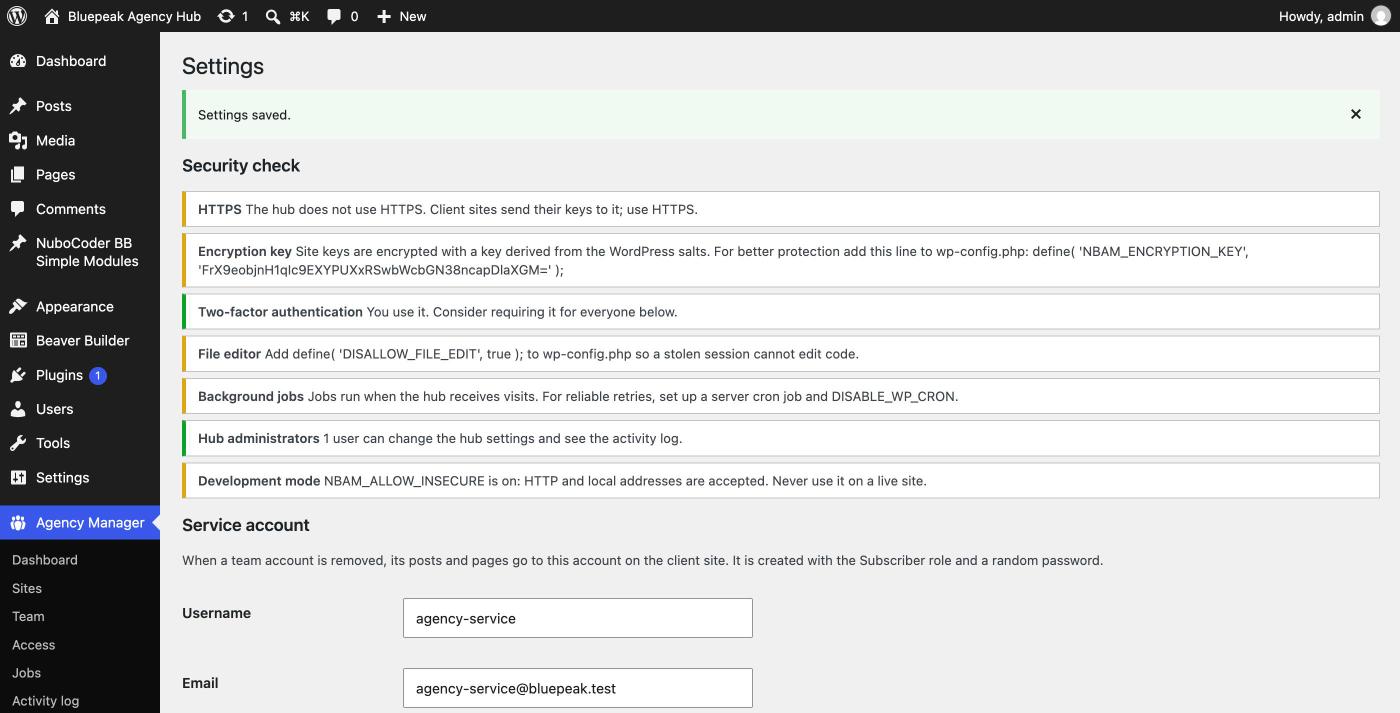
2.9 Checklist
- Hub installed on a dedicated site with HTTPS
NBAM_ENCRYPTION_KEYinwp-config.php, and a copy stored safelyDISALLOW_FILE_EDITinwp-config.php- Two Factor plugin active, and two-factor authentication on for every Hub user
- Real cron job and
DISABLE_WP_CRON - Service account email and notification email set
- Only a few people have the Administrator role on the Hub site
Dashboard
The dashboard is the first screen of the Hub. It tells you at a glance whether something needs your attention.
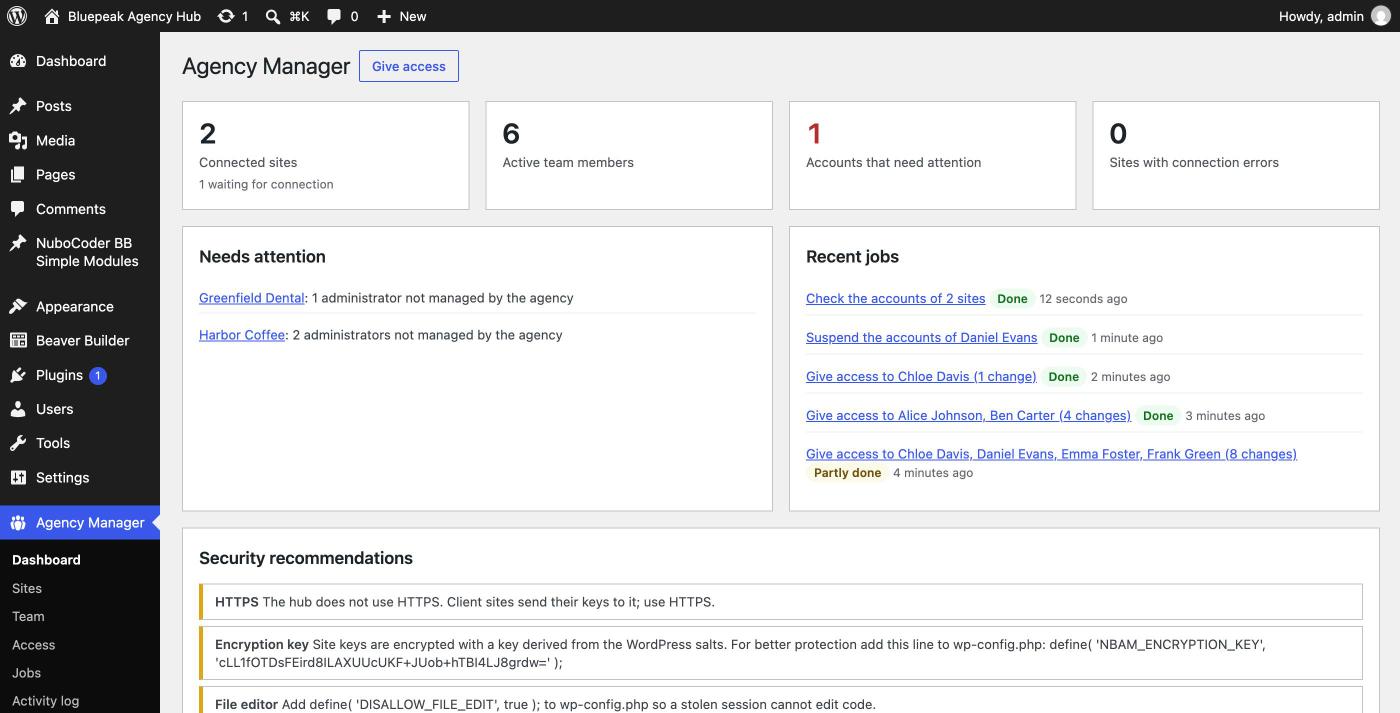
3.1 The four numbers
| Number | What it counts |
|---|---|
| Connected sites | Client sites the Hub can manage (connected, or connected with a temporary error), plus how many are waiting for connection. |
| Active team members | Members who are not retired. |
| Accounts that need attention | Team accounts that failed, are missing, or whose role differs from what the Hub expects. Shown in red when not zero. |
| Sites with connection errors | Sites that didn't answer correctly at the last contact. |
3.2 Needs attention
- Retired members who still have access somewhere, usually because a site didn't answer yet.
- Jobs with changes that could not be completed in the last 14 days. Open the job, fix the cause, use Retry failed.
- Sites whose daily check keeps failing, 3 or 14 times in a row.
- Sites with connection errors, with the last error message.
- Administrators not managed by the agency: information, not an error, but worth reviewing with the client periodically.
When there is nothing to show, the panel says "Everything looks right."
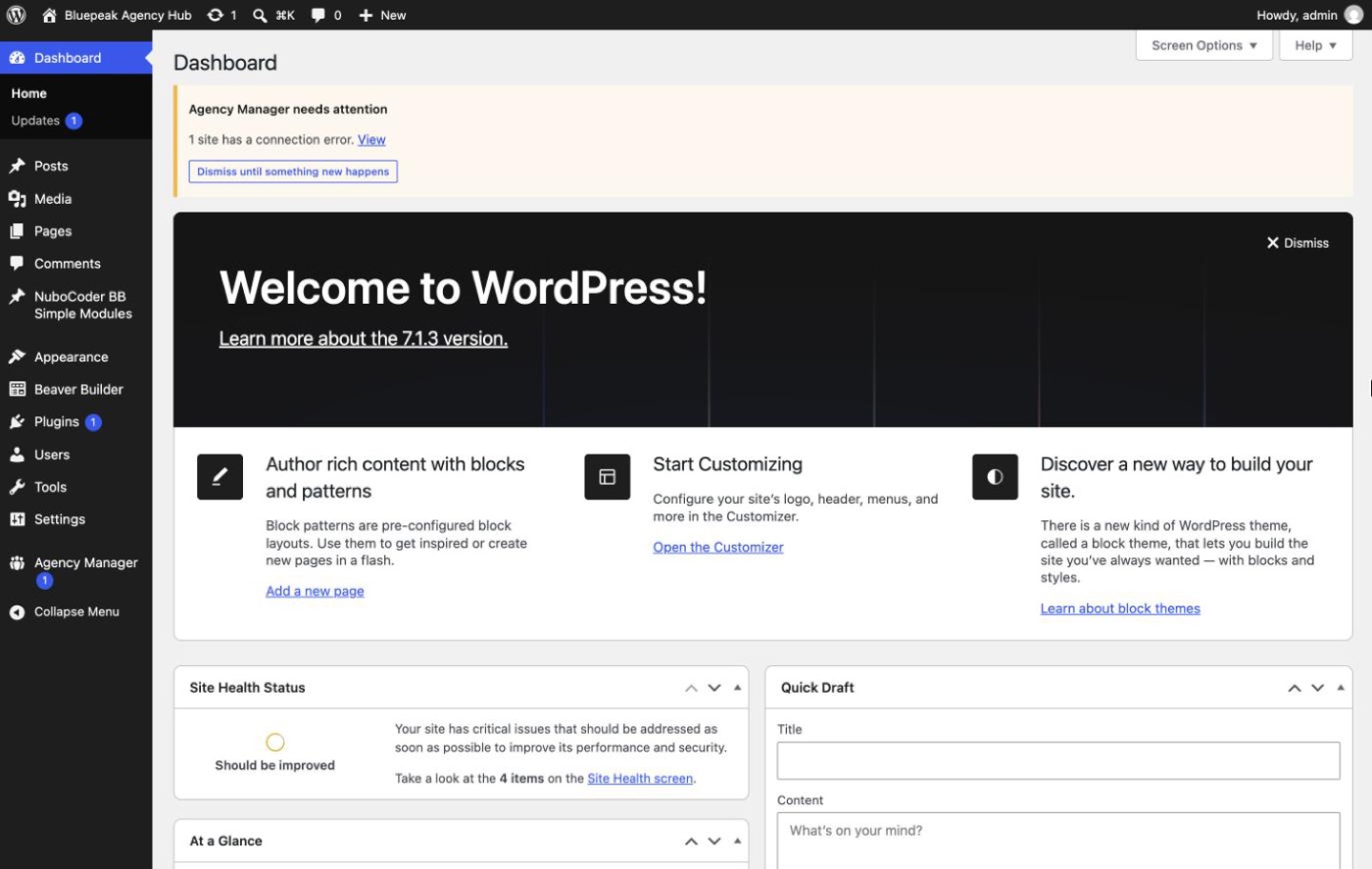
3.3 Notice and counter across the WordPress admin
The same problems also show as a counter next to Agency Manager in the admin menu and a yellow notice at the top of other admin screens, "Agency Manager needs attention," with a View link per line.
Sites
A site is a client WordPress site the Hub manages. Each site must be added in the Hub and then connected from the site itself, by its owner or by someone with administrator access to it.
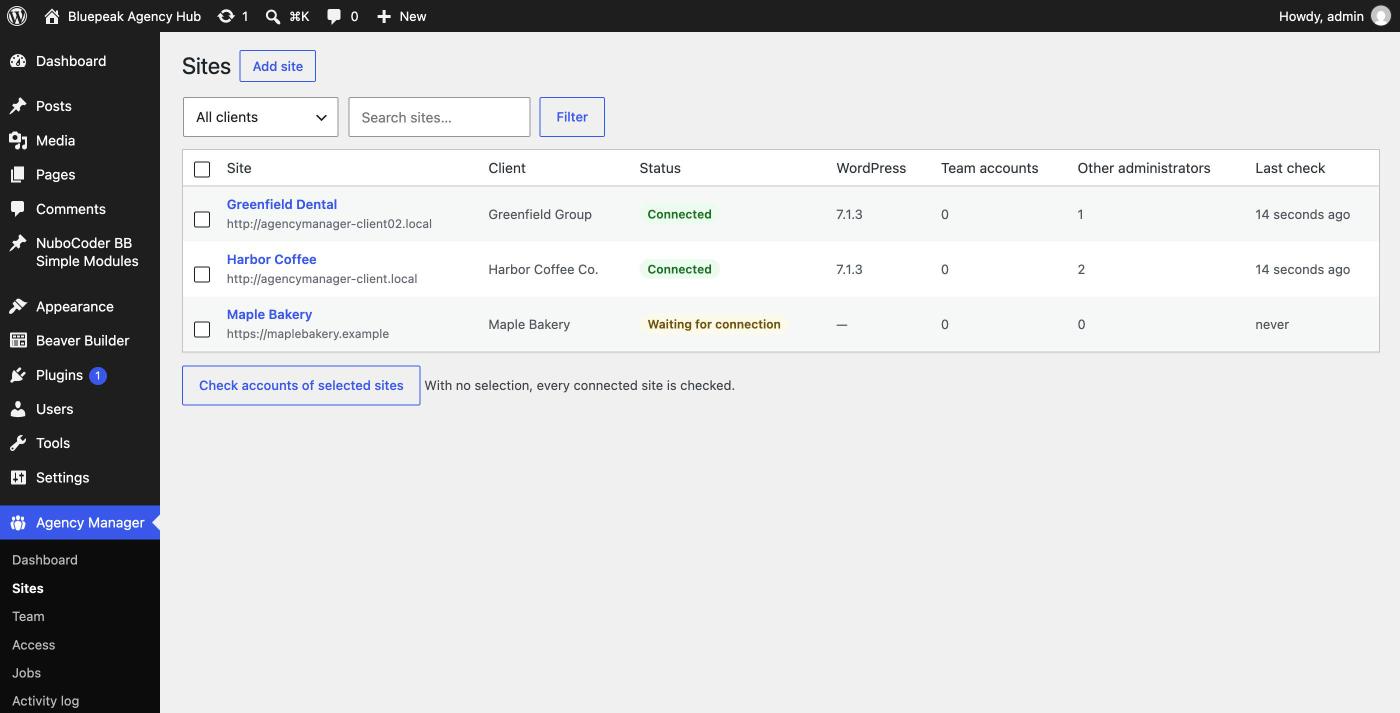
4.1 Site statuses
| Status | Meaning |
|---|---|
| Waiting for connection | Added in the Hub, but the owner hasn't pasted the key yet. |
| Connected | The Hub and site trust each other's keys. Everything works. |
| Connection error | The last request failed (site down, plugin off, keys no longer valid…). The connection itself still exists. |
| Disconnected | The agency or the owner ended the connection. The keys are deleted. |
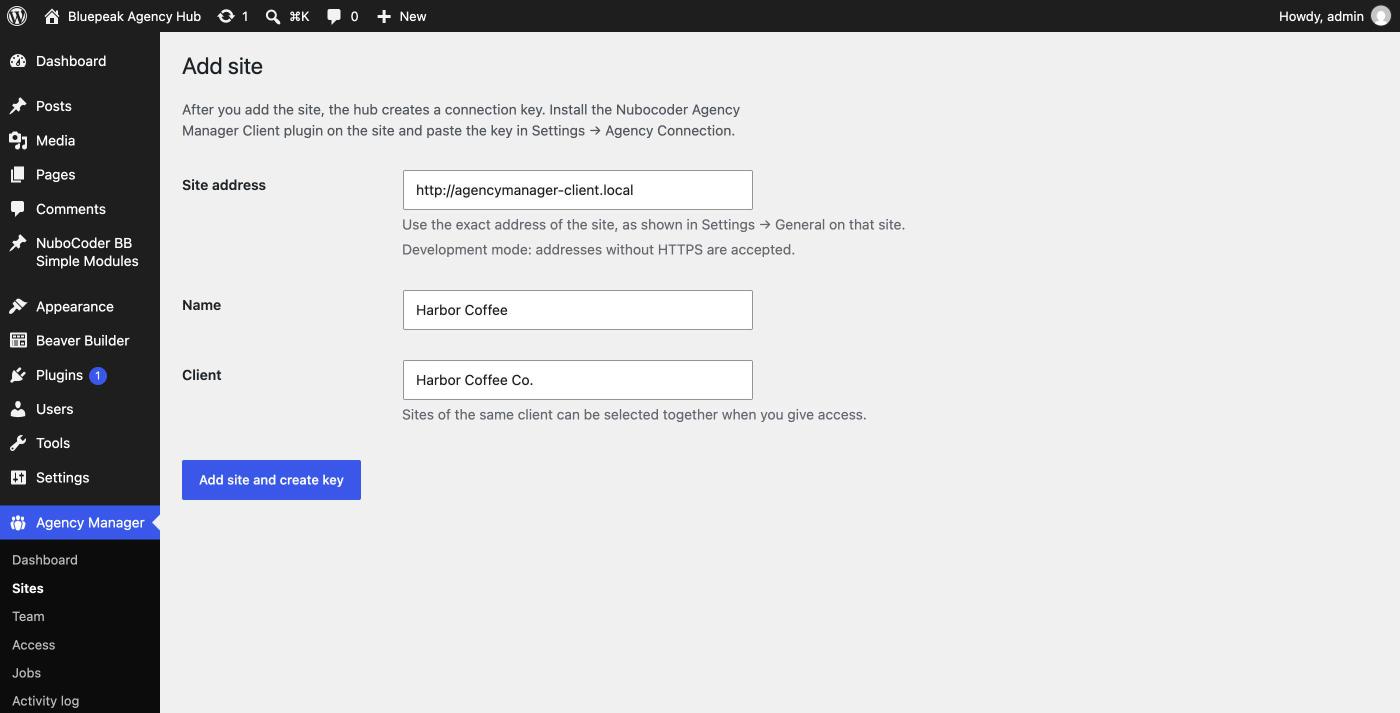
4.2 Add a site
There's a limit of 20 connection attempts every 10 minutes per client server. See Operations for a batching plan.
- Click Add site and fill in the exact site address (must start with
https://, as shown in that site's own Settings → General → Site Address), a display name, and the client name. - Click Add site and create key. The Hub creates a dedicated key pair for this site and shows the connection key.
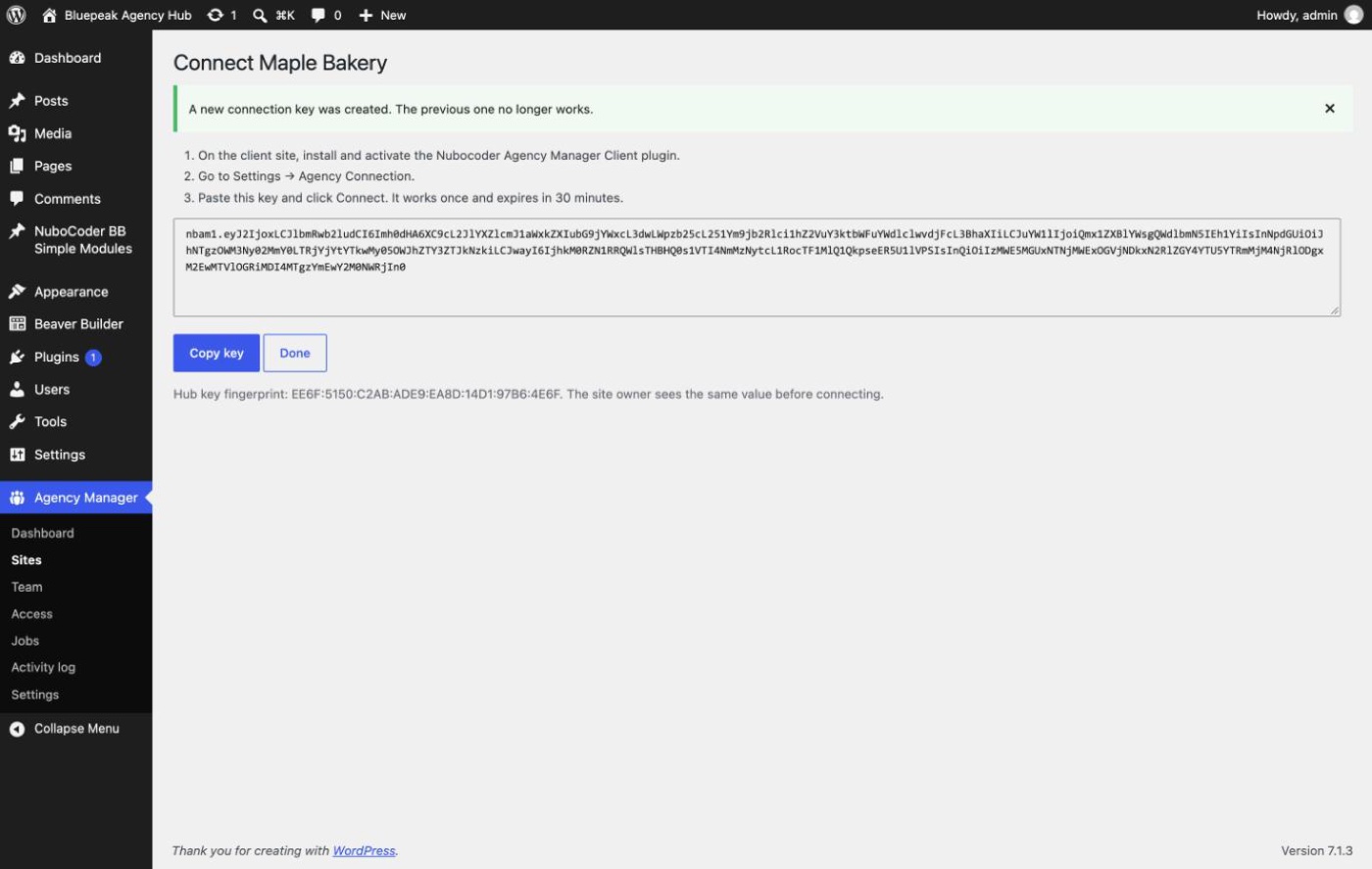
The key starts with nbam1., can be used once, expires 30 minutes after creation, and is shown only once. Send it to the site owner through a private channel. Below it, read the Hub key fingerprint to them on the phone (for example 21A9:82DA:723C:4221:5E07:9B1C:0D44:A3F2) so they can confirm it really comes from you, before they click Connect.
The owner installs the Client plugin (available on WordPress.org), pastes the key and confirms. About 30 seconds after it connects, the Hub checks the site by itself to learn its WordPress version, roles, permissions and administrators.
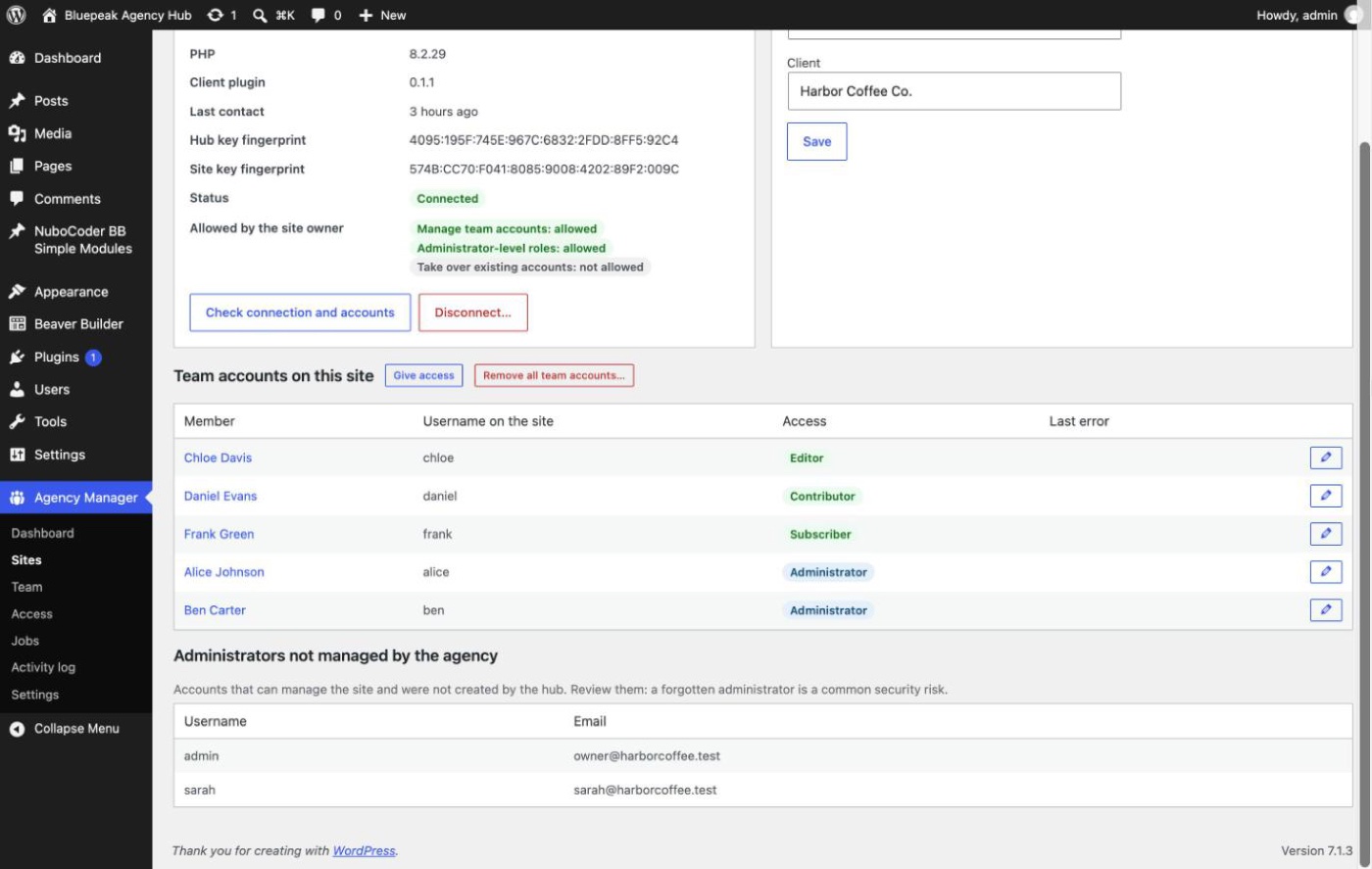
4.3 Site details
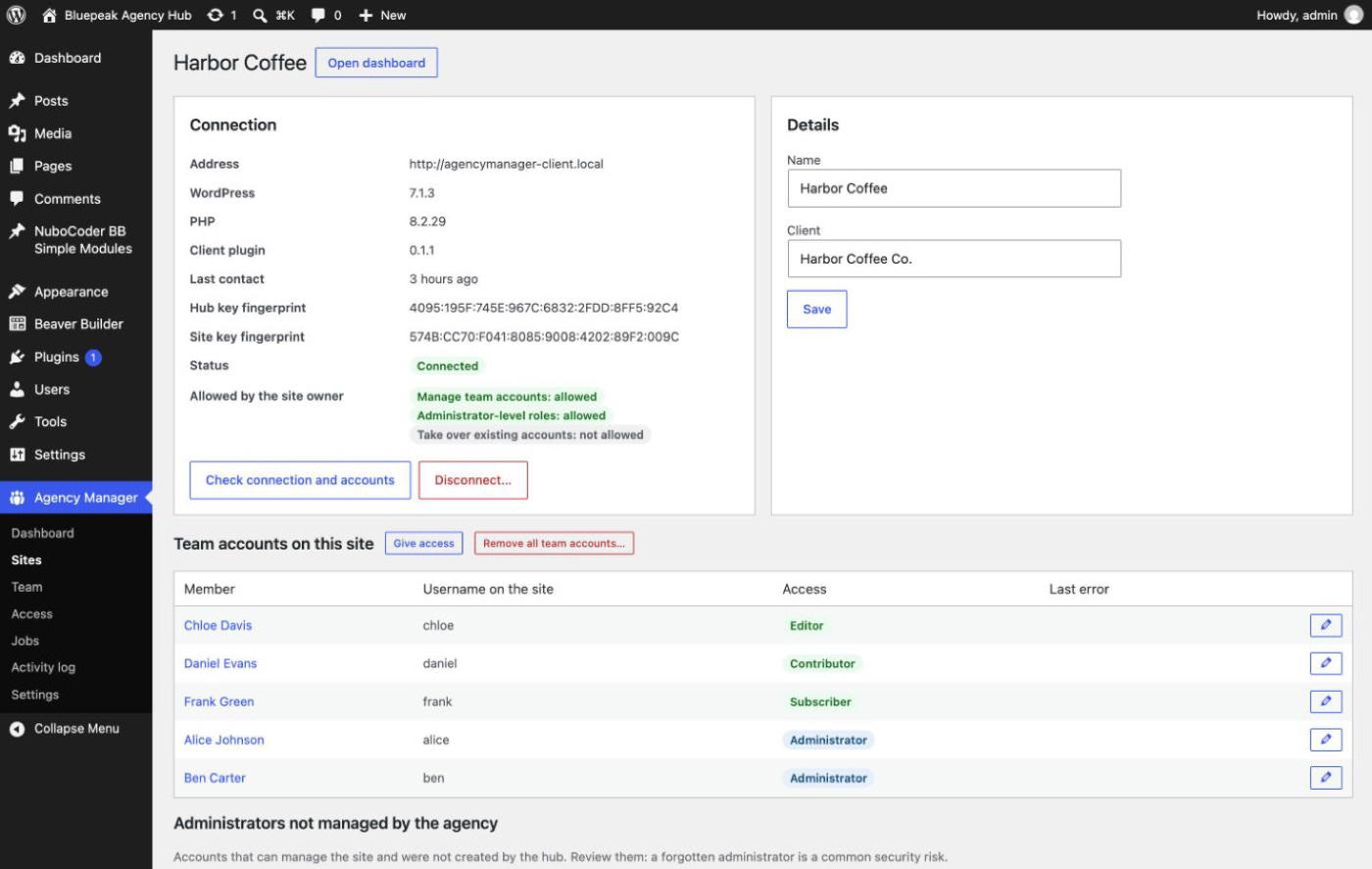
Allowed by the site owner shows the permissions the owner has set (see the Client's permissions) from the last check. Give access uses these: lines the owner doesn't allow are marked Cannot be changed.
4.4 Disconnect a site
Disconnecting does not remove your team's accounts from the site. After disconnecting, the Hub cannot reach the site anymore to remove them later. Click Remove all team accounts… on the site page first (Remove, not Suspend), wait until the job is Done, then disconnect.
- Open the site and click Disconnect….
- Type
DISCONNECTand your password, then click Disconnect site.
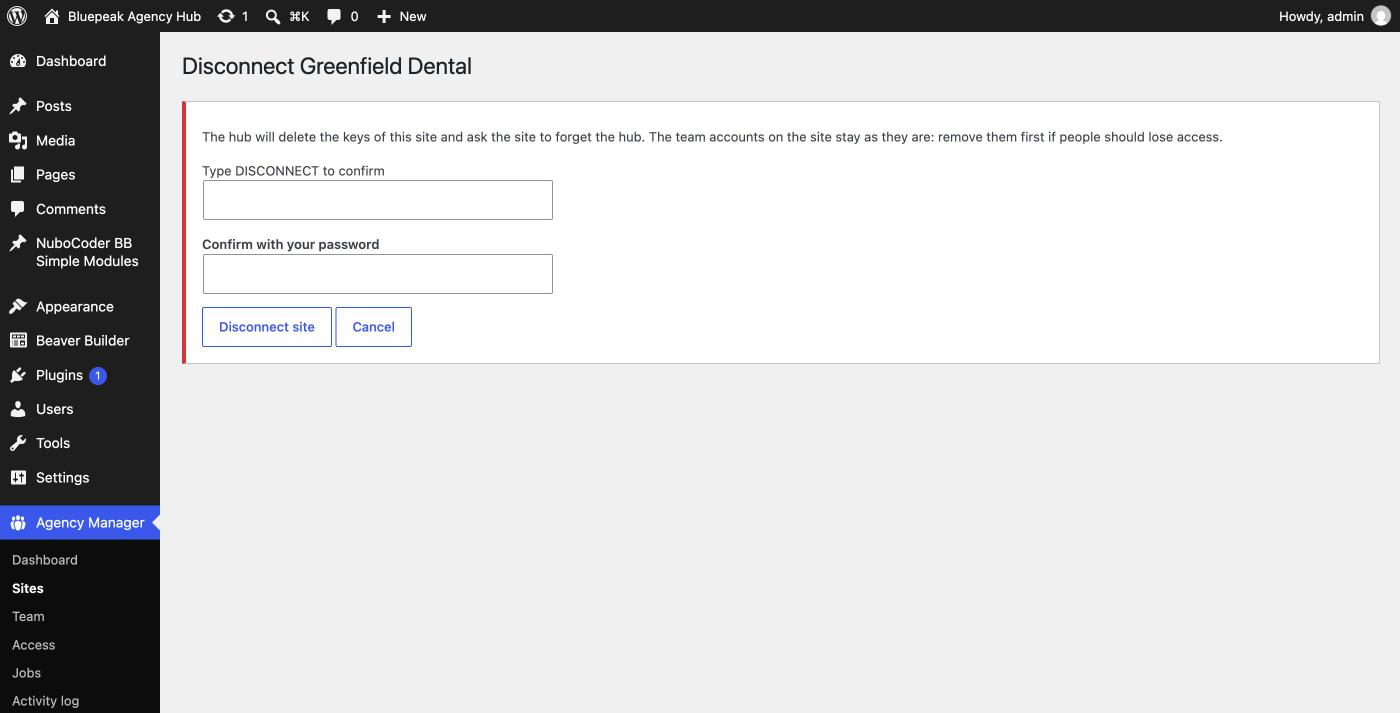
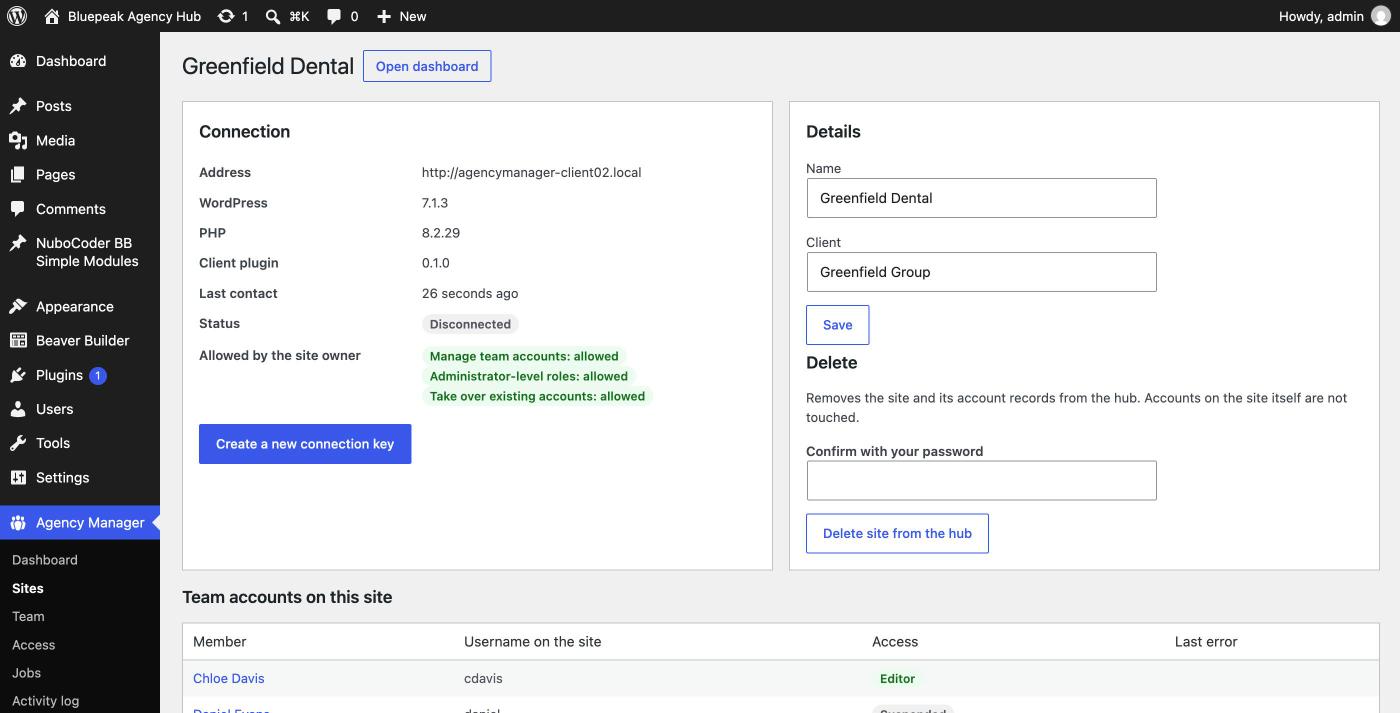
The notification address receives "A site was disconnected"; the owner receives "Your site was disconnected from the agency." A disconnected site keeps its record and team-account history: click Create a new connection key to reconnect it later.
4.5 Rules and limits
- The address must use HTTPS; plain HTTP is refused.
- The same address can't be added twice unless the existing record is disconnected. Reuse that record with a new key rather than adding a second one.
- The site's own registered address (scheme, domain, port) must match exactly, or the connection is refused.
- Multisite networks can connect, but team accounts cannot be managed on them yet; the Hub only reads status.
Team: teams & members
The Team screen has two tabs: Members (the people of the agency) and Teams (groups of members that get the same role on client sites). Create teams first, then members.
5.1 Teams
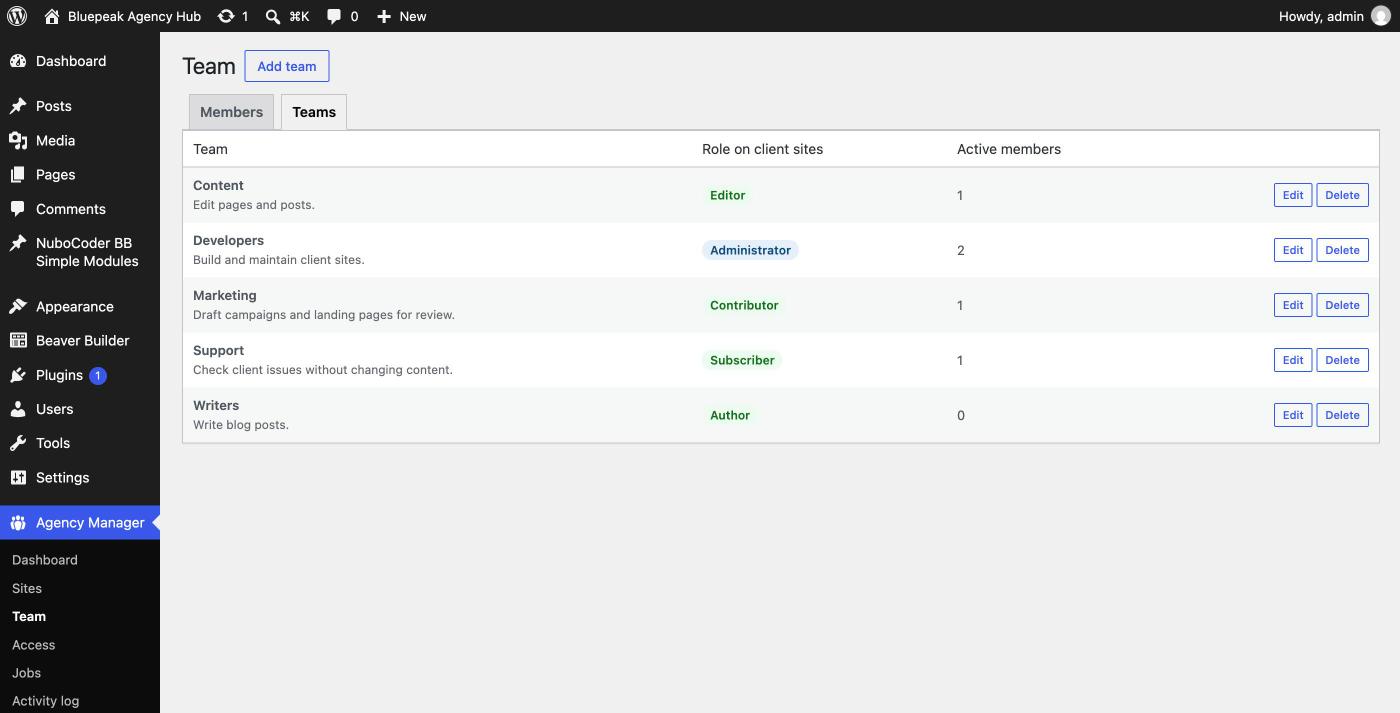
| Team | Role on client sites | Typical people |
|---|---|---|
| Developers | Administrator | Install plugins, change settings |
| Content | Editor | Edit every page and post |
| Writers | Author | Write and publish their own posts |
| Marketing | Contributor | Draft content for review |
| Support | Subscriber | Sign in and look only |
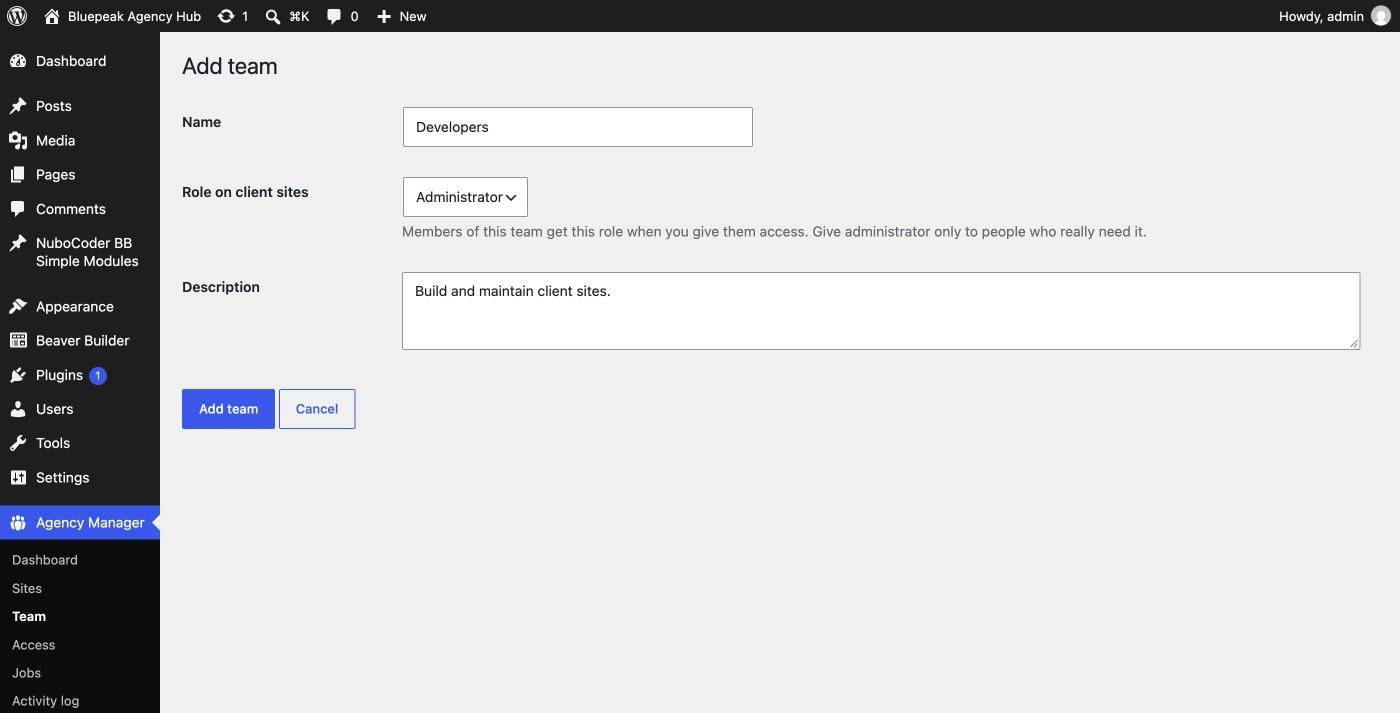
An administrator on a client site can install plugins, change any setting and see every user. Giving an administrator-level role always asks for your password and emails the agency's notification address, and the client site emails its owner too.
Editing a team's role applies the next time you give access; existing accounts keep their current role until you use Change role. Deleting a team leaves its members without one; their accounts don't change, but new access needs a fixed role.
5.2 Members
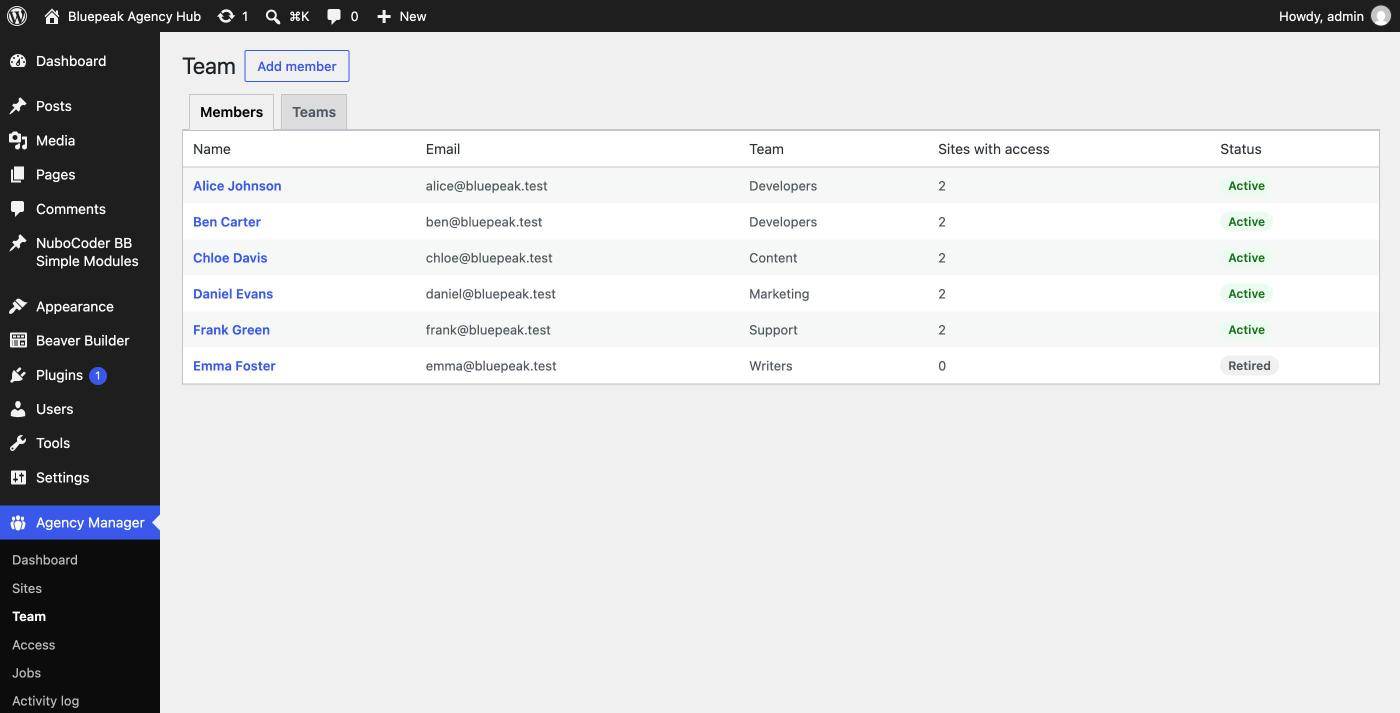
- On the Members tab, click Add member.
- Fill in first and last name, a unique email (used for new accounts and the welcome email), a username (letters, numbers, spaces and
_ . - @, up to 60 characters; leave empty to use the part of the email before the @), and a team. - Click Add member.
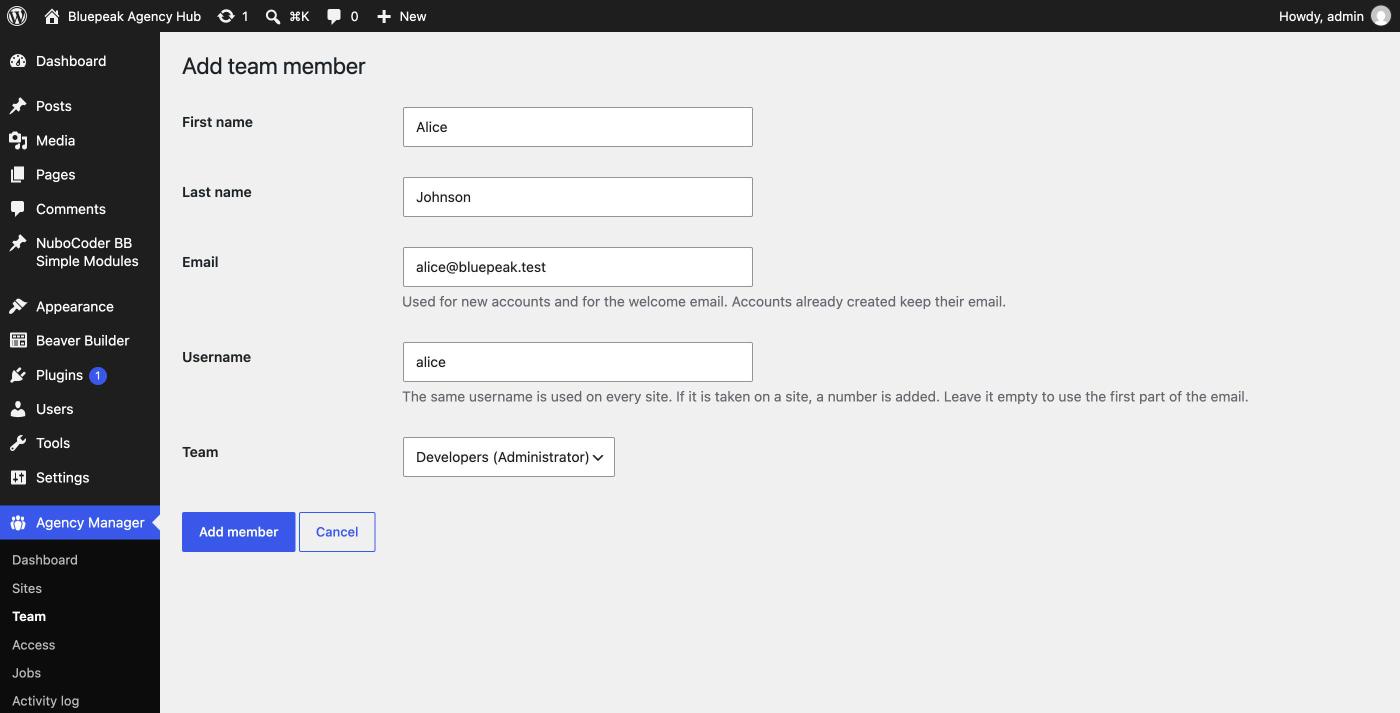
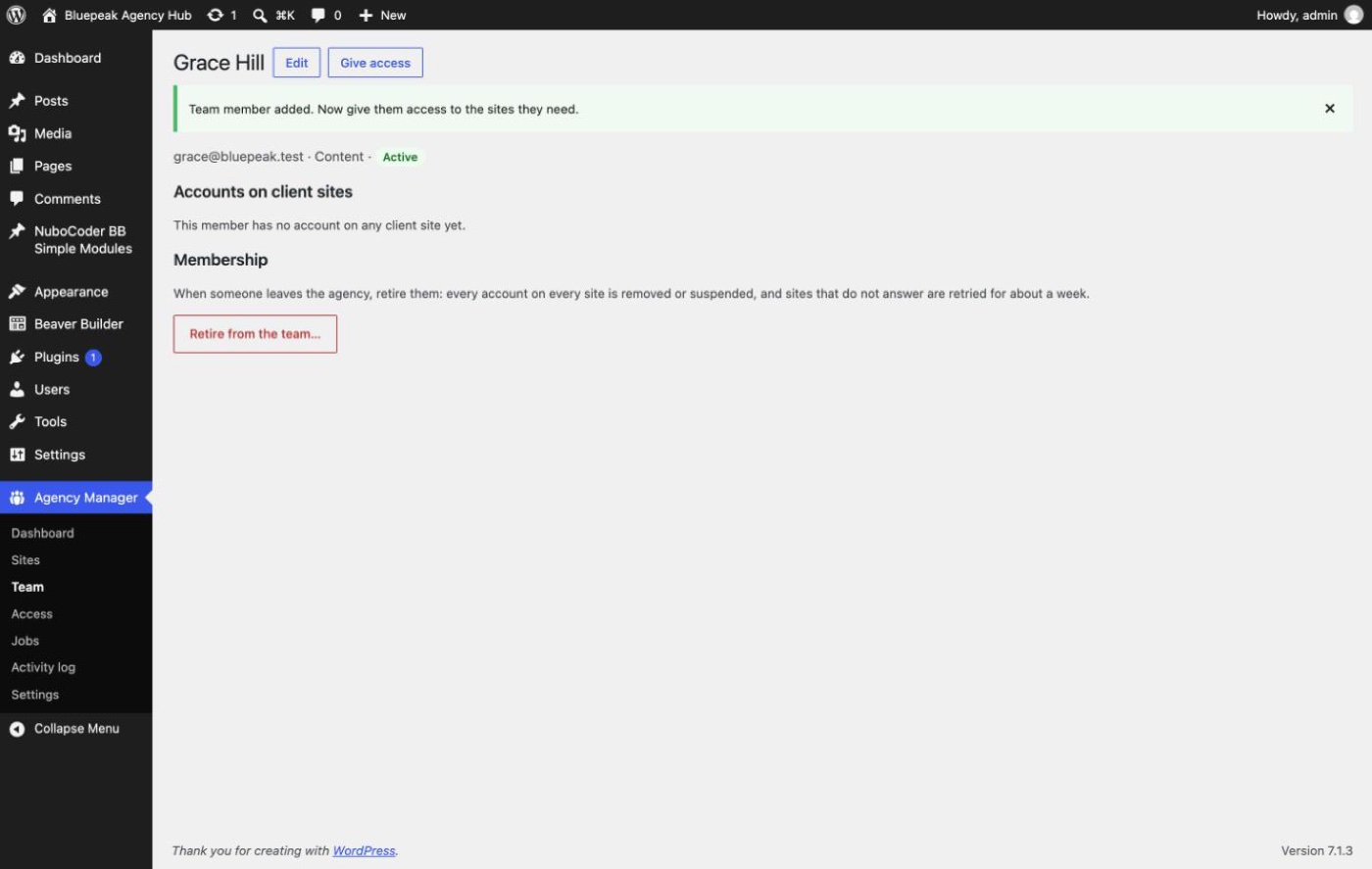
Changing a member's name, username or email affects new accounts only. Changing their team changes the role used next time you give access, not existing accounts.
5.3 Contractors and temporary access
A contractor can be a member like anyone else: add them (with a team, or No team plus a fixed role in Give access), give access to the sites they need, put a reminder in your calendar for the end date, and retire them (remove mode) that day. Retired contractors stay in the list as Retired, which is expected.
5.4 Members are never deleted
There is no delete button. When someone leaves, you retire them; they stay in the list as Retired, so the activity history keeps making sense. A retired member can be made active again with Make active again, but their accounts are not restored automatically. Give access again afterwards.
Giving access
Where: Agency Manager → Access → Give access (also from the dashboard, a member page or a site page). It works for any number of people and sites at once, and nothing is sent until you've reviewed the exact list of changes.
6.1 Step 1: choose people, sites, role and welcome email
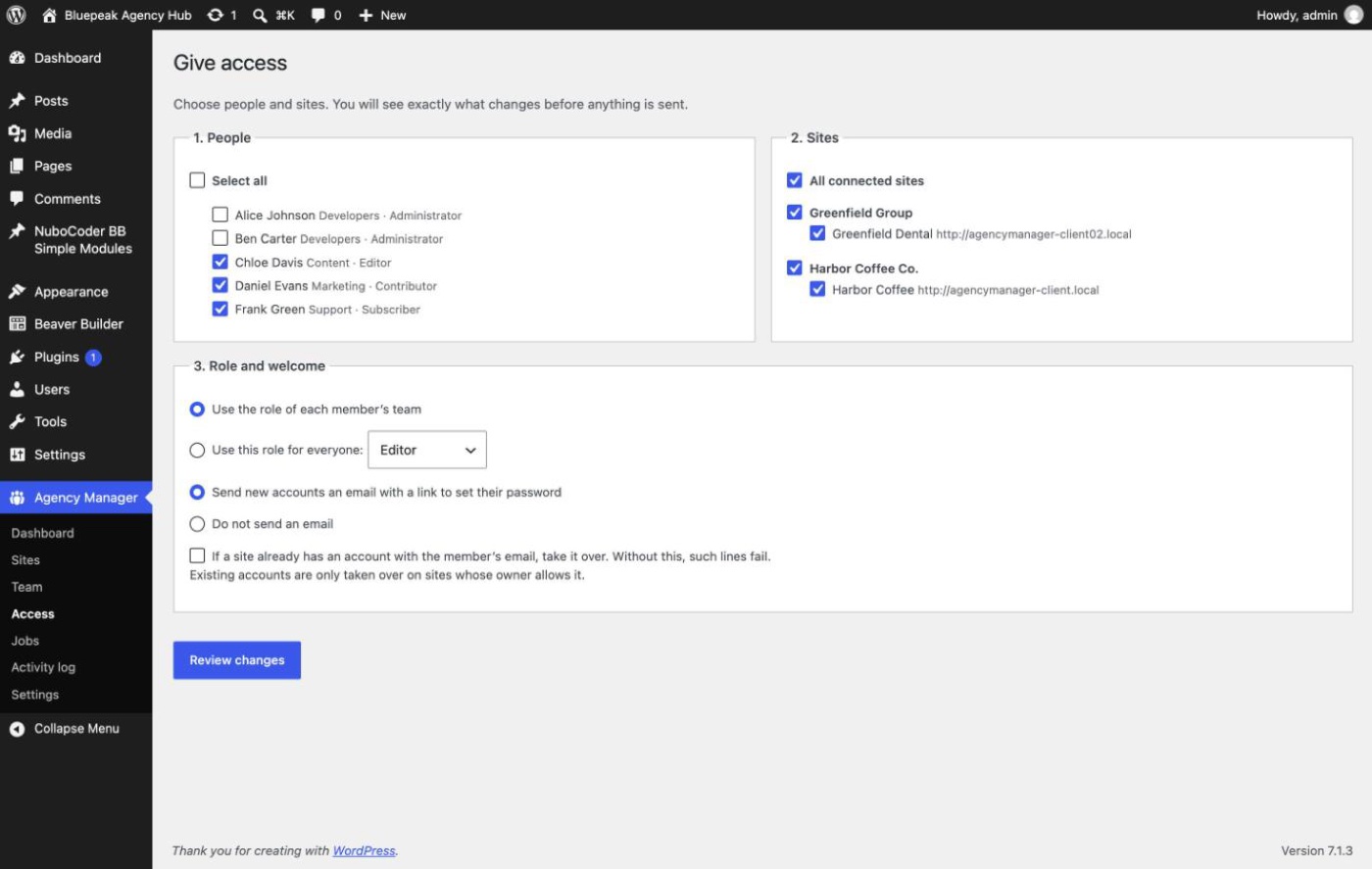
- People: tick the members who need access, or use Select all.
- Sites: grouped by client; ticking a client ticks all its sites. Only connected sites are listed.
- Role: either use the role of each member's team, or use this role for everyone (useful for one-off exceptions, like giving a developer Editor on one sensitive site).
- Welcome email: send WordPress's standard Login Details email (recommended), or create the account with an unknown random password (the person must use "Lost your password?").
- Take over existing accounts: leave unticked unless you know you need it (see below).
Click Review changes.
6.2 Step 2: review
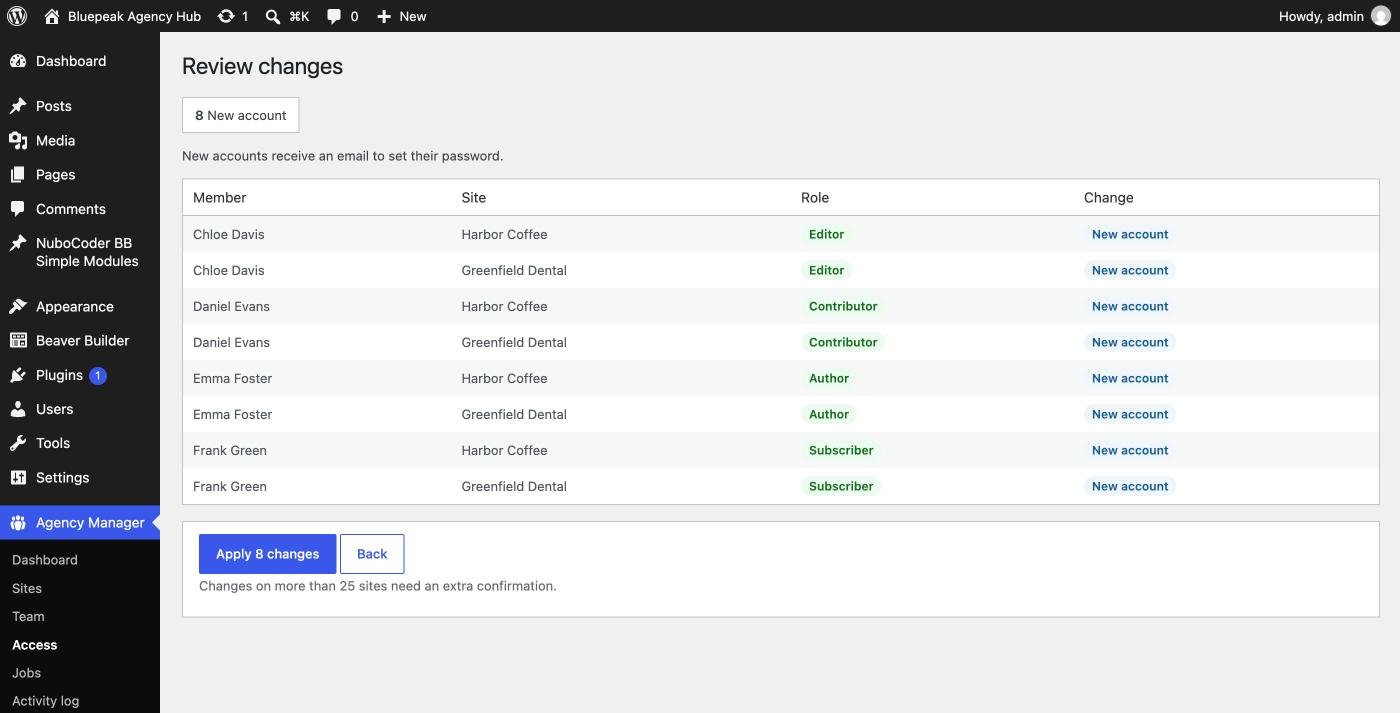
| Change | Meaning |
|---|---|
| New account | The member has no account there yet. It will be created. |
| Role change | An account exists with a different role. The role will change. |
| Restore suspended account | The account exists but is suspended. It is restored with the new role. |
| Already has this access | Nothing to do; the line is skipped. |
| Cannot be changed | Blocked, with a reason: member retired, no team and you chose team role, site not connected, multisite, another change running, or the owner doesn't allow it. |
Extra confirmations appear when a line gives an administrator-level role or restores a suspended account (your password), or when the change touches more sites than the configured safety limit (an extra checkbox).
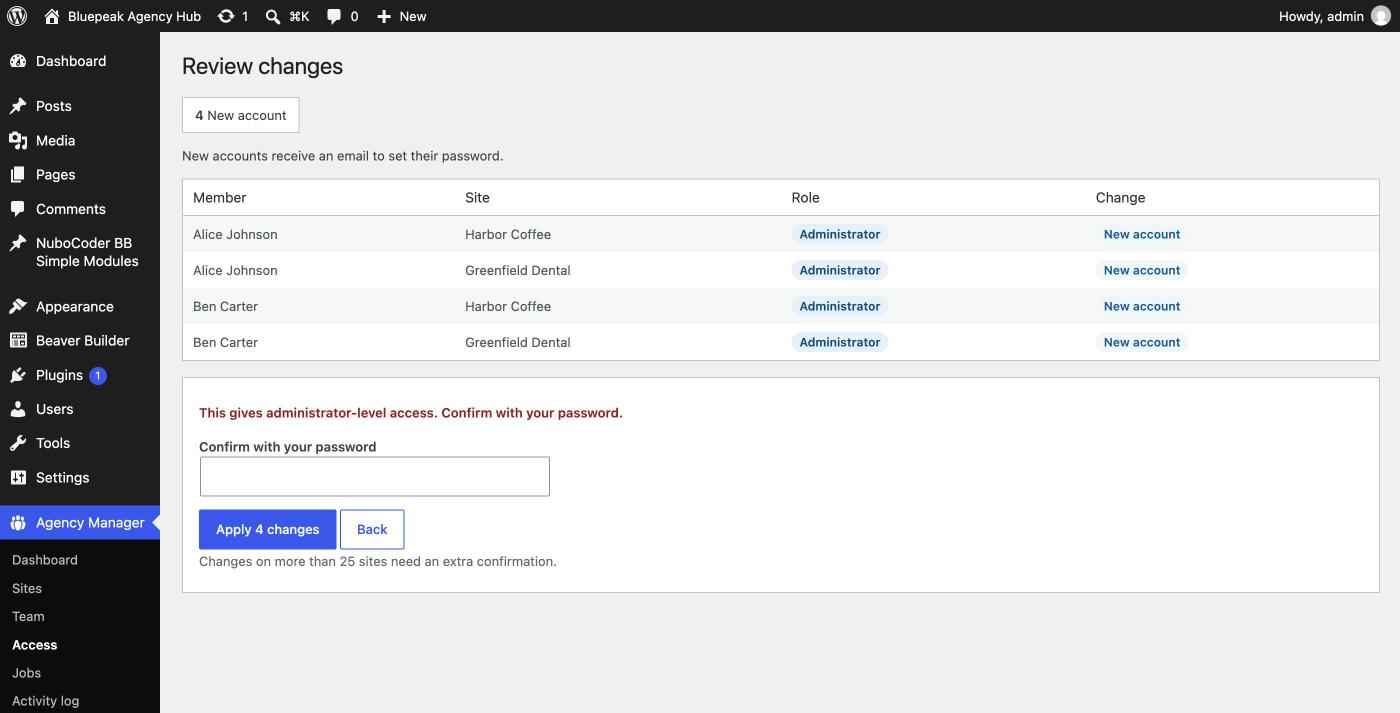
Click Apply N changes. The selection is kept for one hour; after that you start again.
6.3 Step 3: follow the job
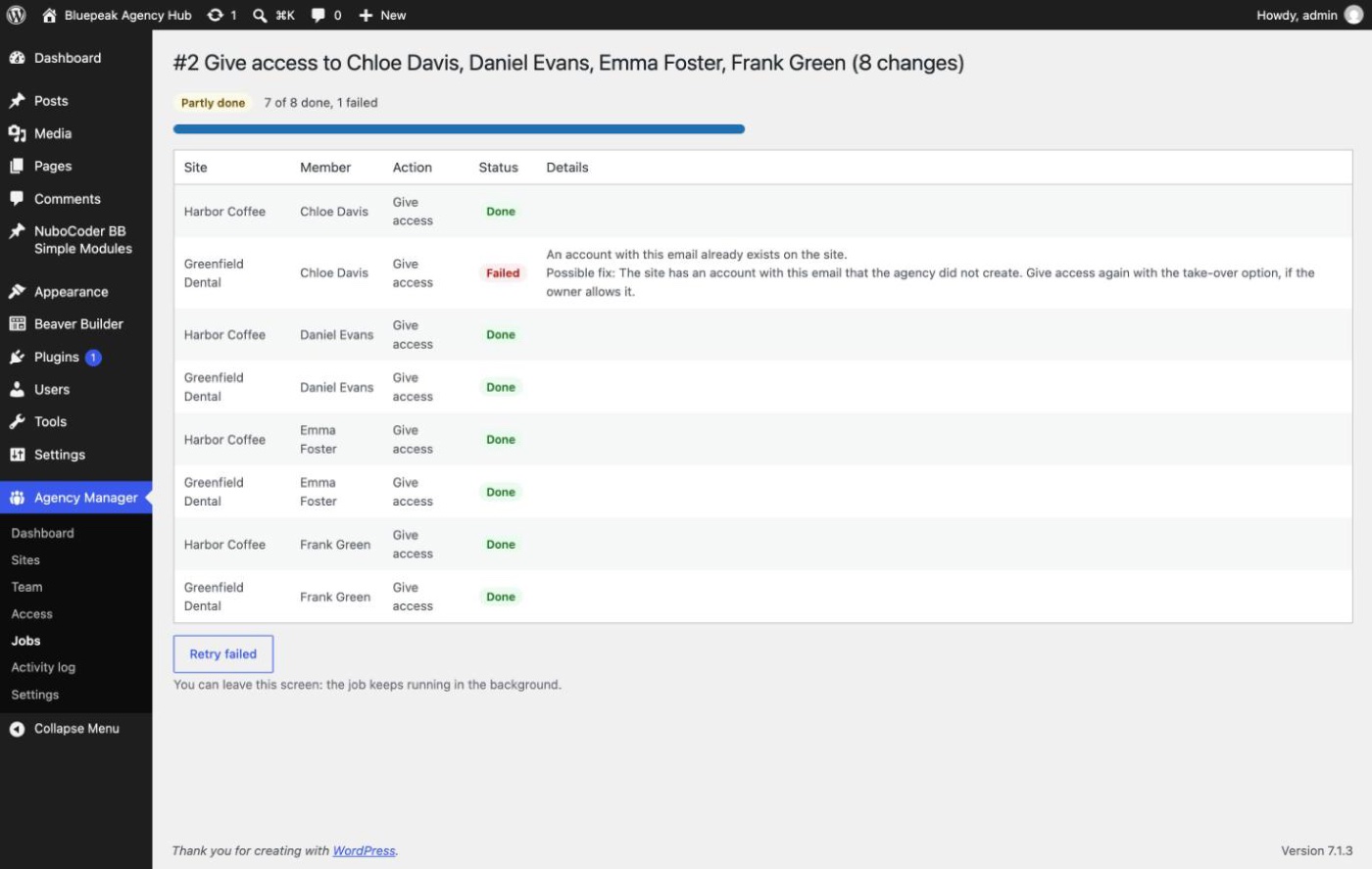
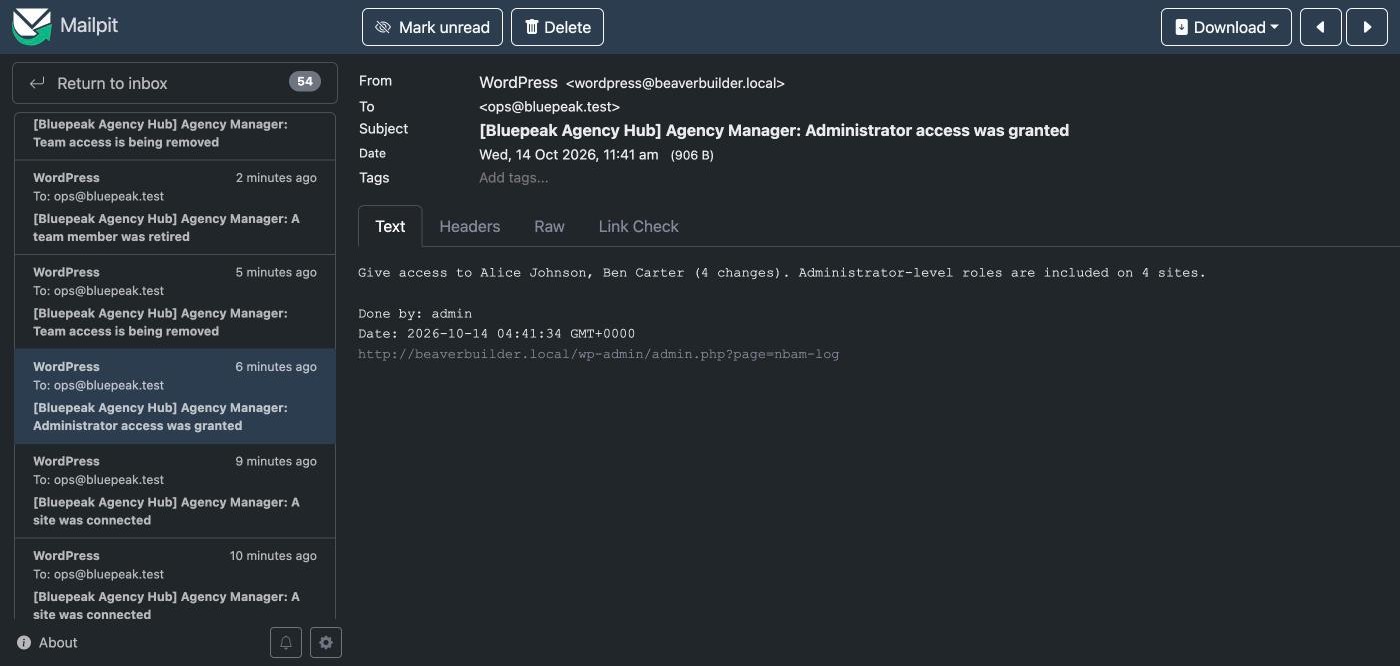
Each new account receives its own Login Details email from its client site, so a developer given access to 40 sites receives 40 emails from 40 different senders. When administrator-level roles are given, the notification address gets "Administrator access was granted", and the client site's owner gets an email too.
6.4 Existing accounts with the same email
A client site may already have an account with a member's email (created by hand before). By default the agency cannot take it over, because a compromised Hub could otherwise take control of any account and then delete it.
| Your choice in Give access | Owner's "allow taking over" permission | Result |
|---|---|---|
| Take over: not ticked | any | Fails: an account with this email already exists. |
| Take over: ticked | off (default) | Fails: the owner hasn't allowed take-overs. |
| Take over: ticked | on | The account becomes managed, with the new role. Username, password and content stay; no welcome email is sent. |
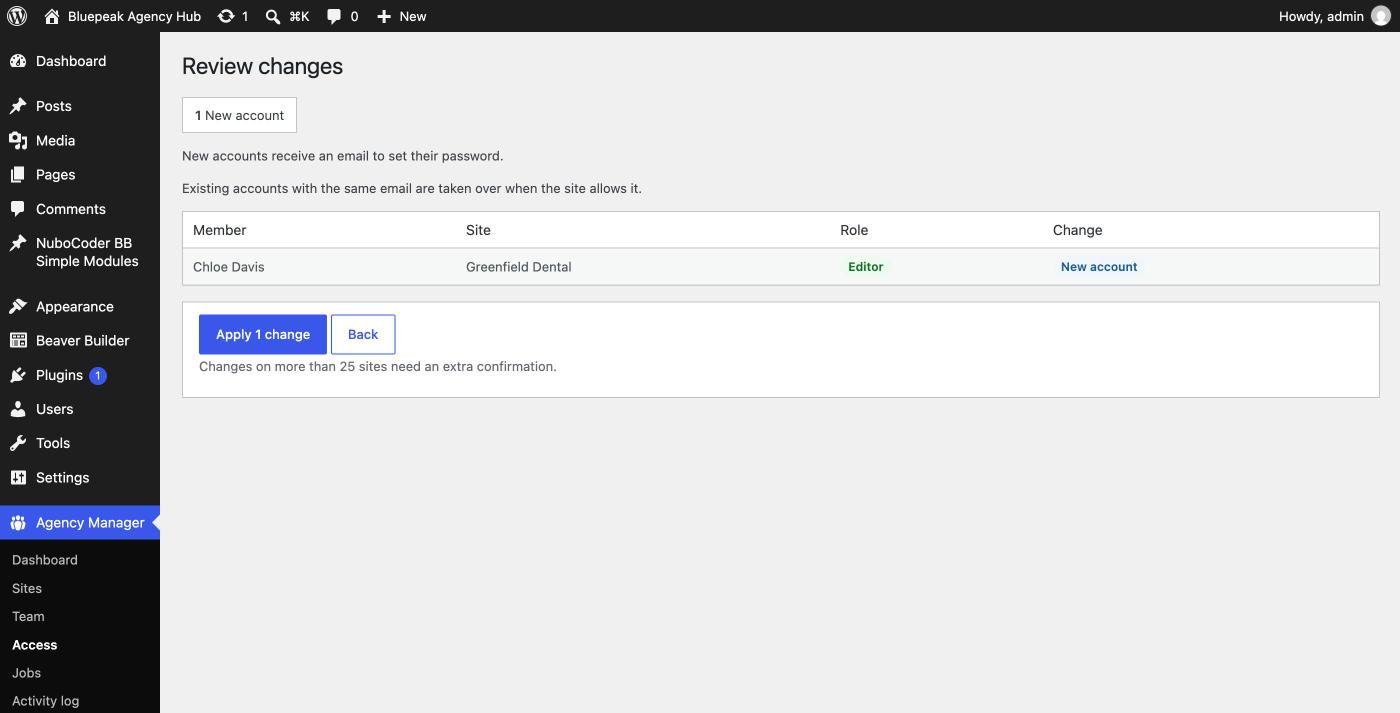
After a take-over, ask the team member to reset the account's password, since people at the client may know the old one. If the existing account uses a different email, the Hub can't find it and creates a second account instead; ask the client to delete or re-email the old one.
6.5 Bringing accounts you already have under the Hub
Most agencies already have hand-created accounts on client sites. Plan the move site by site: list the existing accounts, make each one's email match the member's email in the Hub (or delete accounts that no longer apply), get the owner's consent to allow take-overs on that site, give access with the take-over box ticked, then turn the permission off again and ask each person to reset their password.
6.6 Rules to remember
- Giving access to someone who already has the same role does nothing.
- Giving access to someone suspended restores their account.
- A member can only have one managed account per site.
- Accounts are never created on disconnected sites or multisite networks.
- Role slugs must use lowercase letters, digits,
-or_(up to 60 characters). - Anyone with
nbam_manage_teamcan give any role, including administrator-level ones: there's no way to limit someone to lower roles only.
Managing & removing access
Once a member has accounts, change them from the member page (several sites at once), the site page (one account, via the pencil button, or Remove all team accounts… for the whole site), or the Retire screen (one member, every site).
7.1 The four actions
| Action | What happens on the client site | Asks for |
|---|---|---|
| Change role | The account gets the new role. | Your password, only for administrator-level roles |
| Suspend | Loses every role, sessions closed, application passwords deleted, cannot sign in. Content stays. | Your password |
| Restore | Gets back the expected role (or Subscriber) and can sign in again. | Your password |
| Remove | Sessions closed, account deleted, content reassigned to the service account. | Typing REMOVE and your password |
Suspend for a short pause when the person may come back; it's reversible with Restore. Remove when they're gone for good: nothing is lost, the content goes to the service account. Don't rely on Suspend for someone who must never get back in: the sign-in block is part of the Client plugin, so if the client ever deactivates it, suspended accounts can sign in again.
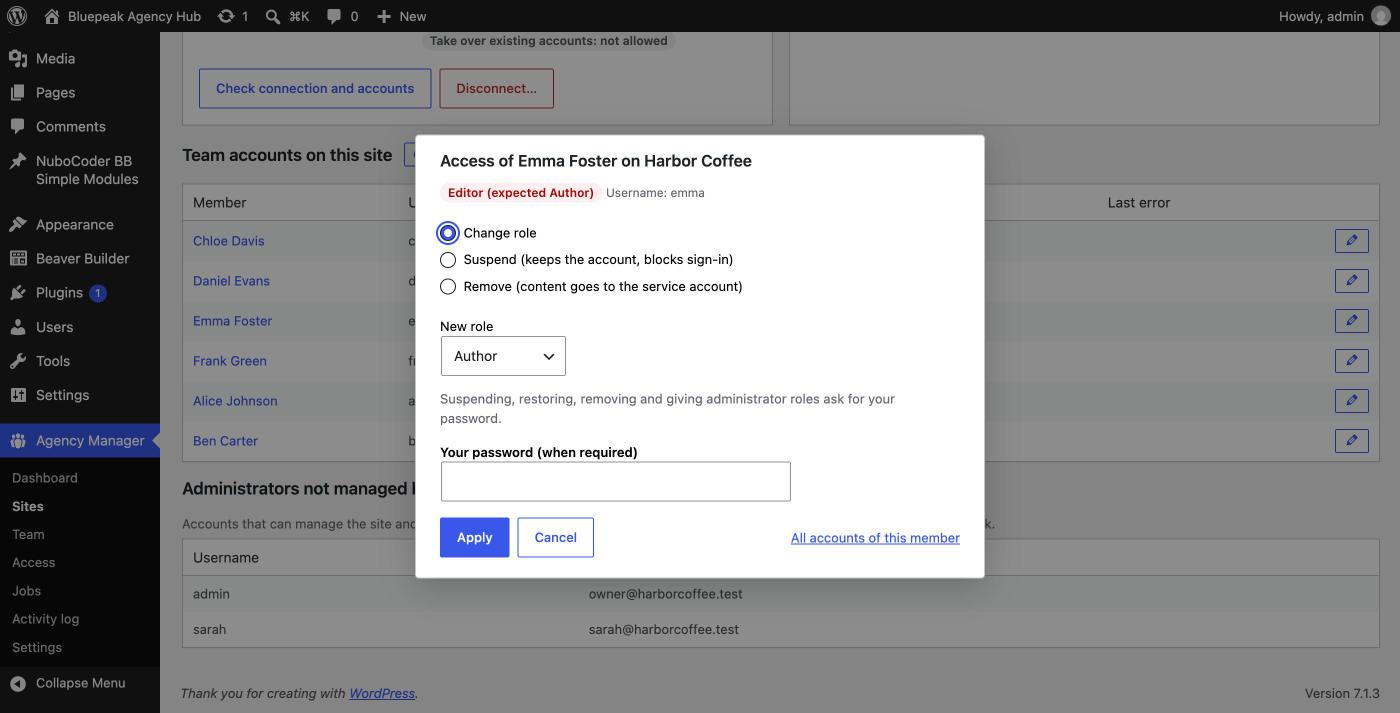
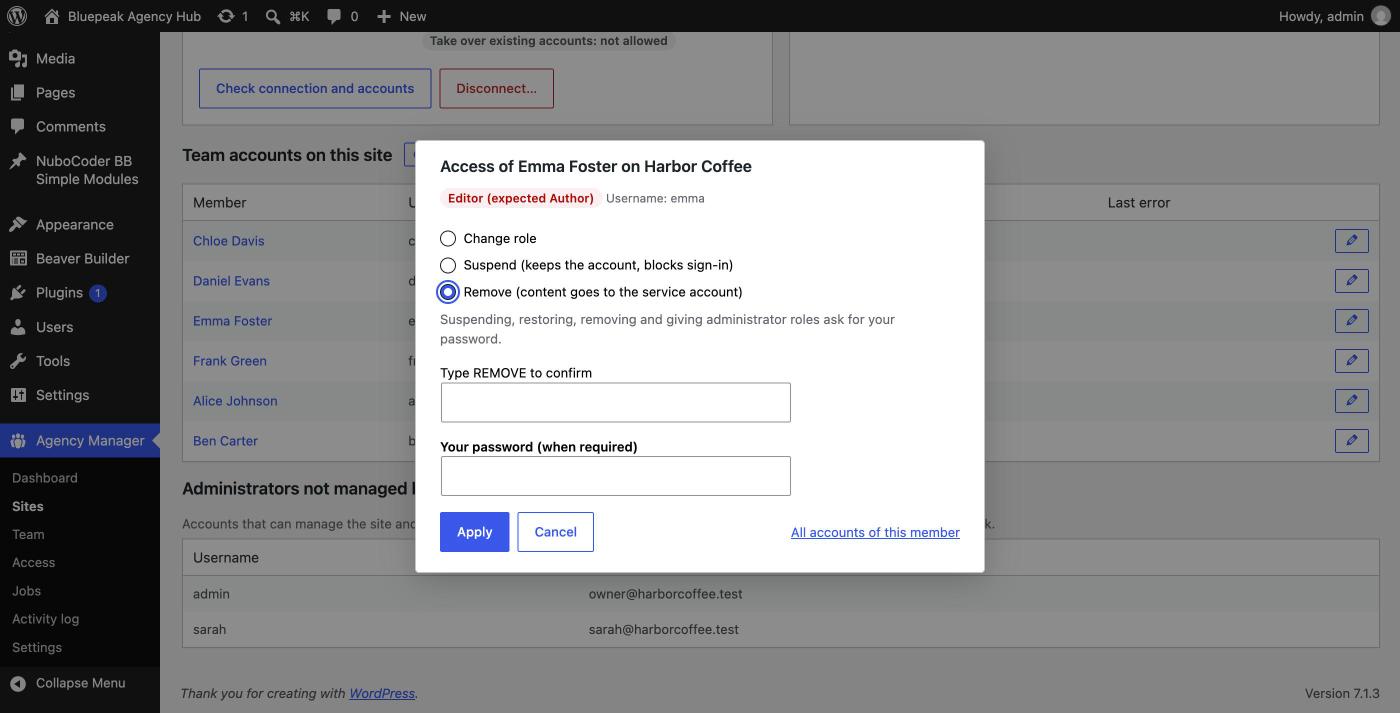
Removed content gets a new author: the service account, shown publicly on themes that display author names. The number of reassigned items is shown on the job line and in the client's own activity list.
7.2 Retire a member who leaves the agency
- Open the member page and click Retire from the team….
- Choose what happens to the accounts: Remove (default: content goes to the service account) or Suspend (reversible).
- Type
RETIREand your password, then click Retire and process every account.
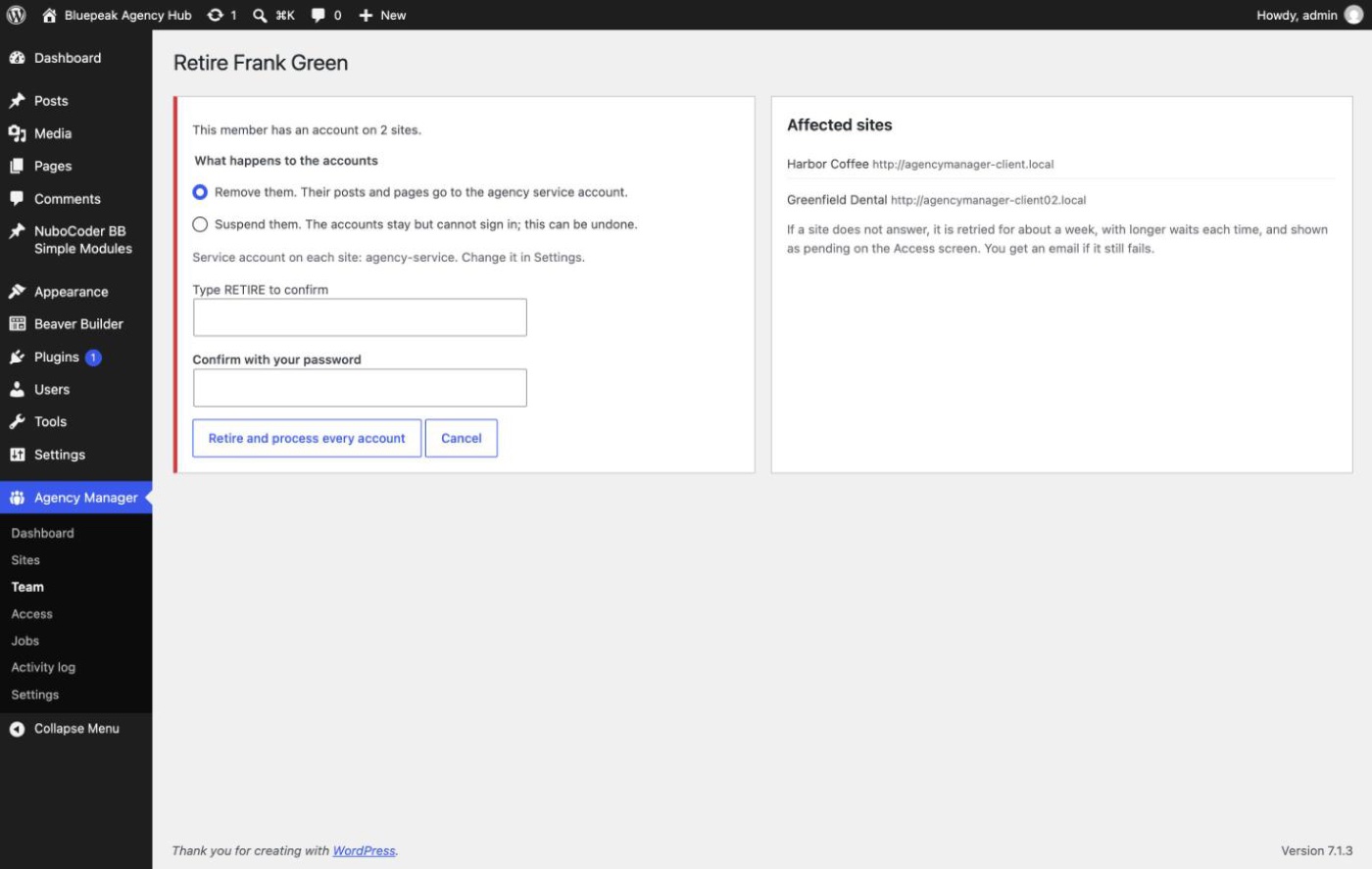
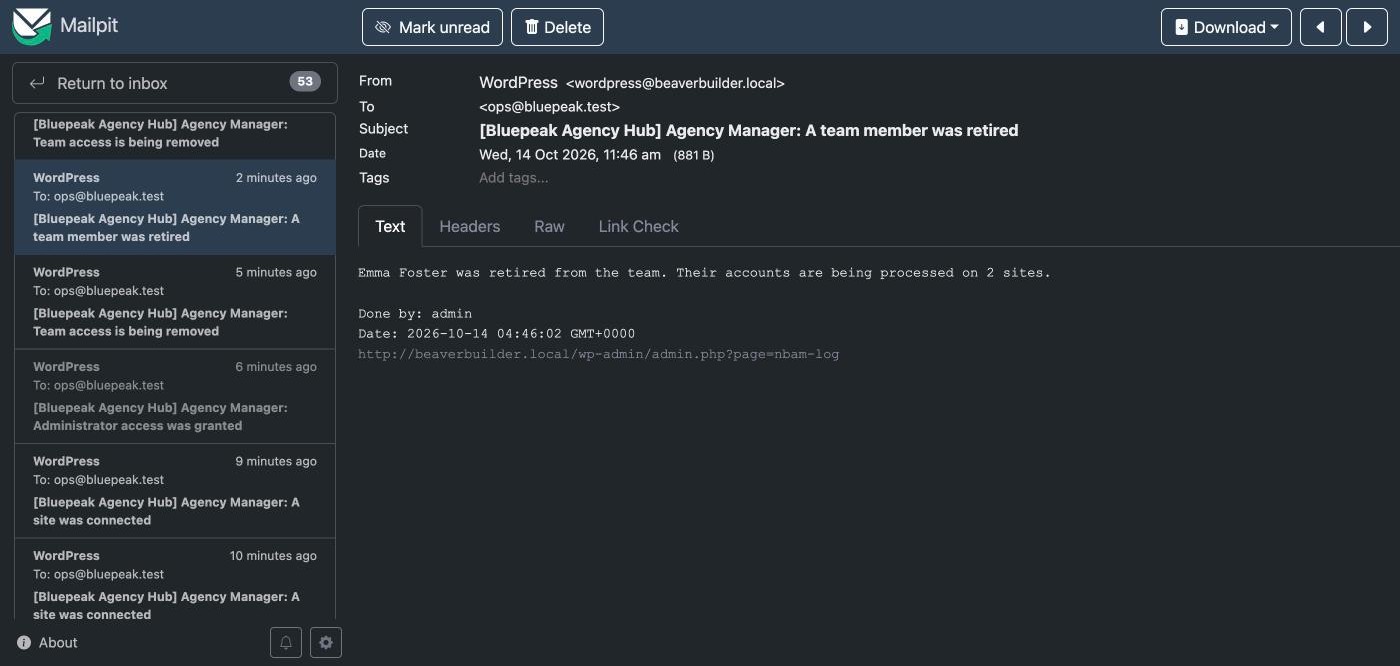
The member is marked Retired at once and can no longer be given access, while a job removes or suspends every account in the background.
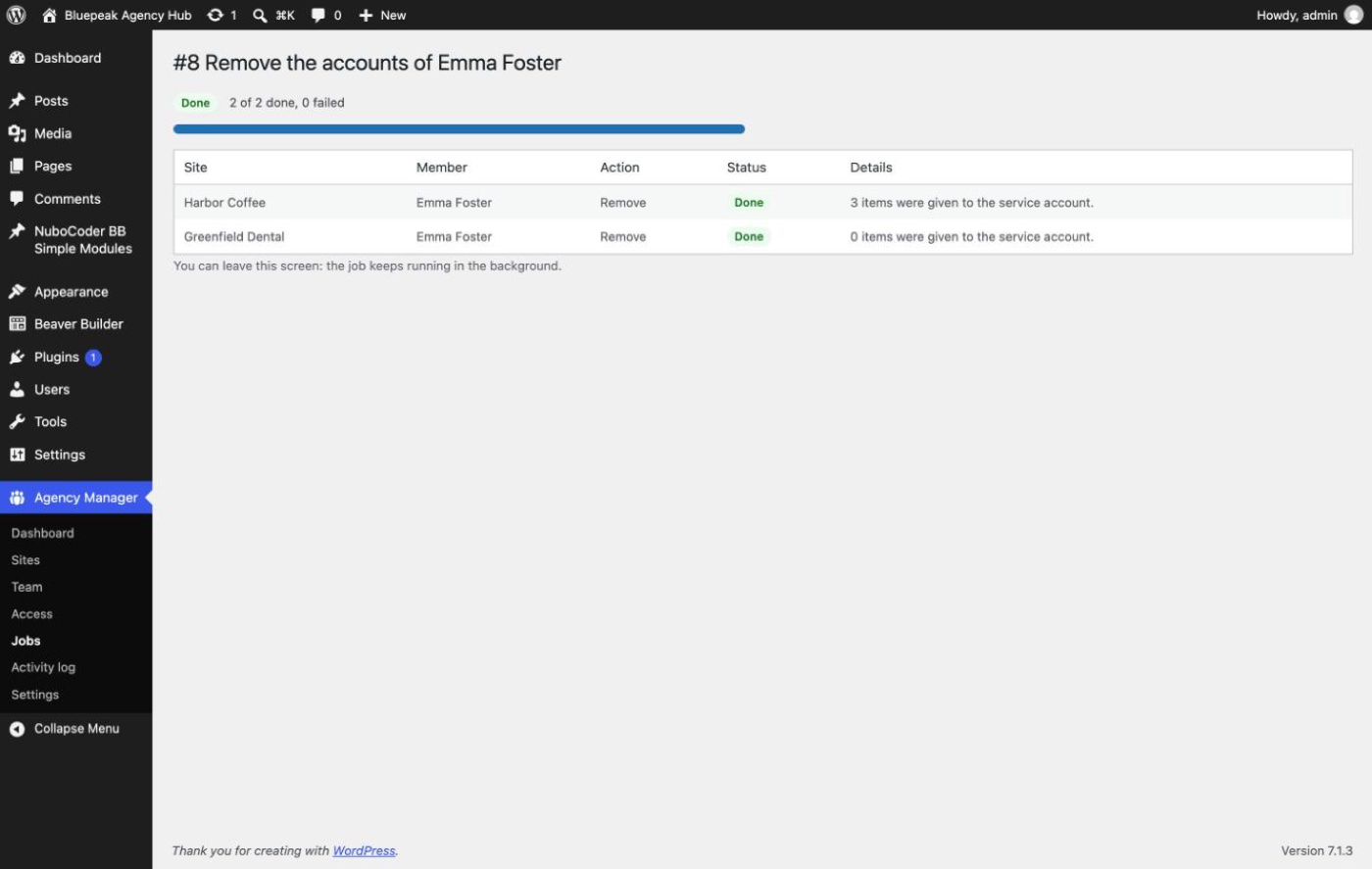
7.3 If a site does not answer
Removals and suspensions are retried after 1, 5 and 15 minutes, then 1, 3, 6 and 12 hours, then once a day for 5 days (13 attempts over about six days), while the member appears on the dashboard as "retired but still has access." After the last attempt the line turns Failed and you get an email with each failed line and a possible fix. If a line keeps failing with Unauthorized, don't wait: phone the client and ask them to delete the account directly.
7.4 Checklist when someone leaves the agency
- Make sure the person isn't the only administrator on any client site first.
- If they had a WordPress user on the Hub itself, block it first: retiring a member does not touch Hub users.
- Retire them with Remove (not Suspend).
- Follow the job until every line is Done; handle failures as above.
- Check Administrators not managed by the agency on each site for old accounts created outside the Hub.
- Ask clients with staging copies to remove the account there too (the Hub never reaches staging copies; see Operations).
- Change any shared password the person knew.
Same steps, faster: block their Hub access and agency tools immediately, retire with Remove right away, and for any line that isn't Done within a few minutes: phone that client and ask them to delete the account in Users now, rather than waiting for retries. Afterwards, run a full account check and review the dashboard for sites that went Disconnected or into Connection error, and new entries under administrators not managed by the agency.
7.5 Protections that may stop a change
The Client plugin refuses some changes to protect the site, even when the Hub asks: the last administrator of a site can never lose its role, administrator-level roles need the owner's permission, accounts not managed by the agency can never be touched, and suspended accounts must be restored before their role can change. These fail at once and are not retried; fix the cause and Retry failed.
Access overview
Where: Agency Manager → Access. It answers two questions: who can sign in to which site, and with which role, and is anything wrong? Built from what sites reported at their last check, plus changes made since.
8.1 By member or by site
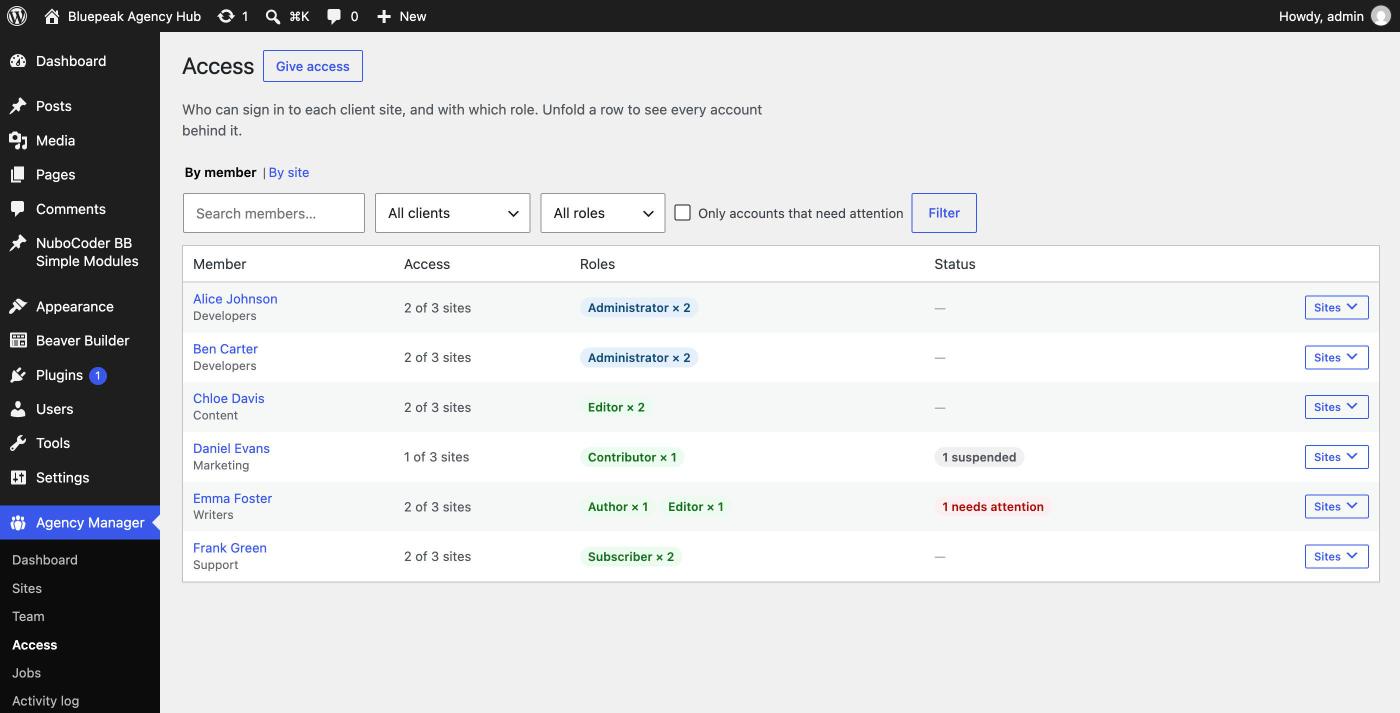
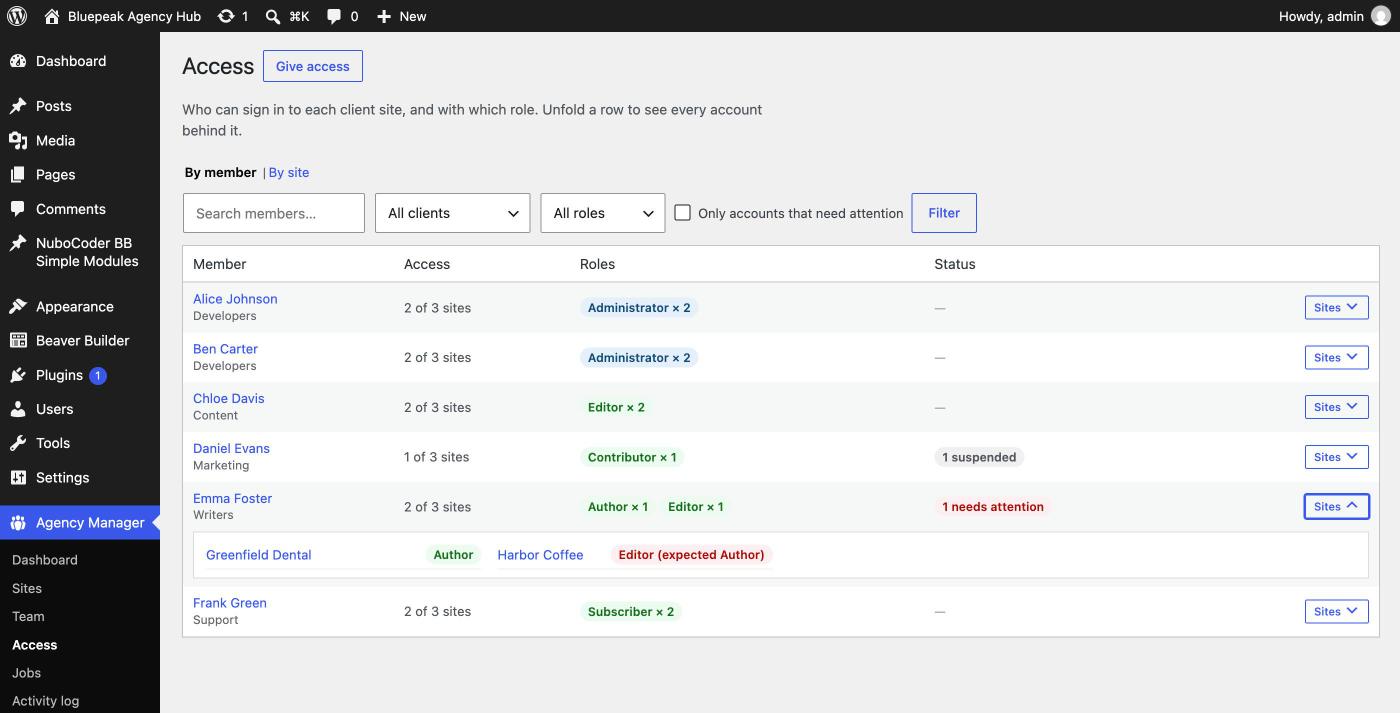
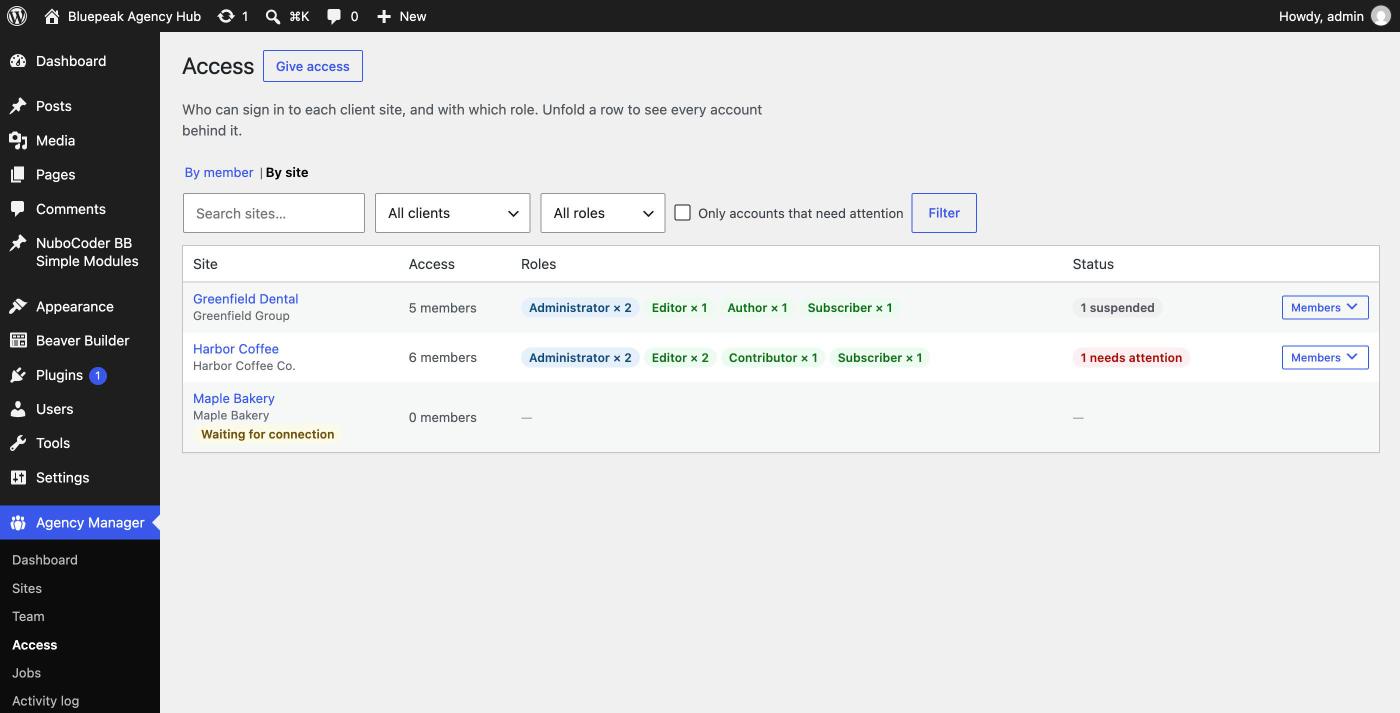
Filter by search, client, role, or tick Only accounts that need attention. Retired members only appear while they still have an account somewhere.
8.2 Accounts that need attention
| You see | Meaning | What to do |
|---|---|---|
| Editor (expected Author) in red | Somebody changed the role directly on the site. | Change role to the expected role to put it back, or to the current role to accept it as the new expected role. |
| Missing on site | The account existed but the last check didn't find it. | Give access again to recreate it, or Remove to clear the Hub's record. |
| Error | The last change failed; the account may not exist. | Read the error, fix the cause, retry the job or give access again. |
The Hub only knows what the sites report. Changes made directly on a client site appear after the next check: the daily automatic check, or Check connection and accounts on the site page.
Jobs & retries
Every change on client sites runs in the background as a job, with one line per site or per member and site. Start a change on 50 sites and close the browser: the Hub finishes the work, retries what fails for temporary reasons, and keeps the result of every line.
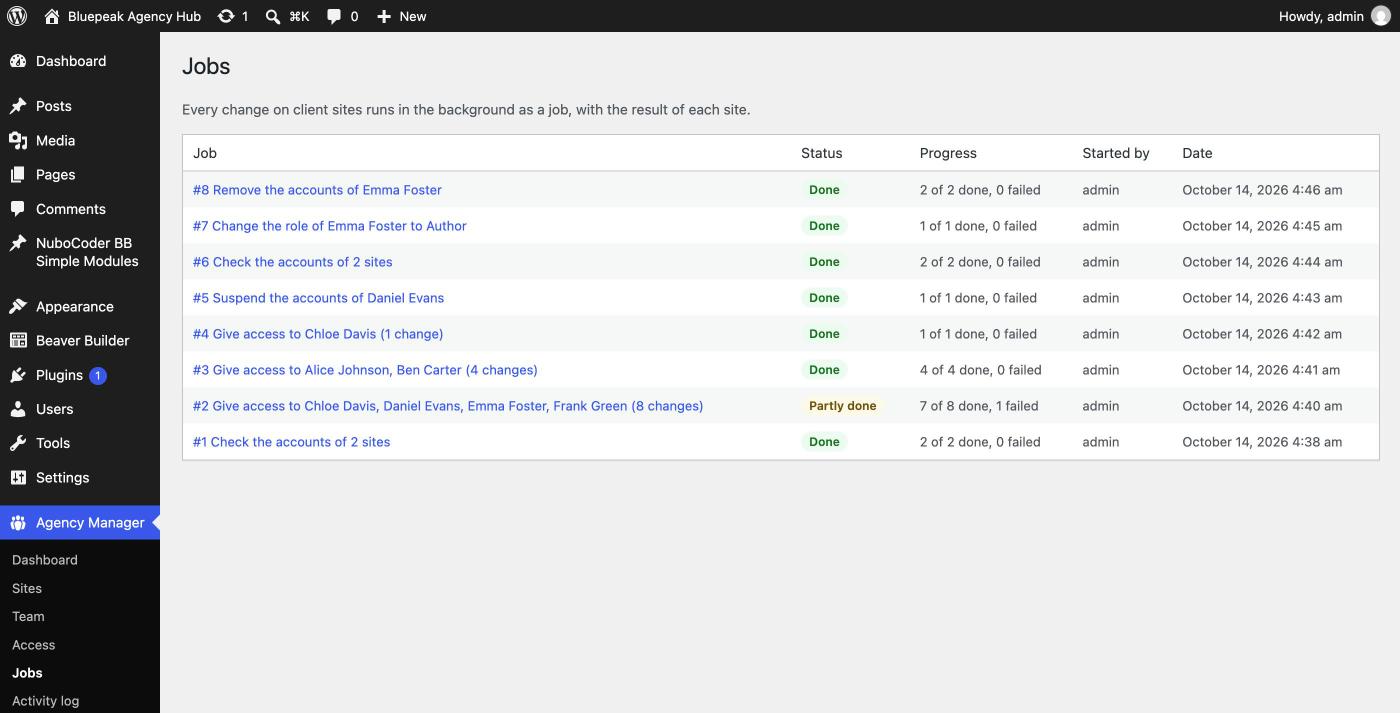
9.1 Statuses
| Job | Meaning |
|---|---|
| Queued | Waiting to start. |
| Running | At least one line is being processed or waiting for a retry. |
| Done | Every line succeeded. |
| Partly done | Some succeeded, some failed. |
| Failed | Every line failed. |
| Cancelled | Pending lines were cancelled. |
Buttons: Retry failed (puts failed lines back in the queue) and Cancel pending (cancels queued or waiting lines; done lines are not undone).
9.2 Automatic retries
Temporary errors (unreachable site, server error, rate limit, clock drift, Unauthorized) are retried automatically; permanent ones (owner didn't allow it, last administrator, role doesn't exist, email already used) fail at once.
| Action | Retries | Total attempts |
|---|---|---|
| Give access, change role, restore, check accounts | after 1, 5 and 15 minutes | 4 |
| Suspend and remove (and retirements) | after 1, 5, 15 min, then 1, 3, 6, 12 hours, then daily for 5 days | 13, about six days |
When a job finishes with failed lines, the notification address gets one email listing each failure, the attempt count, and a possible fix. The job stays in the admin notice and menu counter for 14 days until solved.
9.3 Rules and timing
- Only one change at a time per account; others are blocked or skipped while it runs.
- A retry never creates a second account: every request carries a unique ID, so the site returns the saved result if it already did the work (for 24 hours).
- Jobs started from a Hub screen usually finish within seconds; a site that doesn't answer waits up to 25 seconds before counting as unreachable.
- Jobs and their lines are kept as permanent history, removed only when the Hub plugin is deleted.
Activity log
Where: Agency Manager → Activity log (only for users with nbam_admin). It records who did what, from which IP address, when, on which site, and with what result: the place to answer "who gave Ben administrator access on Harbor Coffee, and when?"
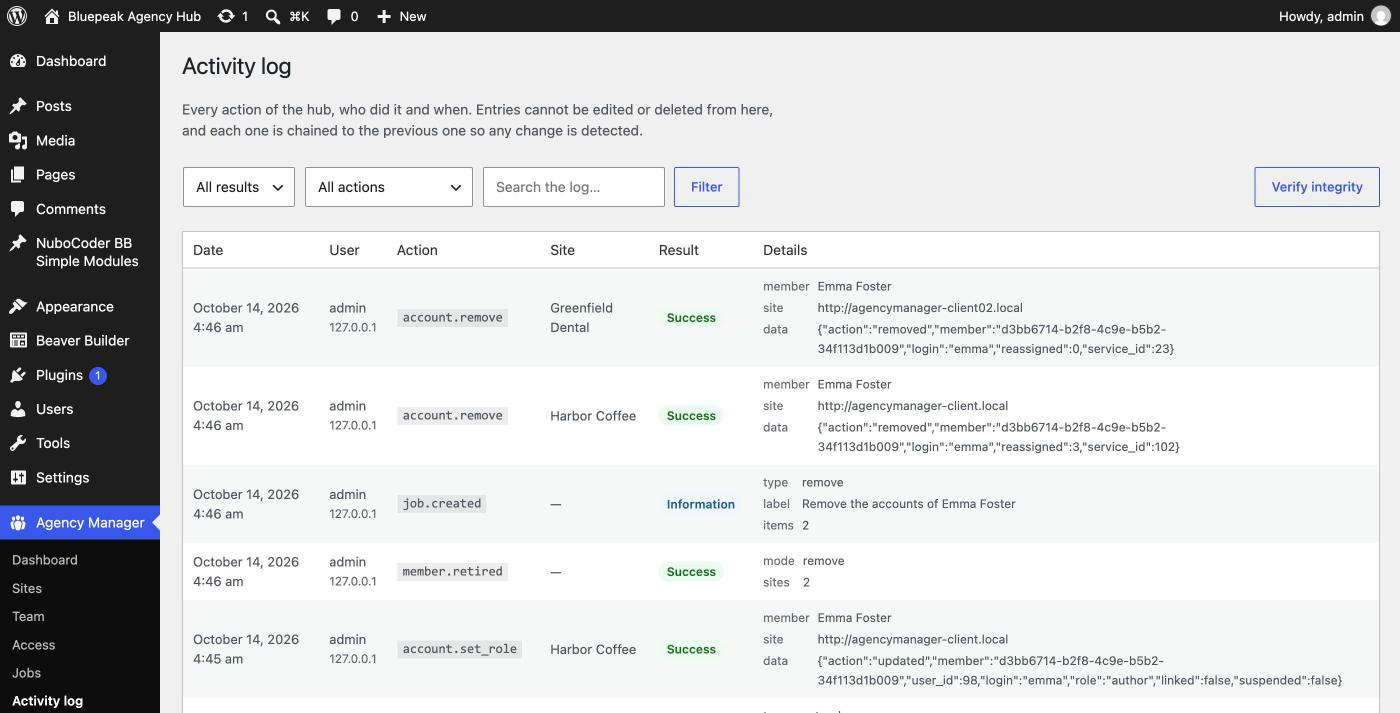
Columns: date (Hub's time zone), user (or System for automatic actions), a short action code (for example account.remove), the site, and the result (Success, Error or Information). Passwords, keys, tokens and signatures are never recorded. 50 entries per page, newest first, filterable by result, action area, or a text search.
What the log cannot tell you: changes made directly on a client site (the Hub only notices the difference at its next check, without who or when; ask the client for their own activity record) and anything older than the log itself.
10.1 Tamper-evident
Entries cannot be edited or deleted from the Hub screens, and each one is chained by a fingerprint of itself and of the previous entry. Click Verify integrity to check the whole chain.
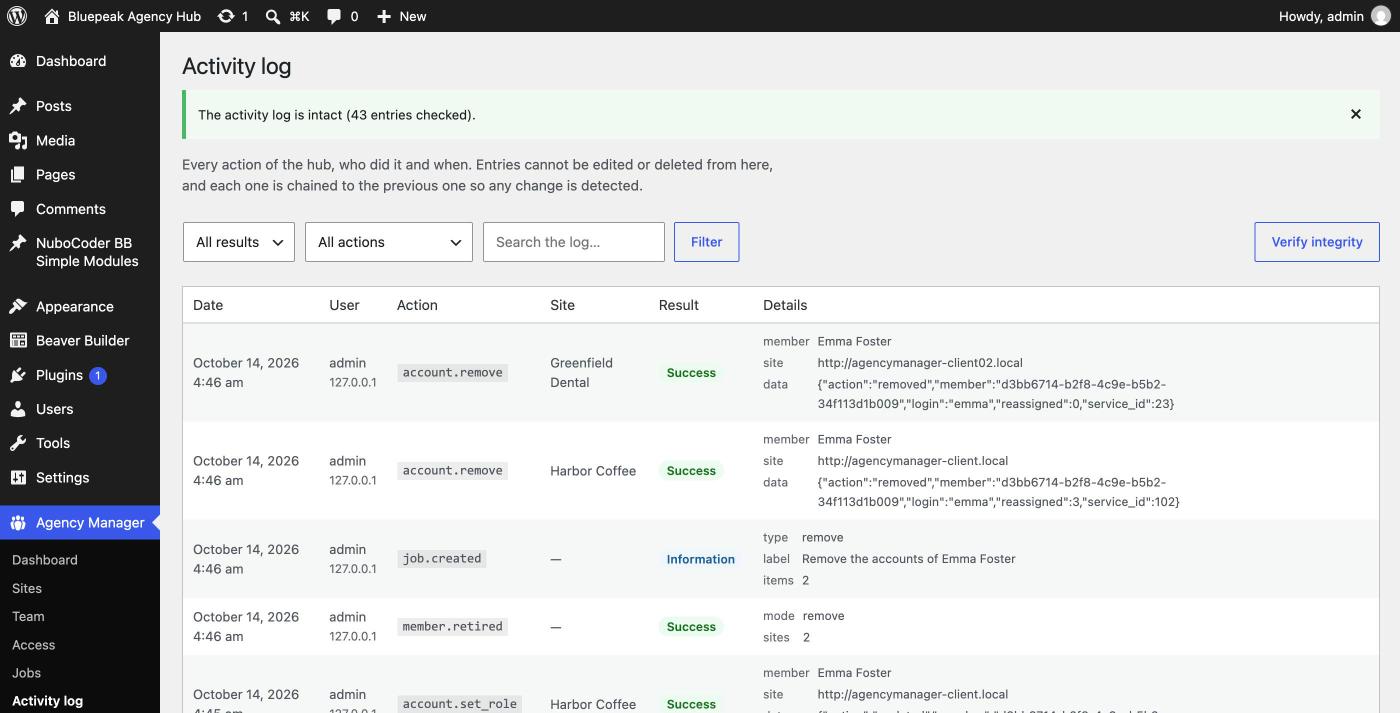
If broken, the Hub says exactly where the chain breaks, records security.log_tampered and emails an alert: treat it as a security incident (see Security). The check detects edited entries and entries deleted from the middle, but not entries deleted from the very start or end, or the whole log at once: keep external database backups for stronger guarantees.
Deleting the Hub plugin deletes the whole log along with the rest of its data. Export or back up the database first if you need to keep it.
Settings
Where: Agency Manager → Settings (only for users with nbam_admin). Changes are saved with Save settings and recorded in the activity log.
11.1 Security check
Checks cover HTTPS, the encryption key, two-factor authentication for your account, the file editor constant, background jobs, overdue jobs, the number of Hub administrators (warns above three), and development mode.
11.2 Service account
Username (default agency-service), email (must be used by no account on any client site), and display name (shown publicly as the author of reassigned content: choose something neutral like "Editorial team"). The account is created on each site the first time a removal happens there, with the Subscriber role and a long random password nobody knows. Changing these settings later does not rename service accounts that already exist.
11.3 Notifications
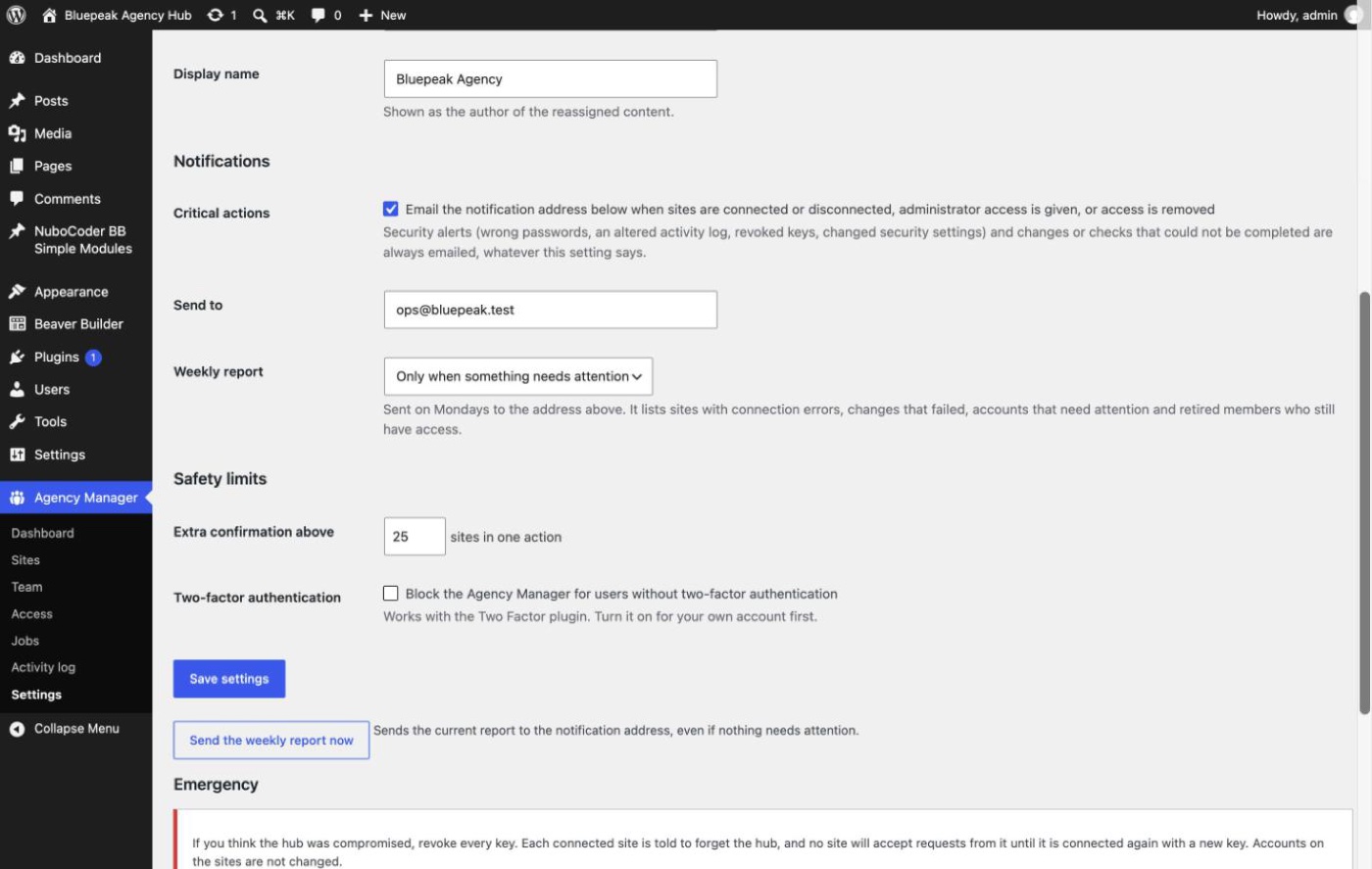
| Setting | What it does |
|---|---|
| Critical actions | Emails the notification address for site connections/disconnections and administrator access given/removed. Security alerts and failure emails are always sent regardless of this box. |
| Send to | The one notification address for every Hub email. Leaving it empty turns every email off. Not recommended. A mistyped address is refused. |
| Weekly report | Do not send / only when something needs attention (default) / every week. Sent Mondays at 08:00, Hub's time zone. |
Changing the notification address or critical-actions setting emails both the new and the previous address, so nobody can silence alerts without the owner noticing.
11.4 Safety limits
Extra confirmation above N sites in one action (default 25). When a single action would change more sites than this, the review screen adds an extra checkbox to confirm, protecting against mistakes like ticking All connected sites by accident. Doesn't apply to retiring a member, checking accounts, or revoking keys.
11.5 Two-factor authentication
Block the Agency Manager for users without two-factor authentication. Recommended for every live Hub. You must turn on 2FA for your own account first, or the Hub refuses to save (so you can't lock yourself out). It works with the Two Factor plugin; other 2FA plugins need a developer filter (see Developer reference).
11.6 Emergency: revoke every site key
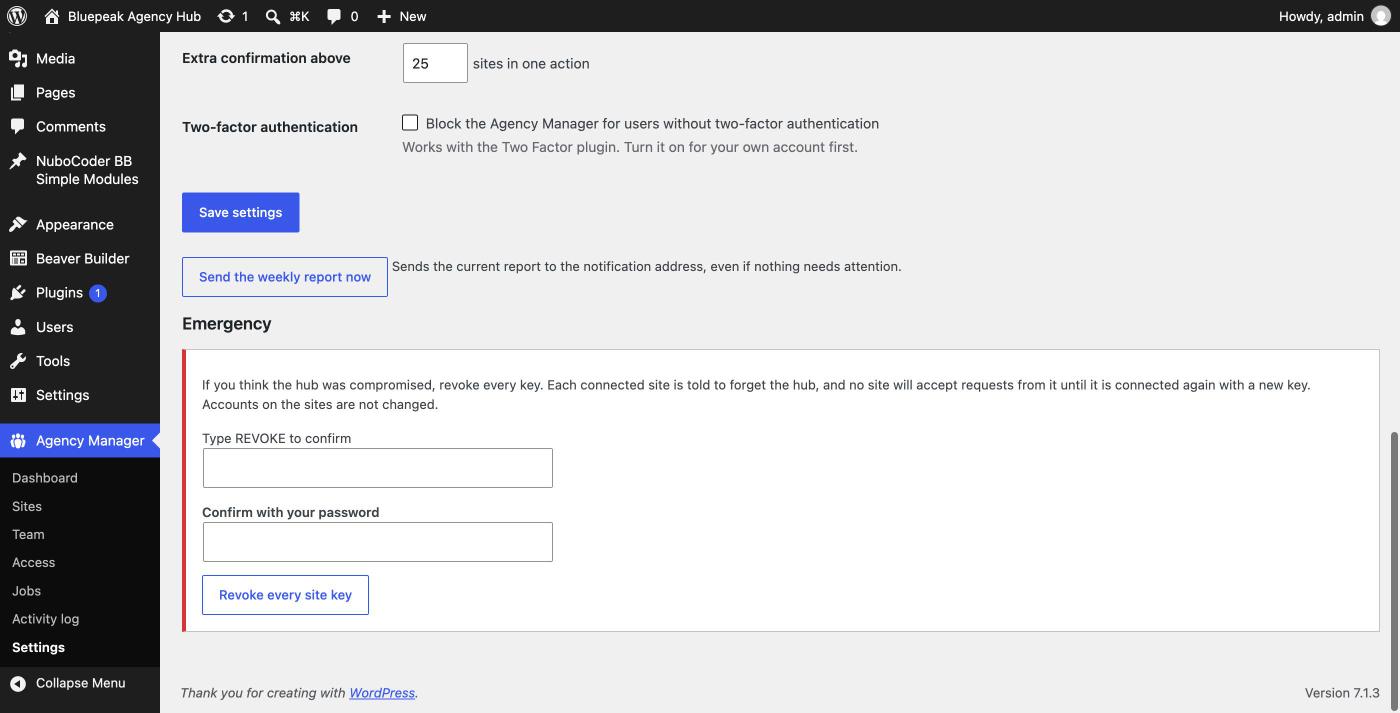
Type REVOKE and your password. The Hub tells every connected site to forget it (with a signed request), deletes every key, and emails the list of sites. Accounts on client sites are not changed. If some sites couldn't be reached, the Hub names them: contact their owners right away so they can disconnect on their side or add NBAMC_DISABLE. This is also the right first step before deleting the Hub plugin for good. See If you think the Hub was compromised.
Emails
The Hub sends plain-text email through its WordPress site's normal email system (wp_mail()). All emails go to the single notification address in Settings. Every subject starts with [Hub site name] Agency Manager:.
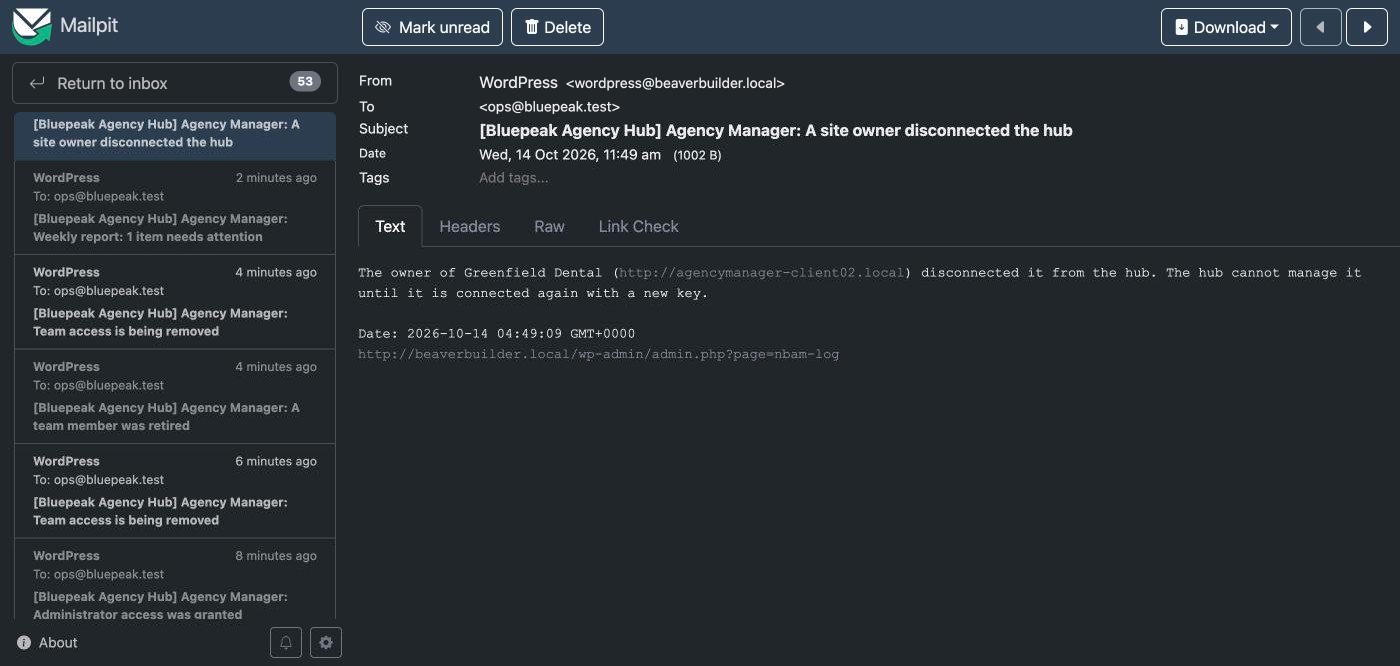
12.1 Critical action emails
Sent only while Critical actions is on: A site was connected, A site was disconnected, A site owner disconnected the hub, Administrator access was granted, Team access is being removed, A team member was retired.
12.2 Security alerts
Always sent while a notification address is set, even if Critical actions is off, so nobody can silence them: Every site key was revoked, Critical actions locked after wrong passwords, The activity log was altered, Security settings changed (sent to both the new and previous address).
12.3 Changes and checks that could not be completed
Also always sent: N changes could not be completed (one email per job, with each failed line, its last error, attempts, and a possible fix), Site has failed its daily check 3 times, and Daily checks of Site are paused (after 14 failures in a row).
12.4 Weekly report
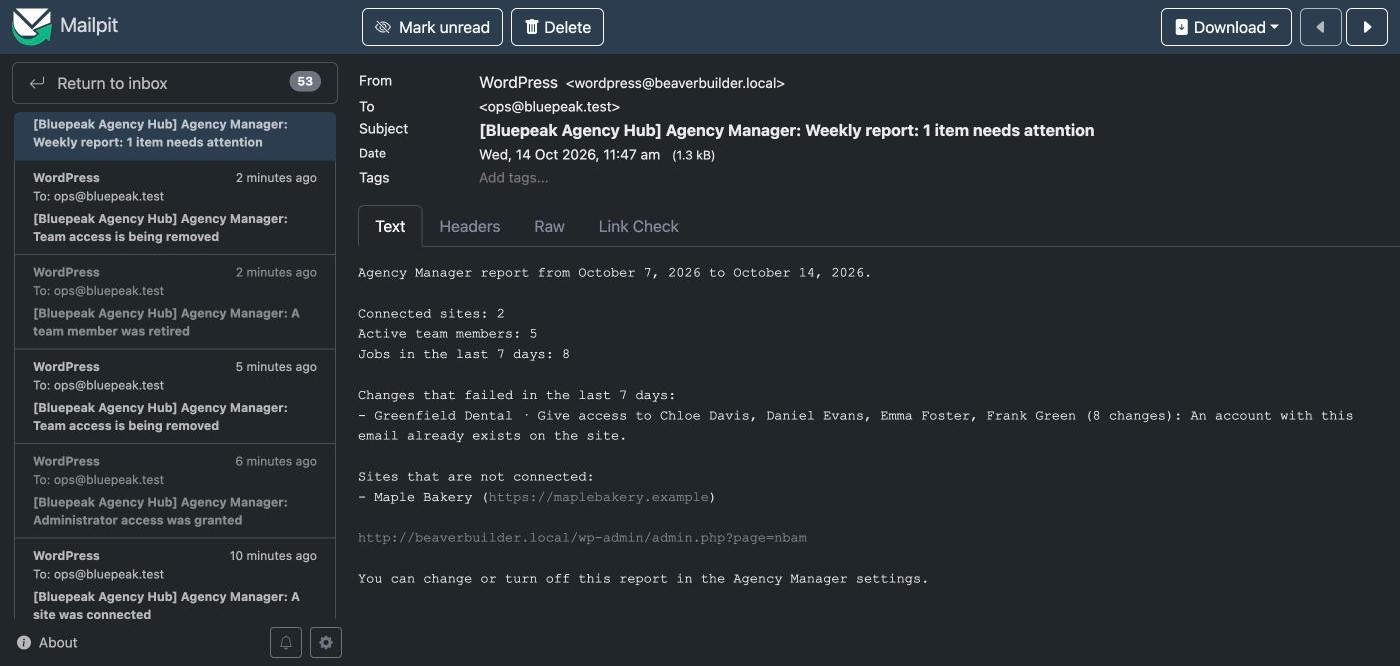
12.5 Emails team members and site owners receive
The Hub itself never emails team members: each client site sends its own standard WordPress Login Details email when you choose to. Site owners receive their own set of emails from the Client plugin. See the Client's emails chapter.
Who can use the Hub
The Hub is used by WordPress users of the Hub site. Don't confuse them with team members, who are only records in the Hub and get accounts on client sites. A project manager can be both.
13.1 Capabilities
Four capabilities, given to the Administrator role only on activation:
| Capability | Allows |
|---|---|
nbam_view | Seeing the Hub: Dashboard, Sites, Team, Access, Jobs. Checking connection and accounts. Following job progress. |
nbam_manage_sites | Adding, editing, disconnecting and deleting sites, creating connection keys. |
nbam_manage_team | Teams, members, giving access, every account action, retiring, retrying and cancelling jobs. |
nbam_admin | Settings, activity log, verifying it, sending the weekly report, revoking every key. |
To let someone who isn't an Administrator use part of the Hub, install a role editor plugin (such as Members or User Role Editor), create a role based on Subscriber, and add only the capabilities they need.
| Person | Capabilities |
|---|---|
| Account manager who follows status | nbam_view |
| Team lead who gives and removes access | nbam_view, nbam_manage_team |
| Person who onboards new client sites | nbam_view, nbam_manage_sites |
| Owner or IT lead | All four |
nbam_manage_team covers everything about access, including giving administrator-level roles and retiring anyone: there's no way to allow only lower roles. Any Administrator of the Hub site can give themselves every capability or delete the Hub outright. Keep the Administrator role on the Hub site for very few people, and give nbam_manage_team only to people you trust with client sites.
13.2 Password confirmation
Some actions ask for your WordPress password again, even though you're signed in, protecting against a stolen or forgotten open session: granting administrator-level roles, suspending/restoring/removing accounts, retiring a member, disconnecting or deleting a site, revoking every key. Removing, retiring, disconnecting and revoking also need a typed confirmation word. Five wrong passwords lock critical actions for that user for 15 minutes and email an alert.
Operations
Situations that happen in real agency life but aren't part of daily use. Read this before your first staging copy, restore or migration.
14.1 Staging copies of client sites
A staging copy of a client site also copies the Client plugin's connection and your team's accounts. What that means:
- The Hub never talks to the copy: it only contacts the registered address of the real site.
- Retired people keep their accounts on old copies until the client refreshes or cleans them up.
- The copy recognises itself: the Client plugin stores the address it connected with, so a copy on a different address (
staging.example.com) turns the agency connection off by itself.
A copy on the same address (for example a restored backup behind the same domain) can't be told apart automatically; add define( 'NBAMC_DISABLE', true ); to its wp-config.php.
14.2 A client site moves to a new address
The Hub only accepts a site at the exact address it was registered with. When it moves, disconnect and delete the old record, add it again with the new address, send a new key, and run Check connection and accounts: the existing team accounts are recognised again because each account carries the identity of its team member, not of the old site record.
14.3 Backups and restores
Back up the Hub like any important site, with wp-config.php (and NBAM_ENCRYPTION_KEY) kept as safe as the server itself. After restoring the Hub from a backup: cancel pending job lines you don't want to re-run, check every site's accounts, and retire again any member who was retired after the backup was taken (they'll show as active again).
After restoring a client site from before a disconnection, it may simply trust the Hub again; after restoring from before it was ever connected, connect it again with a new key. Accounts removed after the backup date come back; open each affected member and remove them again.
14.4 Updating the plugins
Update through normal WordPress updates; database changes apply automatically. Hub and Client currently use protocol version 1; keep both reasonably up to date, since there's no protocol negotiation yet: an outdated Client is reported as "The site rejected the request data. Update the client plugin on the site." Downgrading is not supported.
14.5 Firewalls, security plugins and CDNs
Client sites must accept requests at /wp-json/nubocoder-agency-manager-client/v1/... with their X-NBAM- headers and JSON body reaching WordPress unchanged. Behind Cloudflare or a similar CDN: create a rule that skips the WAF, bot protection and rate limiting for that path (or for the Hub's IP), never cache it, and ideally restore the real visitor IP so address-based blocking works correctly per visitor rather than against the whole CDN pool.
14.6 Connecting many sites at once
The Hub accepts at most 20 connection attempts every 10 minutes from the same address (a client server hosting several sites shares that budget). Work in batches of 10–15 sites: add each site only when the owner is ready to paste the key within 30 minutes, connect batch by batch, and wait a minute after each batch before giving access.
14.7 Removing the Hub for good
- Remove (not Suspend) the team accounts you want gone, site by site.
- Use Settings → Revoke every site key, so every site forgets the Hub and its owner is emailed.
- Back up the database first if you need the activity log.
- Then deactivate and delete the plugin.
Deleting the Hub plugin deletes all its data, does not tell client sites, and sends no email: they stay "connected" to a Hub that no longer exists until their owners disconnect.
Security
Agency Manager can create administrator accounts on many client sites, which makes it valuable to an attacker. Both plugins are designed around one rule: even if the agency Hub is compromised, the damage must be limited, visible and reversible.
15.1 In short
- Each client site has its own pair of keys. A key stolen from one site is useless on any other.
- Every request from the Hub is signed, valid for 5 minutes, and usable only once. Every successful answer is signed too.
- The Client plugin accepts a short, fixed list of actions, all about team accounts: nobody can run code, read files, change settings or install plugins through it.
- The agency can only touch accounts it created, or existing accounts the owner explicitly allowed it to take over. The owner's other accounts, and the site's last administrator, are always protected.
- Passwords never travel. The Hub never sends, receives or stores passwords of client sites.
- Critical actions ask for the password again, send an email, and are written to a tamper-evident log. Security alerts are emailed even when critical-action emails are off.
- The site owner decides what the agency may do, sees every change, and can disconnect at any time. Both sides have an emergency switch.
15.2 How the connection is made
The agency adds the site in the Hub, which creates a dedicated key pair and a one-time pairing token (only its hash is stored). The connection key given to the owner contains the Hub's address, name, public key and the token: usable once, for 30 minutes. The Client shows the Hub's name, address and key fingerprint and waits for the owner to confirm before anything is trusted, protecting against someone sending a key for a Hub they control. Both sides then show fingerprints so they can be compared out of band (for example, read aloud on a phone call). Connection attempts are limited to 20 per address every 10 minutes.
15.3 How each request is protected
Every request carries a signature over the method, route, parameters, body, site identifier, timestamp and a one-time nonce. The Client checks, in order: the emergency switch and copy detection, an address-based rate limit, the site identity, a 5-minute time window, the signature, that the nonce was never used, that it can read its own private key, the site owner's permission for the action, and strict validation of every field. Any verification failure gets the identical answer, Unauthorized, so an attacker learns nothing about which check failed. After 10 failures in 10 minutes from one address, that address is ignored for 15 minutes.
Answers from the site are signed with the site's own key and tied to the request's nonce: the Hub ignores any answer without a valid signature, so a hijacked DNS or proxy cannot fake a success.
15.4 What the Client plugin can do, and nothing more
| Action | Needs |
|---|---|
| Report site status | A valid signature |
| List agency accounts and administrators | Permission: manage agency team accounts |
| Create or take over an account | Manage accounts (+ admin-level roles, + take-over, as needed) |
| Change role / suspend / restore | Manage accounts (+ admin-level roles, as needed) |
| Remove an account | Manage accounts |
| Forget the Hub (disconnect) | A valid signature |
There is deliberately no action to run code, query the database, read or write files, change site settings, create roles, or install anything. Only accounts carrying the agency marker can be touched; the last account able to manage the site can never be suspended, removed or downgraded; and on multisite networks, account changes are refused entirely.
15.5 How the Hub protects itself
- Dedicated capabilities, given only to Administrators at first (see Who can use the Hub).
- Password confirmation for critical actions, plus a typed word for destructive ones. Five wrong passwords lock critical actions for 15 minutes and alert by email.
- Optional mandatory two-factor authentication for every screen, form and progress update.
- Site keys encrypted in the database with
NBAM_ENCRYPTION_KEY. - Safe outgoing requests: HTTPS only, certificate always checked, no redirects followed, answers over 1 MB refused.
- Tamper-evident activity log, chained by hashes, verifiable on demand.
- No secrets in logs: passwords, keys, tokens and signatures are never written anywhere.
15.6 What the plugins cannot protect against
- Administrator accounts are administrators. If the agency gives a team member the Administrator role on a client site, that person can do anything any administrator can: install plugins, edit users, change the Client plugin's own permissions, or disconnect it. The plugin limits what the Hub can do remotely, not what a signed-in administrator can do.
- Administrator-level roles are allowed by default on the client side, because most agencies need at least one administrator to maintain a site. Whoever controls the Hub's keys can then create an administrator on every connected site, which is exactly why the Hub itself needs to be a dedicated, hardened site.
- An attacker with the Hub server, not just a Hub account, can sign requests directly and skip password confirmation, the Hub's emails and its activity log entirely. The only remaining traces are on each client site.
- Editors are powerful too. On a normal WordPress site, an Editor can publish scripts in content that run in any visitor's browser, administrators included: giving non-administrator roles asks for no password and sends no email.
15.7 What data goes where
Nothing is sent to any other server, and neither plugin has analytics or third-party calls. What's exchanged is strictly: connection identity (addresses, public keys, versions), team member details when giving access (login, email, name, role), the changes you confirm, and (at every check, only while the owner allows it) basic site facts (versions, roles, total user count) plus the login, email, role and post count of the agency's own accounts and of the site's administrators. Never sent: passwords, the accounts of non-administrator staff, customers, content, orders or settings.
15.8 If you think the Hub was compromised
- In Settings → Emergency, click Revoke every site key. If you can't sign in, ask your host to deactivate the plugin (for example by renaming its folder), then separately ask every client to add
NBAMC_DISABLEor disconnect on their side. - For sites that couldn't be told, ask their owners to add the emergency switch or disconnect from their screen.
- Activity log → Verify integrity. Read the log for actions nobody remembers doing. Back up the database as evidence before changing anything else.
- On each client site, with its owner: review Users and the site's own activity list. Delete administrator accounts nobody knows.
- Clean the Hub site: rebuild it or restore a backup from before the incident, update everything, remove unknown users and plugins, and change every Hub user's password.
- Connect every site again with new keys, run a full account check, and retire any member you don't recognise.
Site owners: see If you think the agency's Hub was compromised on the Client page.
15.9 Deployment recommendations for the agency
- Install the Hub on a dedicated WordPress site with HTTPS, few plugins and no public registration.
- Add
NBAM_ENCRYPTION_KEYand keep a safe copy. - Add
DISALLOW_FILE_EDIT. - Require two-factor authentication for every Hub user.
- Keep the
nbam_admincapability to three people or fewer. - Run WordPress cron from a real server cron job.
- Keep the notification email pointed at a mailbox someone actually reads.
- Back up the Hub database regularly, to storage the Hub itself cannot modify.
Notes & limitations
This version (Hub 0.2.0, Client 0.1.1) covers team account management only.
| Limitation | Details |
|---|---|
| Multisite networks | Can be connected, but account changes are refused; the Hub only reads status. |
| One team per member | A member has one default role. Use a fixed role in Give access for exceptions. |
| No per-site role per team | A team has the same role on every site. |
| One Hub per client site | A site connects to one Hub at a time. |
| No single sign-on | Team members sign in with their own username and password on each site. |
| No temporary access | Access doesn't expire by itself; remove it or retire the person when done. |
| No key rotation tool | To replace a site's keys, disconnect and connect it again. |
| No data retention settings | Jobs, the activity log and retired members are kept until the Hub plugin is deleted. |
| One notification address | No per-event routing, CC, webhooks or chat integrations yet. |
| Not yet included | Plugin packs, plugin/theme updates, site inventory, uptime monitoring, backups and content workflows are planned for later versions. |
| Languages | The interface is in English. Translations can be added through translate.wordpress.org. |
- The Hub only knows what sites report: changes made directly on a site appear after the next check.
- Disconnecting a site does not remove your team's accounts; remove them first.
- Deleting a site from the Hub does not touch the client site itself.
- Editing a member or a team's role never changes accounts that already exist.
- Deleting the Hub plugin deletes all its data, but never touches accounts on client sites.
Troubleshooting & FAQ
17.1 Connection problems
| Message | Cause | Fix |
|---|---|---|
| The site could not be reached | Site down, DNS problem, firewall, invalid certificate, timeout. | Check it opens in a browser over valid HTTPS. The Hub retries automatically. |
| The agency connection is turned off on the site | The owner added NBAMC_DISABLE, or the site is a copy, or it answered 503 for another reason. | Ask the owner. Nothing wrong on the Hub side; it resolves itself at the next check. |
| The client plugin is not active on the site | Deactivated or deleted, or the REST API isn't reachable. | Ask the owner to activate it. If deleted, disconnect and create a new connection key. |
| The site rejected the request (Unauthorized) | Temporary address block, disconnected on its side, old backup, or a newer protocol than the Client supports. | Usually clears itself in 15 minutes. If it keeps failing, check the connection with the owner. |
| The site cannot read its own key | The site's WordPress salts changed. | Owner disconnects on their side; you disconnect and create a new key. |
| The key of this site cannot be decrypted | NBAM_ENCRYPTION_KEY (or the Hub's salts) changed. | Restore the old value if you have it; otherwise disconnect and reconnect every affected site. |
| The address reported by the site does not match its registered address | Domain or www change on the client side. | Disconnect, delete the site record, add it again with the new address. |
17.2 Account changes
| Message | Cause | Fix |
|---|---|---|
| An account with this email already exists on the site | Created outside the Hub. | See Existing accounts with the same email. |
| The site owner has not allowed administrator-level roles | The owner turned that permission off. | Use a lower role, or ask the owner. |
| This is the only account that can manage the site | Last administrator protection. | The owner must add another administrator first. |
| The account is suspended. Restore it to change its role. | Role changes don't apply to suspended accounts. | Restore first, or use Give access with the new role (restores and sets it in one step). |
| No free username could be found | The username and 49 numbered variants are all taken. | Change the member's username. |
17.3 Other situations
Jobs stay Queued for a long time. With no server cron job and no visits, background work waits. Open the job page (it nudges the queue) and set up a real server cron job (Installation).
Emails don't arrive. Check the Send to address and spam folder; use Send the weekly report now to test. Many hosts need an SMTP plugin.
The Hub shows "Editor (expected Author)." The role was changed directly on the site. See Accounts that need attention.
17.4 Frequently asked questions
Yes. The Hub (this plugin) goes on one site of the agency; the Client plugin goes on every client site. Neither does anything alone: the Hub has no sites to manage without it, and the Client does nothing until a Hub connects to it.
No. It never sends, receives or stores passwords. New accounts get a random 32-character password generated on the client site itself, and the person sets their own password through WordPress's standard email.
All Hub data is deleted: sites, keys, team, jobs and the activity log. Client sites are not told, so they stay "connected" to a Hub that no longer exists until their owners disconnect them. Accounts on client sites stay exactly as they are. Always use Settings → Revoke every site key first, so every site forgets the Hub and its owner is emailed.
No. The Hub only learns about it at its next check (daily, or on demand) and shows the account as needing attention, for example "Editor (expected Author)". You decide whether to push the expected role back or accept the new one as correct.
The line is retried automatically after 1, 5 and 15 minutes, then marked Failed and you receive an email for the job. Click Retry failed once the site is back. Suspending or removing access retries for about six days (13 attempts) before giving up, because taking access away must not stop at a temporary problem.
Usually not. The Client plugin notices the staging copy has a different address and turns the agency connection off there by itself; disconnecting the copy never touches the real site. Just remember the copy also has your team's accounts (as they were at the time of the copy). A copy that reuses the exact same address needs NBAMC_DISABLE added to its wp-config.php.
Glossary
| Connection key | A one-time text starting with nbam1., created by the Hub for one site, valid for 30 minutes. |
| Critical action | A Hub action that asks for your password again and usually emails the notification address: granting admin-level roles, suspending/restoring/removing accounts, retiring, disconnecting, revoking keys. |
| Fingerprint | A code of eight groups derived from a public key, used to compare keys by eye or by phone. |
| Job | A background change on client sites, with one line per site (and member). |
| Managed account | An account created by the agency, or taken over with the owner's permission. Only these can be changed by the agency. |
| Member | A person of the agency, stored in the Hub, who can get accounts on client sites. |
| Missing on site | The Hub expected an account the site no longer reports. |
| Notification address | The single email in Settings → Notifications → Send to. |
| Retire | Mark a member as no longer in the agency and remove or suspend all their accounts. |
| Service account | A Subscriber-role account created on a client site the first time an account is removed there, to hold reassigned content. |
| Signed request | A request carrying a digital signature the receiver checks with the matching public key. |
| Staging copy | A test copy of a site, recognised by its different address; the agency connection turns off there automatically. |
| Take over | Turn an existing account sharing a team member's email into a managed account. |
| Team | A group of members sharing the same role on client sites. |
More terms (emergency switch, nonce, permissions) are in the Client's glossary.
Developer reference
Plugin slug nubocoder-agency-manager, text domain nubocoder-agency-manager, PHP namespace Nubocoder\AgencyManager\, prefix nbam_. Requires WordPress 6.9+ and PHP 8.1+ with sodium.
19.1 Constants (wp-config.php)
| Constant | Type | Purpose |
|---|---|---|
NBAM_ENCRYPTION_KEY | string, base64 of 32 random bytes | Encrypts per-site private keys at rest (sodium_crypto_secretbox). Without it, a key derived from the site's own WordPress salts is used instead. |
NBAM_ALLOW_INSECURE | bool | Local development only: accepts http:// and loopback addresses. Ignored unless wp_get_environment_type() returns local. |
DISABLE_WP_CRON | bool | Standard WordPress constant, recommended with a server cron job. |
DISALLOW_FILE_EDIT | bool | Standard WordPress constant, recommended by the security check. |
The plugin also defines NBAM_VERSION, NBAM_FILE, NBAM_DIR and NBAM_URL.
19.2 Filters
nbam_user_has_two_factor( bool $has_two_factor, int $user_id ): tells the Hub whether a user has two-factor authentication, for 2FA plugins other than Two Factor. Only used when Two Factor itself isn't active.
add_filter( 'nbam_user_has_two_factor', function ( $has_two_factor, $user_id ) {
    return my_2fa_plugin_is_enabled_for( $user_id );
}, 10, 2 );
The Hub's notification address cannot be changed by a filter (unlike the Client's nbamc_notification_email), and there are no actions fired on activity log entries or job results yet.
19.3 REST routes (namespace nubocoder-agency-manager/v1)
| Route | Method | Access |
|---|---|---|
/pair | POST | Public, protected by the one-time token, the client's signature, and a rate limit of 20 requests per 10 minutes per address. |
/disconnect | POST | Public, protected by the client's signature and the same rate-limit budget as /pair. |
/jobs/<id> | GET | Logged-in user with nbam_view (and 2FA when required). |
Rejections of /pair and /disconnect are uniform and reveal nothing about which check failed, with one exception: a valid token and signature but a mismatched address gets a signed 409 nbam_url_mismatch, with a readable message, since only a holder of a valid key can reach that branch.
19.4 Background processing
Bundles Action Scheduler 4.2.0 (shared with other plugins that bundle it too) under the action group nubocoder-agency-manager.
| Hook | Schedule | Does |
|---|---|---|
nbam_run_job_item | Async, or delayed for retries | Runs one job line. |
nbam_daily_sync | Every 24 hours | Creates a check job with one line per connected site, except those with 14+ failed checks in a row. |
nbam_weekly_report | Mondays 08:00 site time | Sends the weekly report per the setting. |
Retry policy: transient failures (including the client's 401) retry after 1, 5 and 15 minutes (4 attempts); suspend and remove continue with 1, 3, 6, 12 hours and five daily tries (13 attempts, ~6 days). Final/non-retried errors: nbamc_key_unreadable, nbam_rejected_params, and every business error from the client.
19.5 Data
Tables (prefix {$wpdb->prefix}nbam_): sites, members, teams, accounts, jobs, job_items, audit_log (insert-only, hash-chained). Options: nbam_settings, nbam_db_version, nbam_key_id, nbam_key_configured. The activity log's hash chain is sha256() over the previous row's hash plus every field of the current row, joined with a control character, so any edited or middle-deleted row is detectable by Verify integrity.
19.6 Activation, deactivation, uninstall
Activation creates the tables and grants capabilities to Administrator. Deactivation keeps all data; background retries resume where they left off. Uninstall drops every table (including the activity log), deletes options and transients, removes the capabilities, and deletes the plugin's Action Scheduler actions. Nothing changes on client sites, and they are not notified: revoke every key first.
19.7 Hub ↔ Client protocol (version 1)
Normative reference for developers and security reviewers auditing the exchange between the two plugins. You don't need it to use either plugin.
- Signatures: Ed25519 detached (
sodium_crypto_sign_detached), transported as base64. - Hashes: SHA-256, lowercase hex. Random values:
random_bytes, hex encoded. - Fingerprint: the first 32 hex characters of
sha256(public key in base64), upper case, grouped asXXXX:XXXX:XXXX:XXXX:XXXX:XXXX:XXXX:XXXX, 128 bits of it, as of Hub 0.2.0 / Client 0.1.1. - Connection key:
nbam1.<base64url(JSON)>carrying the Hub's endpoint, name, site id, public key and a single-use pairing token, valid 30 minutes; the Hub stores only the token's hash. - Request headers:
X-NBAM-Version,X-NBAM-Site,X-NBAM-Timestamp,X-NBAM-Nonce,X-NBAM-Signature, each request signed over the method, route, sorted query string, site id, timestamp, nonce and a hash of the body. - Response envelope:
{ "v": 1, "ts": …, "payload": "<JSON string>", "sig": "<base64>" }, signed by the client site's key over the site id, nonce, HTTP status, timestamp and a hash of the payload. The Hub rejects any answer that isn't signed or is badly signed. - Versioning: a Client accepts only
X-NBAM-Version: 1; there is no negotiation yet, so an incompatible future change needs a new protocol version.
The Client's own routes, scopes and error codes are documented on the Client's developer reference.
Support
For questions, a custom integration, or help rolling this out across your agency's client sites, contact the plugin's author at cesar@cesarsiancas.com.
Rolling out Agency Manager across many client sites?
If you need help with the initial setup, a batch rollout across dozens of sites, or a feature this version doesn't cover yet, I'm available for that work.
Tell me about your project.
Open to new projects and part-time retainer engagements, in English or Spanish. I reply within one business day. If we're a fit, we'll book a 30-minute call to go deeper.
Email me directly
A short note about your project, your timeline, and what success looks like. The more context, the better.
cesar@cesarsiancas.com Already know what you want?Book a 30-min call
Skip the back-and-forth. Pick a slot in my calendar and we'll talk through scope, timeline, and budget.
calendly.com/zed-1985/30min Hiring through a platform?Find me on Toptal
I'm a vetted Top 3% engineer on Toptal. If your company already has a contract there, we can start within days.
toptal.com/resume/cesar-siancas