Nubocoder Agency Manager Client
Installed on a client site so a web agency can manage its own team's accounts there safely, with the site owner in full control of what it's allowed to do. Works together with Nubocoder Agency Manager (the Hub), installed on the agency's own site.
On this page
Why your agency asks for this
Your agency uses Agency Manager to manage the accounts of its own team across every site it works on, from one place it calls the Hub. Without this plugin, your agency creates and deletes the accounts of its people on your site by hand. With it:
- when someone joins the agency, they get the right account on your site in seconds;
- when someone leaves the agency, their account on your site is removed (or blocked) everywhere at once, so a former employee doesn't keep access by mistake;
- every change the agency makes this way is listed on your site, in Recent agency activity, and you can stop it at any time.
1.1 What the agency can and cannot do through it
It can create, change and remove the accounts of its own people, and read basic facts about your site (versions, roles, and the username, email and role of your administrators). It cannot touch your own accounts (unless you turn on "Allow taking over existing accounts," which is off by default), see passwords, install plugins or change settings through the plugin.
- Administrators are administrators. If the agency gives one of its people the Administrator role on your site, that person can do anything an administrator can, exactly like any administrator you'd create yourself. This plugin controls what the agency's Hub can do remotely; it does not and cannot limit what a signed-in administrator does once they're in. See Choosing what the agency can do.
- Verify the Hub's identity before confirming the connection: compare the key fingerprint by phone with someone at the agency, not just by eye on screen. See Check who you're connecting to.
- Leave "Allow taking over existing accounts" off unless the agency asks you for a specific account and you agree. It's off by default for a reason.
- Turn off "Allow administrator-level roles" if the agency only does content or marketing work on your site: it doesn't need administrators to do that.
- You can disconnect at any moment if something looks wrong; existing accounts stay, but the agency loses the ability to make any further change immediately.
The full picture of what protects you and what this plugin cannot protect against is in Security. Worth five minutes before you paste a connection key.
1.2 Before you start
- Settings → General → Administration Email Address: make sure it's your own address. The plugin's warnings go there.
- Make sure you have your own Administrator account on the site.
- Decide with the agency whether its people need the Administrator role (usually yes if the agency maintains the site technically, no if it only writes content).
Installing & connecting
2.1 Requirements
| Requirement | Value |
|---|---|
| WordPress | 5.9 or later |
| PHP | 7.4 or later |
| HTTPS | Required. The agency cannot add a site without it. |
| Your account | An Administrator account. Only users who can manage the site's settings see the plugin screen. |
| Multisite | Can be connected, but the agency can only read its status for now; it cannot manage accounts there yet. |
2.2 Step 1: install the plugin
- In your WordPress admin, go to Plugins → Add Plugin.
- Search for Nubocoder Agency Manager Client, click Install Now, then Activate. If your agency sent you a ZIP file instead, use Upload Plugin.
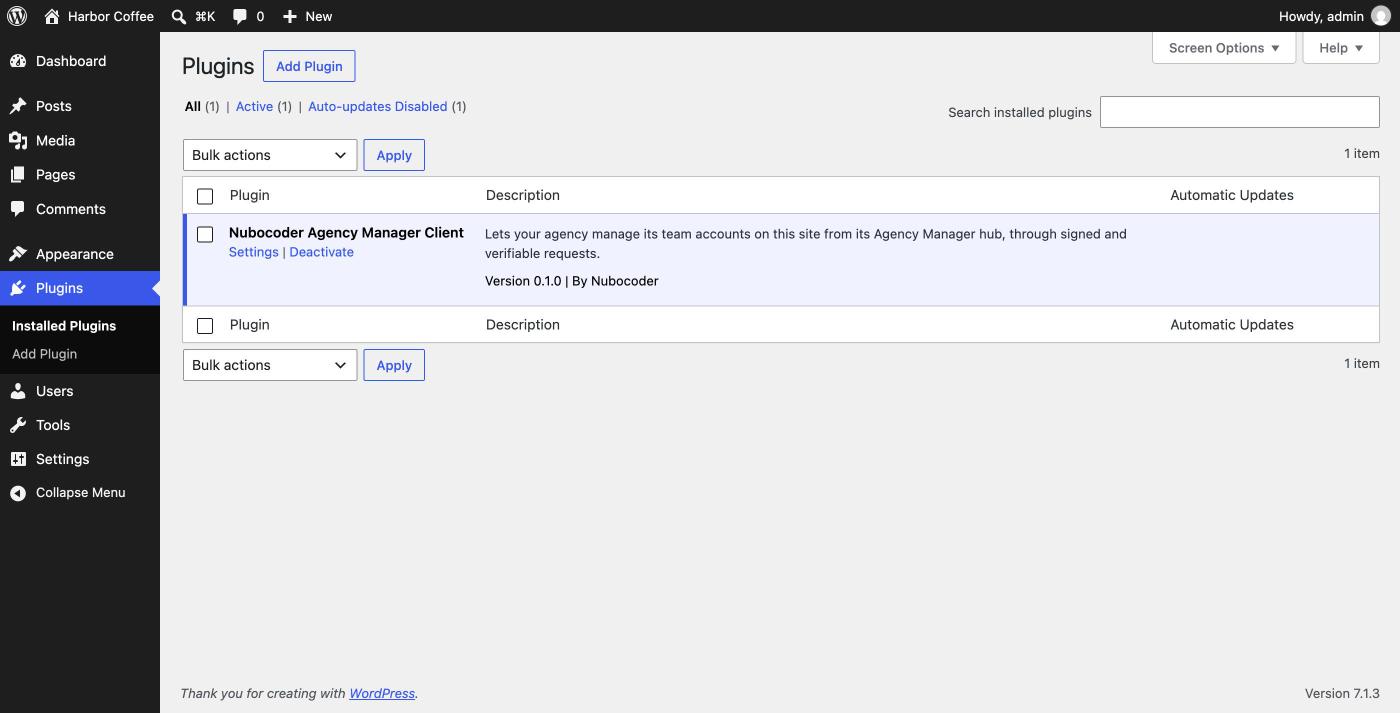
Turning on automatic updates for it is recommended: in Plugins, click Enable auto-updates in its Automatic Updates column.
2.3 Step 2: get the connection key from your agency
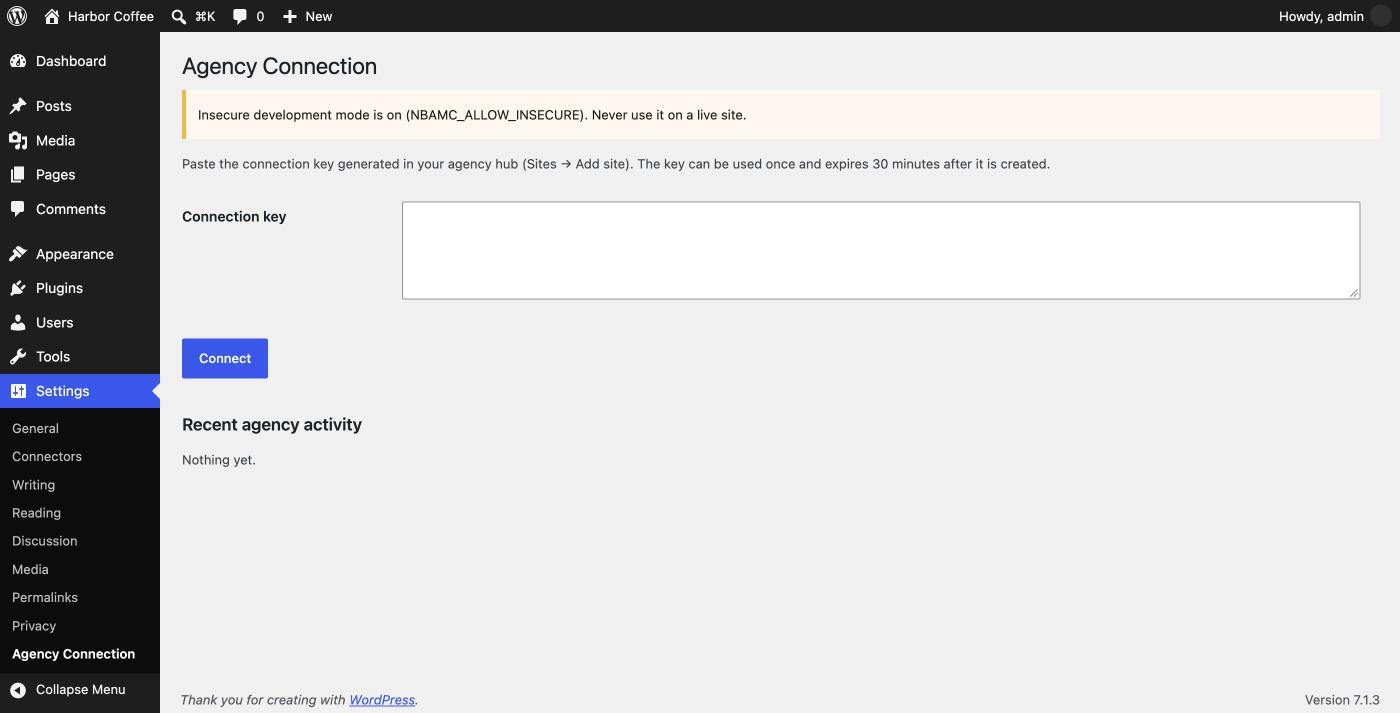
Your agency adds your site in its Hub and sends you a connection key: a long text starting with nbam1.. It works once, expires 30 minutes after the agency creates it, and only works on your exact site address. It can arrive by email or be read to you by phone; just don't post it anywhere public: it's harmless to anyone else after 30 minutes.
2.4 Step 3: paste the key
- Go to Settings → Agency Connection.
- Paste the whole key into Connection key and click Connect.
2.5 Step 4: check who you're connecting to
Before anything is sent, the plugin shows exactly what the key says:
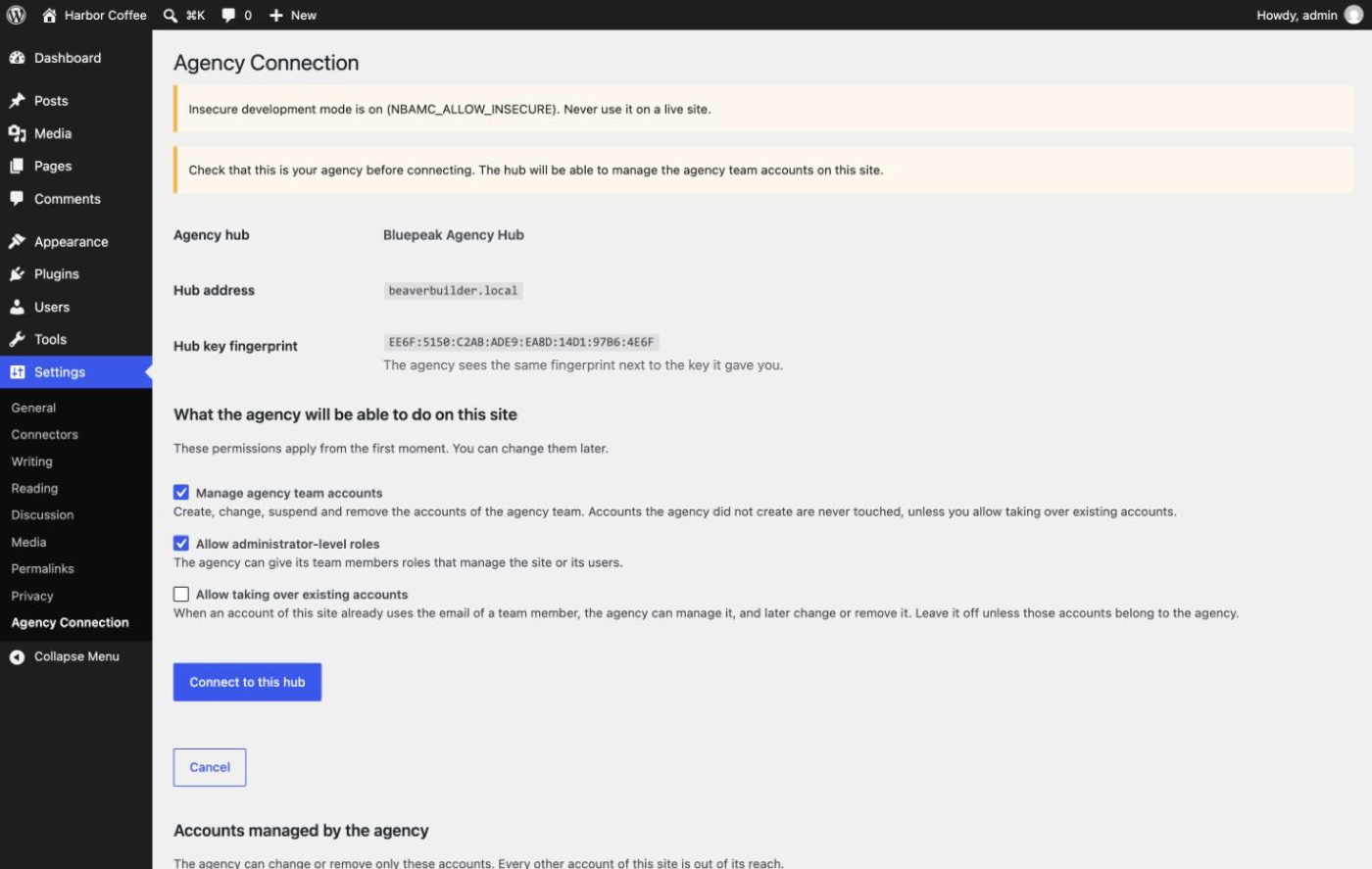
Call your agency on a number you already know (not one written in the same email as the key) and ask them to read you the fingerprint shown on this screen: a code of eight groups, for example 21A9:82DA:723C:4221:5E07:9B1C:0D44:A3F2. It must match. Someone could send you a key for a Hub they control, hoping you connect without looking.
On the same screen, under "What the agency will be able to do on this site," choose your three permissions (see Choosing what the agency can do); they apply from the first moment. Then click Connect to this hub, or Cancel if anything looks wrong.
2.6 Step 5: connected
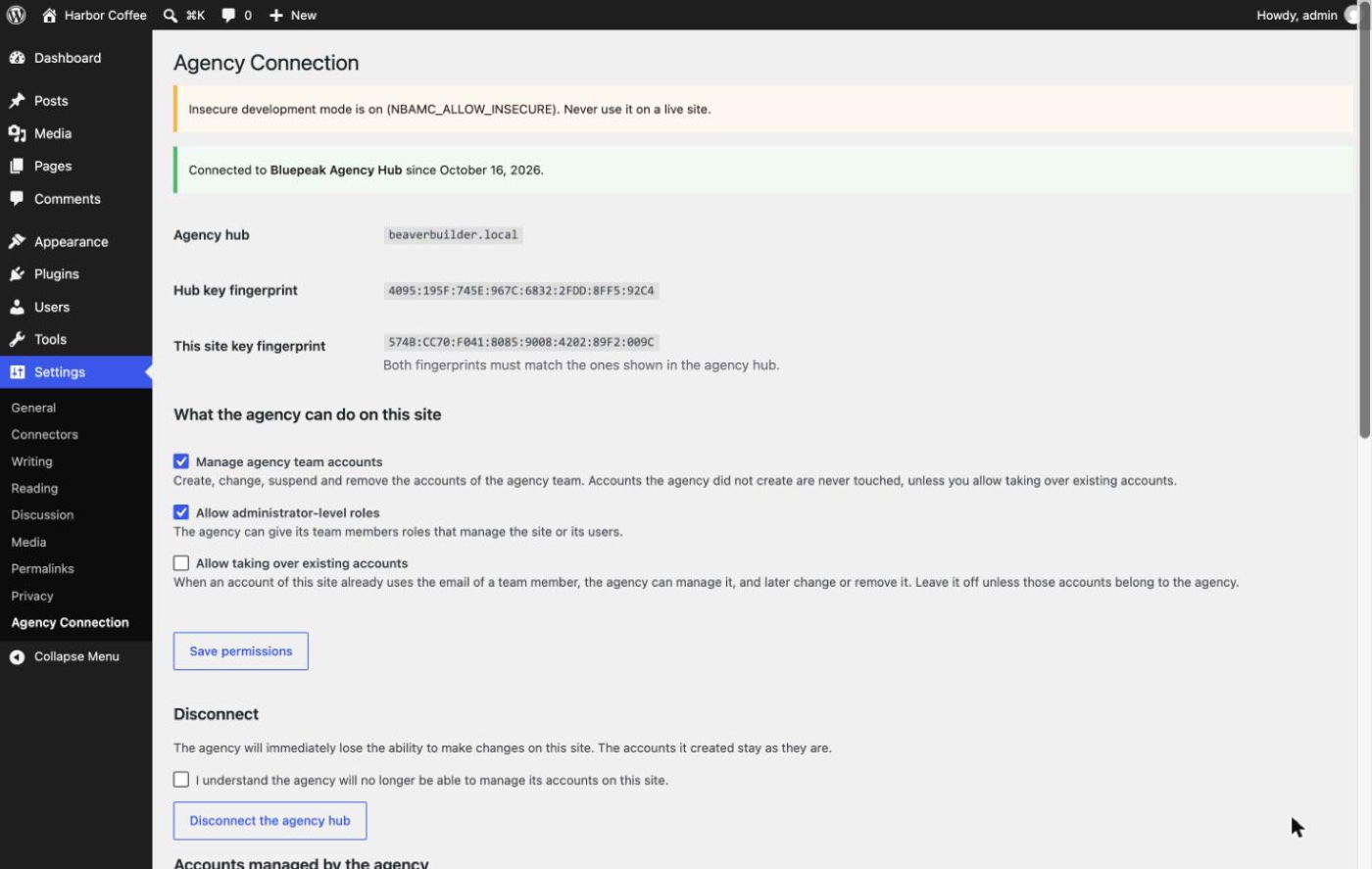
Your agency sees both fingerprints on its side too and can read them to you. If they don't match, click Disconnect the agency hub and contact your agency: you may be connected to a different Hub. You'll also receive the email "Your site was connected to an agency" (see Emails).
2.7 If the connection fails
| Message | What to do |
|---|---|
| This is not a valid connection key | Copy the whole key again, from nbam1. to the end. |
| The agency hub rejected the key (expired, used already, or for another site) | Ask for a new key, and give the agency the exact address from Settings → General → Site Address. |
| The address of this site does not match the one registered in the hub | The agency must add the site again with your exact address. |
| Too many connection attempts | Wait 10 minutes and try again. |
| The agency hub could not be reached | Try later, or send the message to your agency (firewall, DNS, or the Hub itself may be down). |
| This site is already connected | Disconnect first if you want to connect to a different Hub. |
2.8 About your site's security keys
Every WordPress site has long random codes called security keys or salts in wp-config.php; this plugin uses two of them to lock away its own private key. If they change after connecting (some security plugins or hosting panels have a "regenerate security keys" button), the plugin can no longer read its private key: it refuses every agency request without changing anything, and shows a warning. Click Disconnect the agency hub and ask for a new key.
Choosing what the agency can do
Where: Settings → Agency Connection → "What the agency can do on this site" (and, before connecting, the same choice on the confirmation screen).
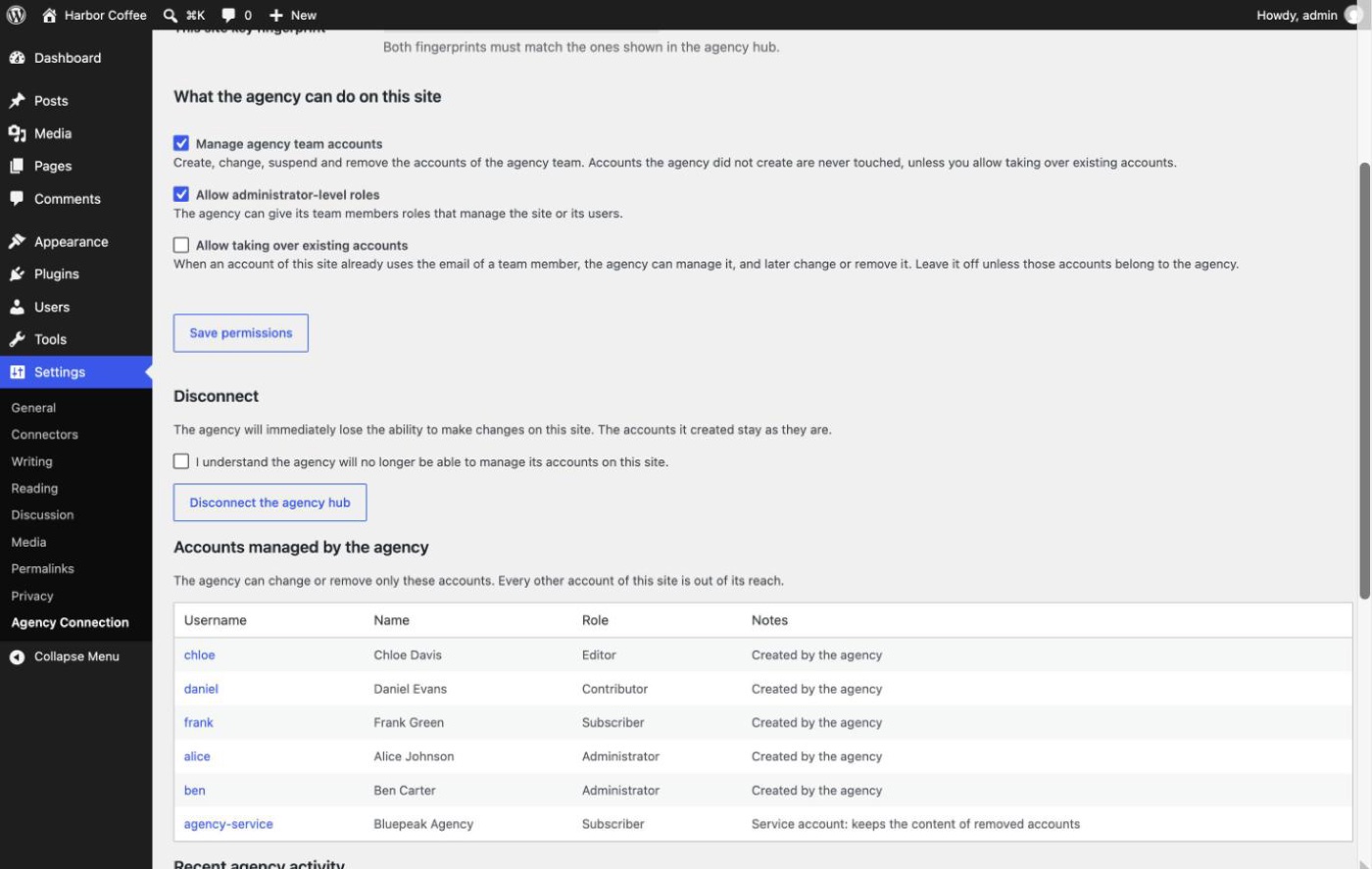
| Permission | Default | When on | When off |
|---|---|---|---|
| Manage agency team accounts | On | The agency can create, change, suspend and remove its accounts, and read its own accounts and your administrators. | The agency cannot change or read any account. Its daily checks count as failed, and after two weeks it stops checking your site. |
| Allow administrator-level roles | On | The agency can give team members roles that manage the site or its users. | The agency can only give Editor, Author, Contributor or Subscriber. Existing administrator accounts keep their role until changed. |
| Allow taking over existing accounts | Off | If an account already uses a team member's email, the agency can manage (and later change or remove) it. | Existing accounts are never touched; the agency's request simply fails and it must ask you. |
Changing a box and clicking Save permissions takes effect immediately, is recorded in Recent agency activity, and emails you "The agency permissions were changed", so a change behind your back never goes unnoticed. The agency sees your choice at its next check (at the latest, the next day).
3.1 Which permissions should I leave on?
Allow administrator-level roles is on by default because most agencies need at least one developer with full access to maintain a site. If the agency only writes content or does marketing, turn it off. Remember that any administrator can do anything on the site, including changing these very permissions, so giving administrator access is ultimately a matter of trust in the agency, not of this plugin.
Allow taking over existing accounts should stay off unless your agency asks you, for a specific account, and you agree.
A dental clinic's receptionist has her own Editor account with her own email; the agency maintains the site. Settings: Manage agency team accounts on, Allow administrator-level roles on (since the agency maintains the site), Allow taking over existing accounts off. The receptionist's account stays safe: even if the agency added a "team member" using her email, the plugin would refuse to touch it.
3.2 What counts as an administrator-level role
A role is administrator-level if it can manage the site's settings; create, edit, promote or delete users; install, edit, update or delete plugins or themes; edit code files or update WordPress; or upload files of any type without restriction. The standard Administrator role is one; so is a WooCommerce Shop manager role, because by default it can edit users. Editor, Author, Contributor and Subscriber are not.
3.3 What the agency can never do through this plugin
- Change, suspend or remove accounts it did not create or take over.
- Remove or downgrade the last account able to manage your site.
- Create new roles or give abilities to roles.
- See or set any password.
- Run code, read files, change settings or install plugins.
- Manage accounts on a multisite network (for now).
Your permission choices are kept even if you disconnect and connect again later. Check them after every new connection.
Following what the agency does
Where: Settings → Agency Connection → Recent agency activity. Every change the agency makes through this plugin, and every important event of the connection, is listed here, newest first.
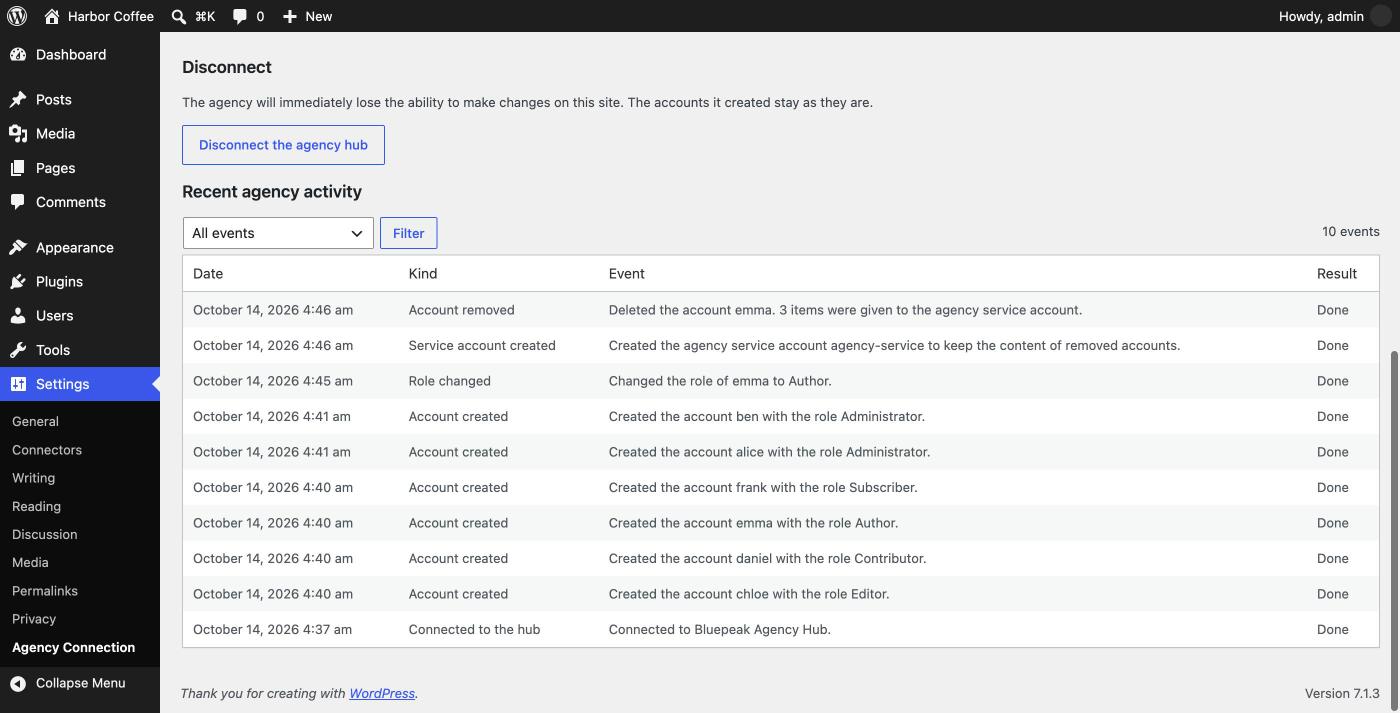
This list does not include what agency people do after signing in with their own accounts (that's normal WordPress activity; use a general activity log plugin if you need to record it), nor the agency's routine daily checks, which change nothing. It keeps only the latest 200 events and has no export, so take a screenshot from time to time if you need a permanent record.
4.1 Kinds of event
| Kind | Example |
|---|---|
| Connected / Disconnected | "Connected to Bluepeak Agency Hub." / "The site owner disconnected the agency hub." |
| Permissions changed | Names the user who saved, and the new state of every box. You also get an email. |
| Account created / role changed | "Created the account alice with the role Administrator." |
| Account suspended / removed | "Deleted the account emma. 3 items were given to the agency service account." |
| Request rejected | The agency asked for something your permissions or the safety rules don't allow, with the reason. |
| Address blocked | "Too many invalid requests. The sender was blocked for 15 minutes." |
4.2 Monthly checklist for site owners
- Settings → General: the Administration Email Address is still yours.
- Settings → Agency Connection: still connected to the Hub you expect, with the permissions you chose.
- Recent agency activity: no account or role change you can't explain.
- Users → Administrator: every administrator is someone you know.
- Plugins: no plugin you don't recognise.
There's no email for every new account or permission change, so a quick look once a month is enough for most sites, and right away after an unexpected connection email.
4.3 Also in the Users screen
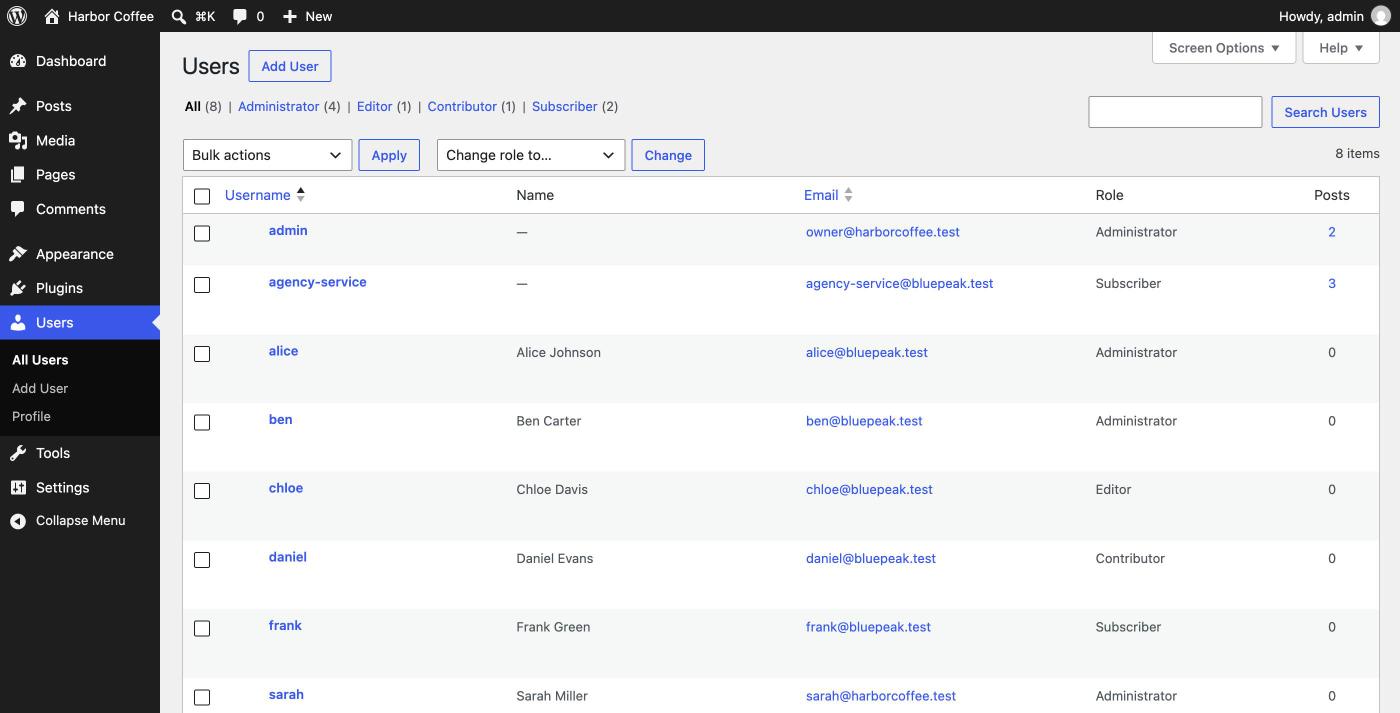
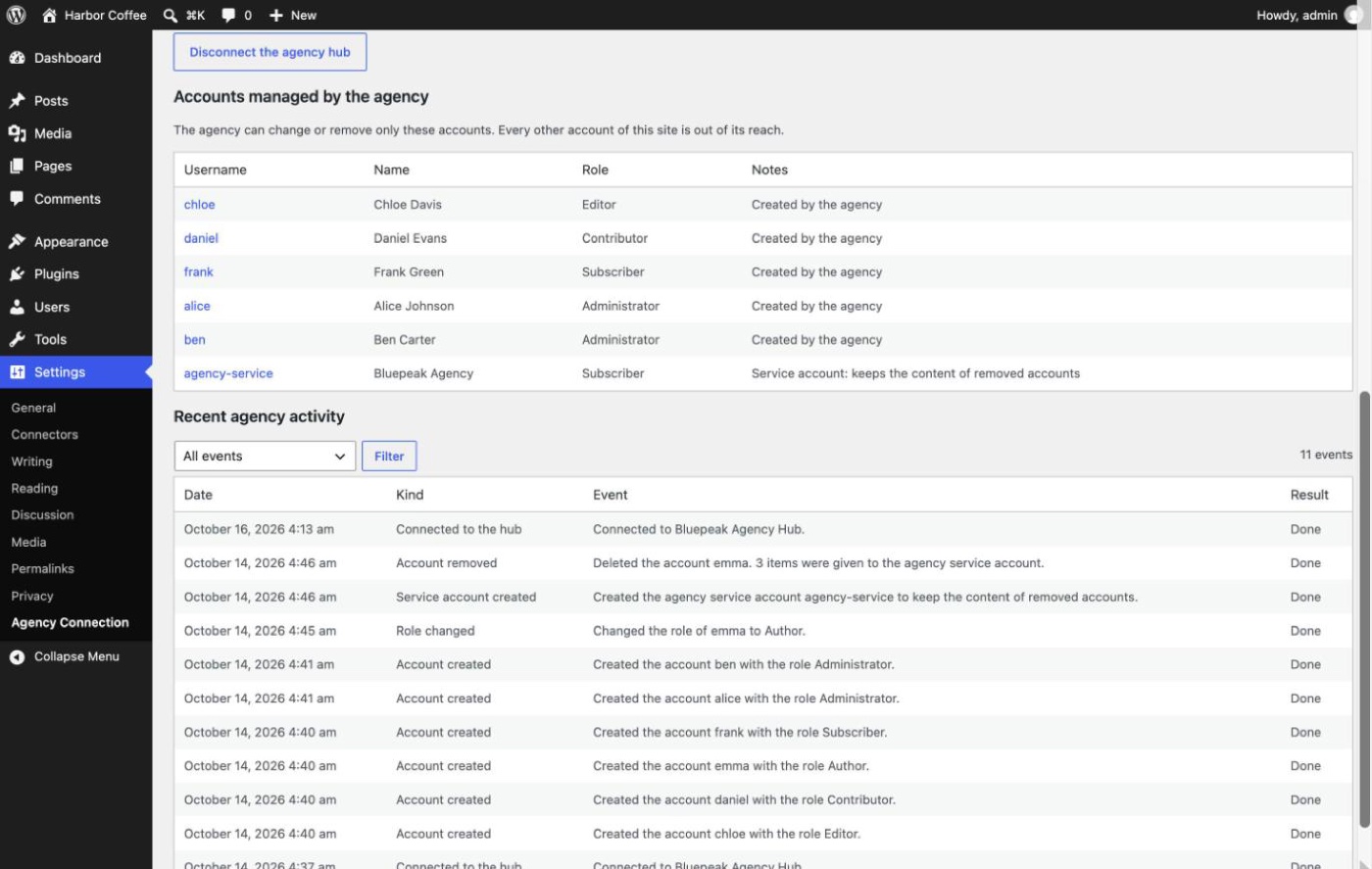
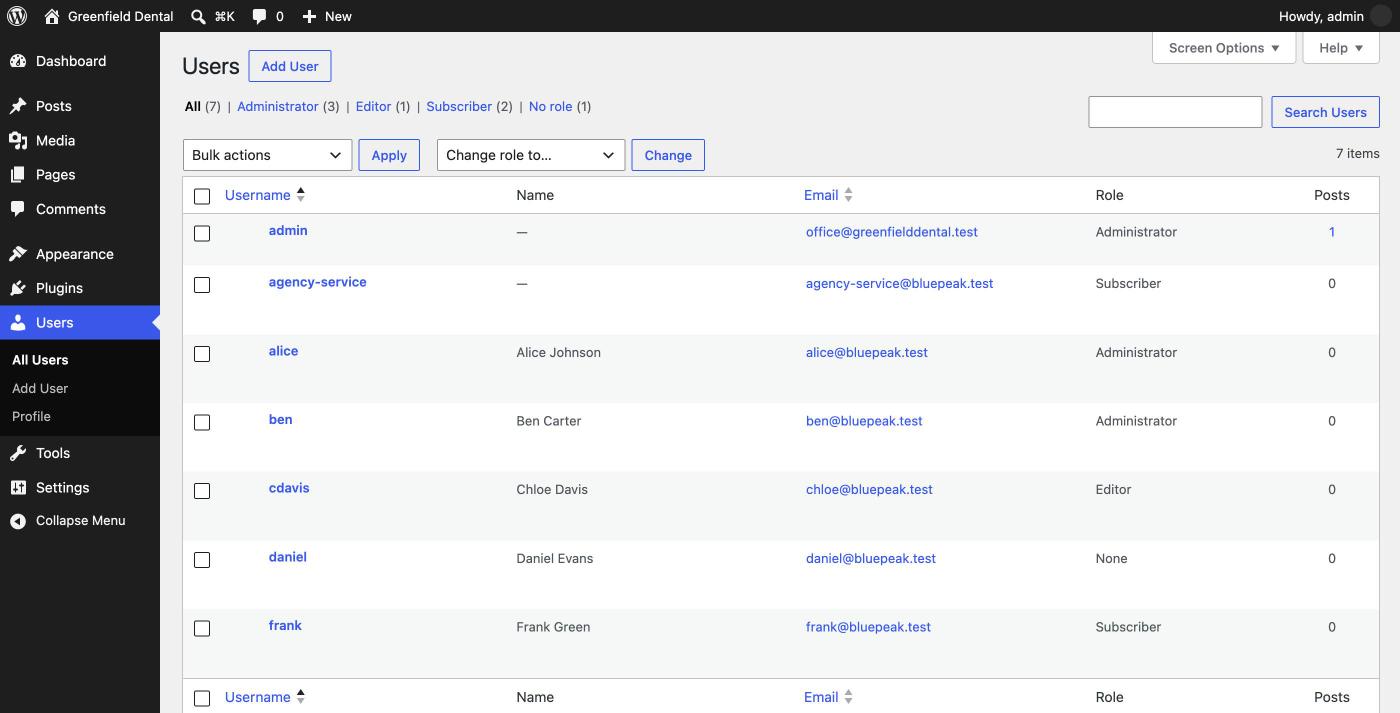
The agency's accounts are ordinary WordPress accounts. You'll see them in Users like any other. To know which ones belong to the agency, look at Accounts managed by the agency on the Agency Connection screen: it lists every account the agency can change, plus the agency's own service account.
What happens to the accounts on your site
The agency's accounts are ordinary WordPress users. The plugin only adds a hidden marker saying which team member owns each one: that marker is what lets the agency manage that one account, and only that account.
5.1 Changes the agency can make later
| Change | Effect on your site |
|---|---|
| Change role | The account gets the new role. |
| Suspend | Loses every role, sessions closed, application passwords deleted. Cannot sign in. Content stays. |
| Restore | Gets a role back and can sign in again. |
| Remove | Deleted. Its content is given to the agency service account: nothing is deleted. |
5.2 The agency service account
The first time the agency removes an account on your site, the plugin creates a service account for it (by default agency-service), with the Subscriber role and a 64-character random password nobody knows. It becomes the public author of any content from removed accounts. Keep it while you work with the agency; if you delete it, WordPress asks what to do with its content, and the next removal simply creates a new one.
5.3 If you change agency accounts yourself
You're the owner: you can edit, change the role of, or delete any account in Users, including the agency's. The Hub notices the difference only at its next check: a changed role shows as, for example, "Editor (expected Author)"; a deleted account shows as Missing on site. Tell the agency when you change something agency-related, so you both agree on it.
5.4 If you deactivate or delete the plugin
- Deactivate: the connection is kept, but the agency's requests simply fail because nothing answers them. Reactivate to resume.
- Delete: removes the plugin's settings, activity list, database table and the hidden markers on accounts. The accounts themselves are not deleted; you manage them afterwards as normal users. Disconnect first, so the agency is told.
The sign-in block on suspended accounts is part of this plugin. If you deactivate or delete it, suspended accounts can sign in again (with no role, so they can't do anything in the admin). Delete them first if they belong to people who should truly lose access.
Disconnecting & emergencies
6.1 Disconnect the agency
- Go to Settings → Agency Connection → Disconnect.
- Tick the confirmation box and click Disconnect the agency hub.
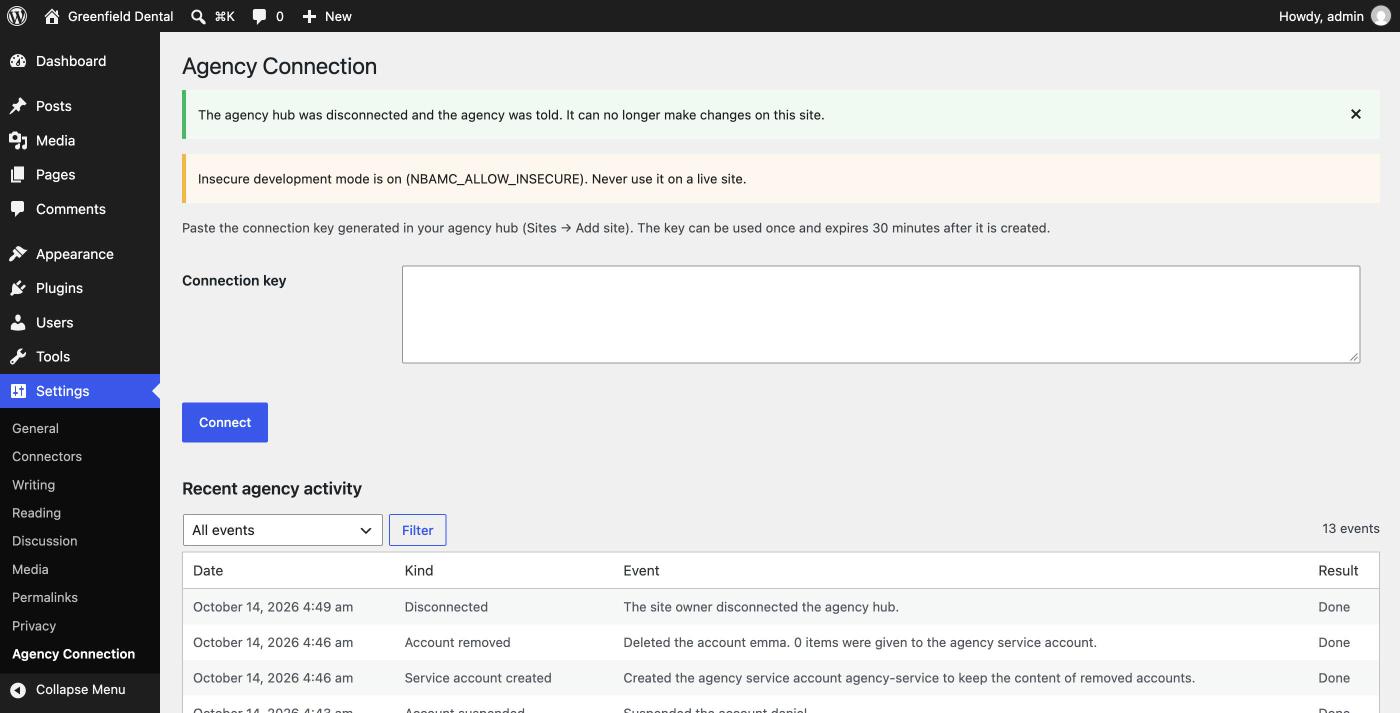
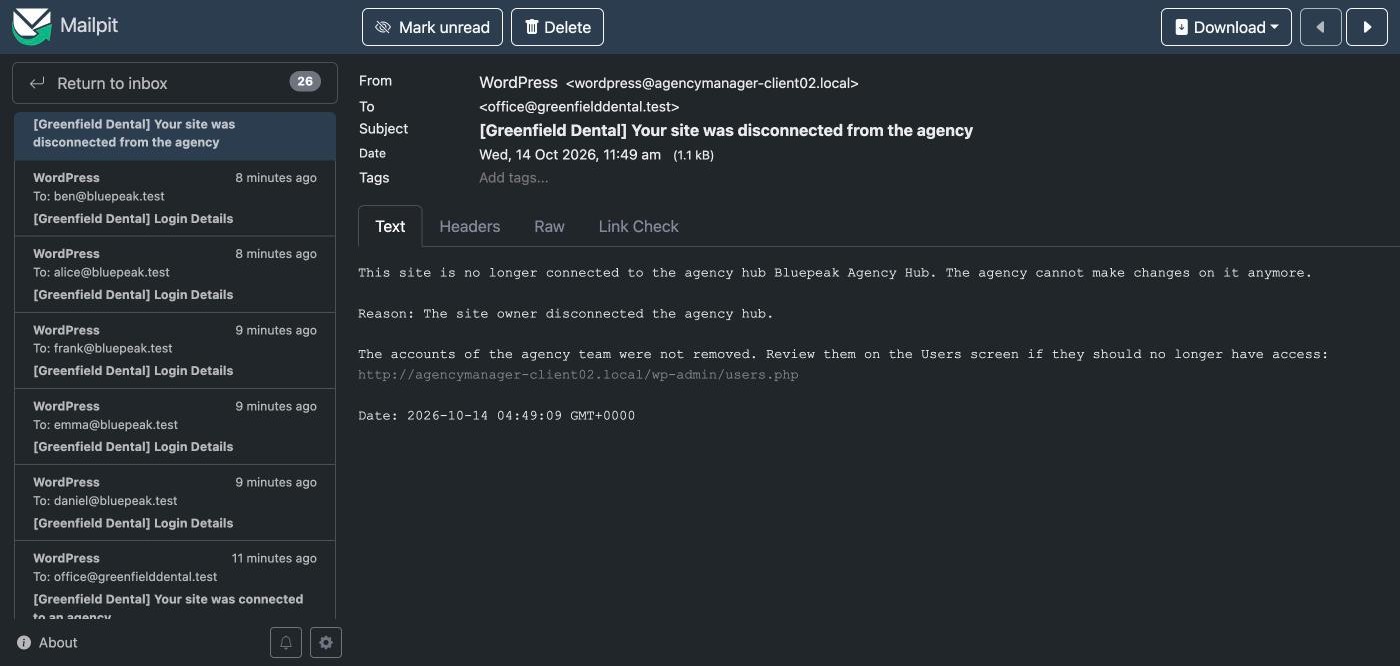
From that moment, the agency can no longer make any change on your site. Your accounts, permission choices and activity list all stay; review Users afterwards to remove or downgrade agency accounts that should no longer have access. You receive "Your site was disconnected from the agency"; to connect again later, just ask the agency for a new key.
6.2 Pausing the agency temporarily
| What you want | How |
|---|---|
| Stop account changes, keep everything else | Untick "Manage agency team accounts" and save. |
| Stop the Hub completely without ending the connection | Add NBAMC_DISABLE to wp-config.php (below). |
| End the connection | Disconnect the agency hub. |
| Stop an agency person signing in at all | In Users, set a new password and change their email, or delete the account. |
The first options only stop the Hub: agency people can still sign in with their own accounts, and administrators among them can still undo your settings. Do not deactivate the plugin as a "pause": it doesn't stop anyone signing in, and it lets accounts the agency suspended sign in again.
6.3 Emergency switch: NBAMC_DISABLE
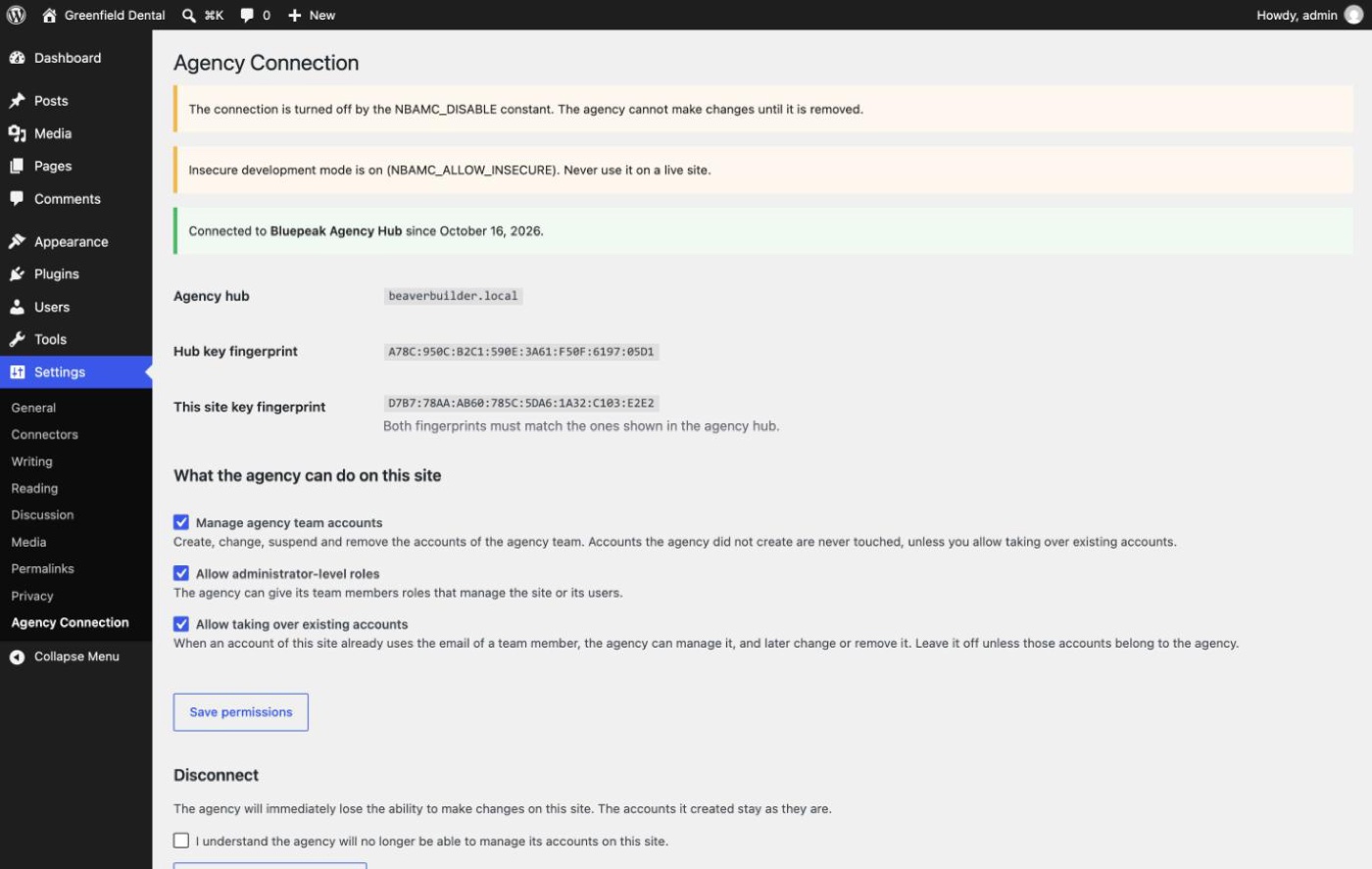
Use it if you cannot reach wp-admin, or want to cut the agency's Hub off immediately without depending on anything else. Add this to your site's wp-config.php, above the line that starts with /* That's all, stop editing!:
define( 'NBAMC_DISABLE', true );If you're not comfortable editing that file yourself, ask your host's support: it's a common request. While the line is there, every agency request is refused, but the connection itself is kept so you can simply delete the line later to resume, without needing a new key.
6.4 If you think the agency's Hub was compromised
- Click Disconnect the agency hub, or if you can't sign in, have
NBAMC_DISABLEadded towp-config.php. - Look at Recent agency activity for anything unexpected.
- Look at Users for administrators you don't know or roles that changed.
- Look at Plugins for anything you don't recognise.
- Change the passwords of your administrator accounts if in doubt.
- Contact your agency.
6.5 Ending the contract with the agency
- Make sure you have your own Administrator account first (ask the agency to create one if theirs is currently the only one).
- Ask the agency to remove its own accounts first, while still connected. Watch Accounts managed by the agency empty itself.
- Disconnect: tick the box, click Disconnect the agency hub.
- Review Users: delete any remaining agency account (giving its content to one of your own accounts), and delete the agency service account the same way, or change its email to one of yours.
- Review what agency administrators could have changed: plugins you don't know, a handover list from the agency.
- Change passwords of your own administrator accounts if agency people may have known them.
- Ask the agency to delete your site from its Hub (it otherwise keeps your administrators' last known logins and emails until then).
If the agency can't or won't remove its accounts first, disconnect and review Users yourself.
6.6 Restoring, moving or renaming your site
A staging copy on a different address is recognised automatically: the plugin turns the agency connection off there, and disconnecting the copy never touches your real site (a copy on the same address needs NBAMC_DISABLE added by hand). Changing your domain (adding or removing www, moving to a new domain) makes the plugin treat the site as a copy too. Disconnect and ask the agency for a new key afterwards. Moving from http:// to https:// on the same address is fine and needs nothing.
Emails
The plugin sends four plain-text emails, through your site's normal email system, to the Administration Email Address (Settings → General). Check that address is yours: if the agency built your site, it may have left its own address there instead.
7.1 Your site was connected to an agency
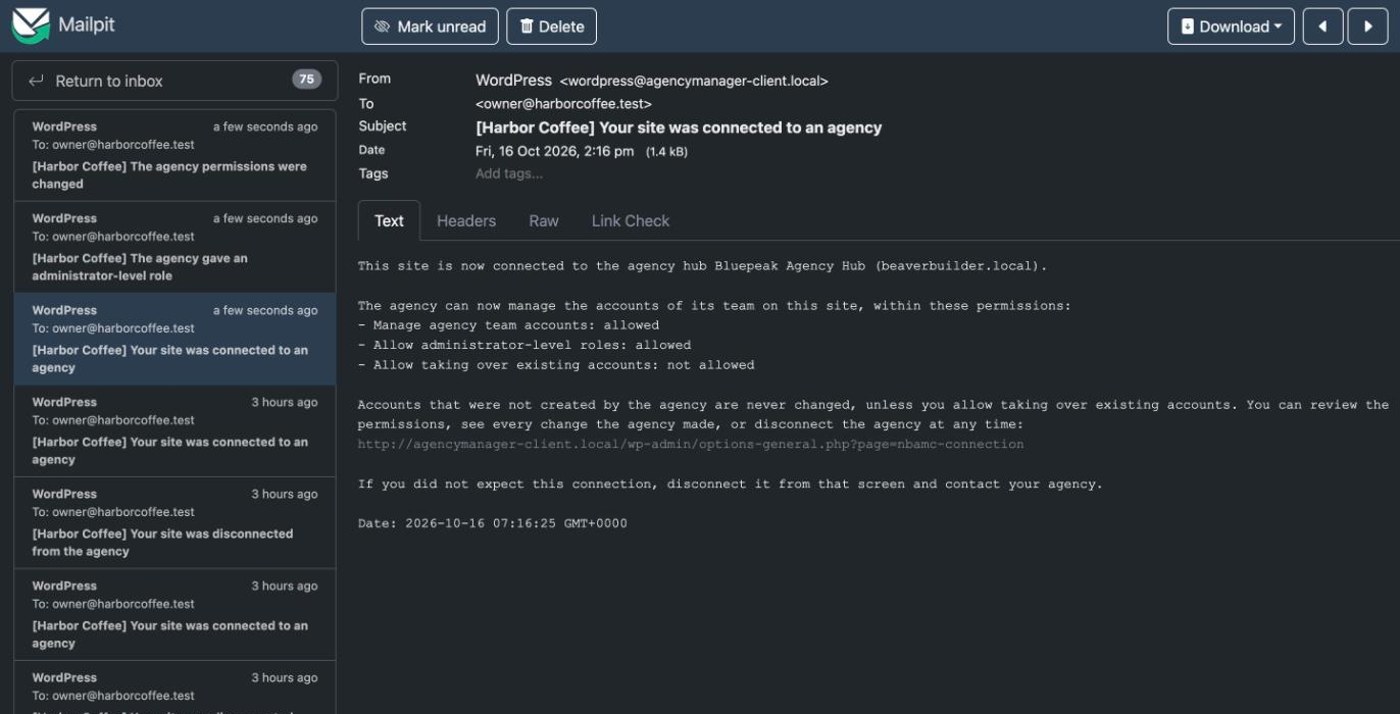
Treat it as a possible break-in until you know who connected it. Don't click the link in the email. Open your site's admin yourself as usual. Call your agency on a number you already know; if they didn't do it, or the Hub name or address isn't theirs, disconnect at once. Disconnecting by mistake does no harm: the agency only needs to send a new key.
7.2 Your site was disconnected from the agency
7.3 The agency gave an administrator-level role
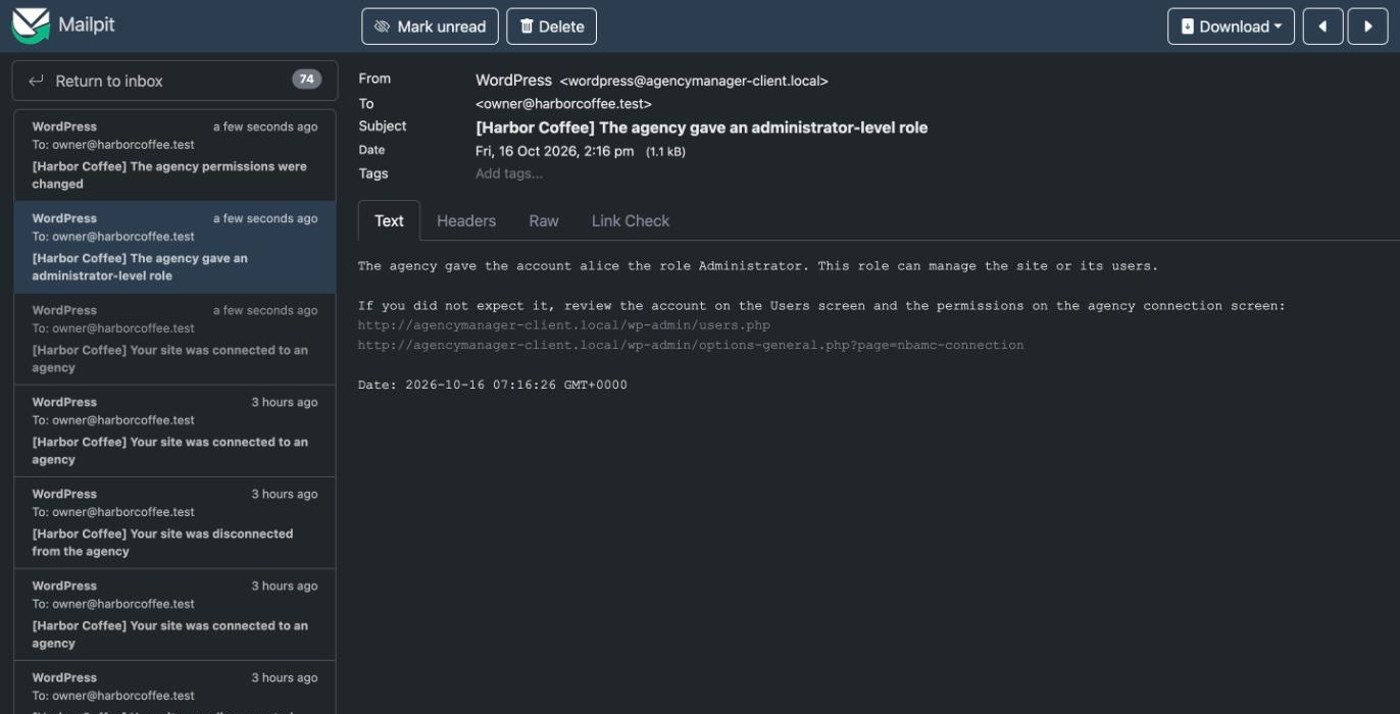
If you agreed the agency's people are administrators, these are expected. Keep them to know who has that access. If you didn't expect one, check the account in Users and consider turning off "Allow administrator-level roles."
7.4 The agency permissions were changed
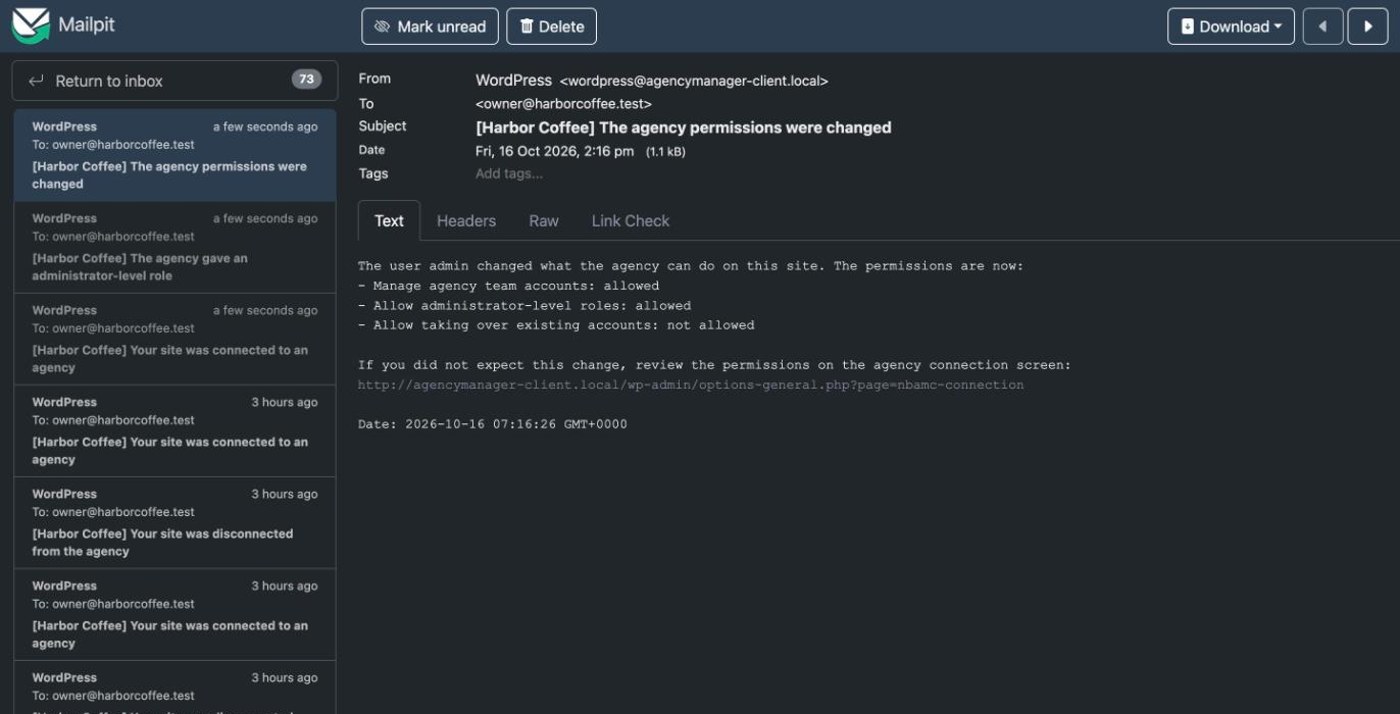
Any administrator of your site, including the agency's own administrators, can change these permissions; this email makes sure a change behind your back never goes unnoticed.
Security
Agency Manager is built around one rule that protects you directly: even if the agency's Hub is ever compromised, the damage to your site must be limited, visible and reversible. The full technical design is documented on the Hub's security chapter; here's what matters from your side as a site owner.
8.1 What protects you
- Your own accounts and your staff's are safe. Through the plugin, the agency can only change accounts it created, or existing ones you explicitly allowed it to take over.
- Your last administrator is never removed through the plugin. Keep your own administrator account anyway.
- Passwords never travel. The agency's Hub never sends, receives or stores any password for your site.
- Every request is signed and short-lived (5 minutes, used once), so a copied or replayed request is rejected.
- You decide the permissions, see every change in Recent agency activity, and can disconnect at any moment.
- You're emailed whenever an agency account gets an administrator-level role, and whenever anyone changes the permissions.
8.2 What it cannot protect against
If the agency gives a team member the Administrator role on your site, that person can do anything any administrator can: install plugins, edit users (including yours), change this very plugin's permissions, or disconnect it. The plugin limits what the agency's Hub can do remotely; it cannot limit what a signed-in administrator does once they're in. If you don't want that exposure, turn off "Allow administrator-level roles." Editor accounts carry real trust too: on a normal WordPress site, an Editor can publish scripts that run in any visitor's browser, administrators included.
8.3 What data is sent to the agency
At every check (usually once a day, only while "Manage agency team accounts" is on), the agency's Hub learns: your WordPress and PHP versions, site name and address, time zone, total user count, and the login, email, role and post count of the agency's own accounts and of your administrators specifically (not your other staff, and never your customers). Never sent: any password, your content, orders, settings, or the accounts of non-administrator staff.
8.4 If you think the agency's Hub was compromised
See the step-by-step response in Disconnecting & emergencies above.
Notes & limitations
This version covers team account management only. A few things worth knowing:
- Staging copies on a different address are recognised and the agency connection turns off there by itself; a copy on the exact same address needs
NBAMC_DISABLEadded by hand. - Disconnecting stops the agency immediately, but leaves its accounts in place. Review Users afterwards.
- Your permission choices survive a disconnection and apply again if you reconnect.
- Deleting the plugin keeps the accounts and only removes the plugin's own markers, settings and activity list.
- Changing your WordPress security keys breaks the connection: the plugin refuses every agency request and warns you; disconnect and connect again with a new key.
- Moving the site to a new address breaks the connection the same way, since the plugin treats the new address as a copy.
- The interface is currently in English only.
A broader list of what this version doesn't cover yet (multisite account management, per-site roles, single sign-on, and more) is on the Hub's notes & limitations page.
Troubleshooting & FAQ
10.1 Common situations
| You see | What it means | What to do |
|---|---|---|
| "Address blocked" in Recent agency activity | At least 10 invalid requests arrived from one address in 10 minutes. | Clears itself after 15 minutes. If it was the agency (for example right after a key change) it recovers on its own; if the address is unknown, it may have been an attack attempt that was stopped. |
| The screen says the plugin "cannot read its private key" | Your WordPress security keys (salts) changed. | Disconnect and ask the agency for a new key. |
| The screen says the site "looks like a copy" | Your site's address changed since it connected: a staging copy, or a real move. | On a copy, nothing to do. After a real move, disconnect and ask for a new key. |
| The agency says its requests are failing on your site | Often an address block, or you added NBAMC_DISABLE on purpose. | Check Recent agency activity for the exact reason. |
| You don't receive the plugin's emails | Wrong Administration Email Address, spam filtering, or your site can't send email at all. | Check Settings → General and your spam folder; if other site emails (like password resets) don't arrive either, ask your host or install an SMTP plugin. |
| You see accounts in Users you don't recognise | Could be legitimate agency accounts, or something to investigate. | Compare against "Accounts managed by the agency" and Recent agency activity. Anything that's neither yours nor the agency's should be treated as a possible break-in. |
10.2 Frequently asked questions
No. As the site owner you only install this Client plugin. The companion Hub plugin lives on your agency's own site; you never need to touch it. Neither plugin does anything without the other being connected.
No. Through this plugin it can only change accounts it created itself, or existing accounts you explicitly allowed it to take over. The last account able to manage your site is always protected, whatever happens.
Not through the plugin: it only manages the agency's team accounts. But an agency person with an Administrator account on your site is a full administrator, like any other: they can install plugins, edit users and change settings, the same as anyone you'd give that role to yourself. Turn off "Allow administrator-level roles" if you don't want the agency to have administrators on your site.
Settings → Agency Connection → tick the confirmation box → Disconnect the agency hub. If you cannot reach the admin, ask your host to add define( 'NBAMC_DISABLE', true ); to wp-config.php. Either way, this stops the agency's Hub immediately; its people can still sign in with their own accounts until you change or delete those accounts yourself in Users.
They stay exactly as they are: disconnecting or deleting the plugin only stops future changes. Review Users afterwards and remove or downgrade the accounts that should no longer have access.
No. It does nothing on public pages. It only runs when the agency's Hub sends a request, and once an hour to clean up old one-time security values.
Glossary
| Administration Email Address | A WordPress setting (Settings → General) with the site's main contact address. The plugin sends its warnings there. |
| Administrator-level role | A role that can manage settings or users, or install/edit/update/delete plugins or themes. Giving one needs your permission and the agency's own password confirmation. |
| Agency hub | The agency's own installation of Agency Manager, where its team and client sites are managed. |
| Connection key | A one-time text starting with nbam1., created by the agency's Hub for your site, valid for 30 minutes. |
| Emergency switch | The line define( 'NBAMC_DISABLE', true ); in your site's wp-config.php. While present, your site refuses every request from the Hub. |
| Fingerprint | A code of eight groups derived from a key, shown on both sides of the connection so you can compare them. |
| Managed account | An account the agency created, or an existing one it was explicitly allowed to take over. Only these can be changed by the agency. |
| Nonce | A random value used once, so a copied request can't be sent again. |
| Permission | One of your three choices on the Agency Connection screen: manage team accounts, allow administrator-level roles, allow taking over existing accounts. |
| Service account | An agency account with the Subscriber role, created the first time an account is removed on your site, to receive its content. |
| Staging copy | A test copy of your site. It carries the connection too; on a different address, the plugin recognises it and turns the agency connection off there. |
| Take over | Turn an existing account that shares a team member's email into a managed account of that member. |
| wp-config.php | WordPress's main configuration file, in your site's main folder on the server. Edited via your hosting panel or SFTP, not from the WordPress admin. |
More terms (job, retire, team, critical action) are in the Hub's glossary.
Developer reference
Plugin slug nubocoder-agency-manager-client, text domain nubocoder-agency-manager-client, PHP namespace Nubocoder\AgencyManagerClient\, prefix nbamc_. Requires WordPress 5.9+ and PHP 7.4+ (no PHP 8 syntax). Uses sodium (bundled with PHP, or sodium_compat shipped with WordPress).
12.1 Constants (wp-config.php)
| Constant | Type | Purpose |
|---|---|---|
NBAMC_DISABLE | bool | Emergency switch. Every route answers a 503 before the signature check. The connection itself is kept. |
NBAMC_ALLOW_INSECURE | bool | Local development only: accepts a Hub on http:// and loopback addresses. Ignored unless wp_get_environment_type() returns local. |
The plugin also defines NBAMC_VERSION, NBAMC_FILE, NBAMC_DIR and NBAMC_URL.
12.2 Filter
nbamc_notification_email( string $email ): recipient of every email the plugin sends. Default: the site's admin_email option. Return an empty string to send none.
add_filter( 'nbamc_notification_email', function ( $email ) {
    return 'it@harborcoffee.com';
} );
12.3 Settings screen
Settings → Agency Connection (options-general.php?page=nbamc-connection), capability manage_options. Forms post to admin-post.php with nbamc_pair, nbamc_pair_confirm (also carries the nbamc_scopes[] permissions), nbamc_pair_cancel, nbamc_scopes and nbamc_disconnect, each with its own nonce.
12.4 REST routes (namespace nubocoder-agency-manager-client/v1)
All routes use the signature check as permission_callback, are hidden from the REST index, and answer with a signed envelope.
| Route | Method | Permissions needed |
|---|---|---|
/status | GET | None |
/users | GET | users |
/users/provision | POST | users (+ users_admin for admin-level roles, + link_accounts to take over an account) |
/users/role | POST | users (+ users_admin) |
/users/suspend | POST | users |
/users/restore | POST | users (+ users_admin) |
/users/remove | POST | users |
/disconnect | POST | None |
Mutating routes are idempotent by request_id: a successful result is stored for 24 hours, and repeating the same request returns it instead of acting again. Errors are not stored, so a retry after fixing the cause runs again.
12.5 Error codes returned in the payload
| Code | HTTP | Meaning |
|---|---|---|
nbamc_scope_denied | 403 | The owner did not grant the needed permission. |
nbamc_link_denied | 403 | Take-over requested, but link_accounts is off. |
nbamc_not_managed | 404 | No managed account for that member. |
nbamc_email_exists | 409 | An account with that email exists and take-over wasn't requested. |
nbamc_last_admin | 409 | The change would leave no account able to manage the site. |
nbamc_unknown_role | 422 | The role doesn't exist on this site. |
Unsigned answers: 401 nbamc_unauthorized for any verification failure, 503 nbamc_disabled for the emergency switch or a copy of the site, and 409 nbamc_key_unreadable when the plugin cannot decrypt its own secret key.
12.6 Data
Options: nbamc_connection (site identity, Hub and client keys, the address the site connected with), nbamc_scopes (the three permissions, kept after disconnecting), nbamc_events (latest 200 activity events). Table {$wpdb->prefix}nbamc_nonces holds used nonces (10-minute expiry, purged hourly). User meta: _nbamc_member (marks a managed account), _nbamc_linked (taken-over flag), _nbamc_suspended (suspension timestamp).
12.7 Activation, deactivation, uninstall
Activation creates the nonce table and sets default permissions. Deactivation keeps the connection, so reactivating resumes it. Uninstall deletes the plugin's options, user meta, nonce table and transients: user accounts and their content are never deleted. The Hub is not notified; disconnect first.
The full signed request/response protocol between this plugin and the Hub is documented on the Hub's developer reference, for developers and security reviewers who want to audit the exchange.
Support
Questions about what this plugin can or cannot do on your site, or about a specific permission choice? Contact the plugin's author at cesar@cesarsiancas.com, or ask your agency directly, since they're the ones who sent you the connection key.
Building or auditing an agency/client integration?
If you need a custom permission, an integration with your own tooling, or a security review of how this plugin fits into your stack, I'm available for that work.
Tell me about your project.
Open to new projects and part-time retainer engagements, in English or Spanish. I reply within one business day. If we're a fit, we'll book a 30-minute call to go deeper.
Email me directly
A short note about your project, your timeline, and what success looks like. The more context, the better.
cesar@cesarsiancas.com Already know what you want?Book a 30-min call
Skip the back-and-forth. Pick a slot in my calendar and we'll talk through scope, timeline, and budget.
calendly.com/zed-1985/30min Hiring through a platform?Find me on Toptal
I'm a vetted Top 3% engineer on Toptal. If your company already has a contract there, we can start within days.
toptal.com/resume/cesar-siancas